

Last updated: September 22, 2026
Chroma subsampling is one of the most important yet least understood signal details when you choose a high-refresh gaming monitor or a creator-focused display. The choice between 4:4:4 vs 4:2:2 chroma subsampling directly affects color fidelity, text sharpness, HDMI and DisplayPort bandwidth use, and whether you can run high resolutions at high refresh rates with full color. As of July 2026, more monitors advertise both formats, so understanding the real trade-offs matters for PC builders, competitive gamers, and content creators alike.
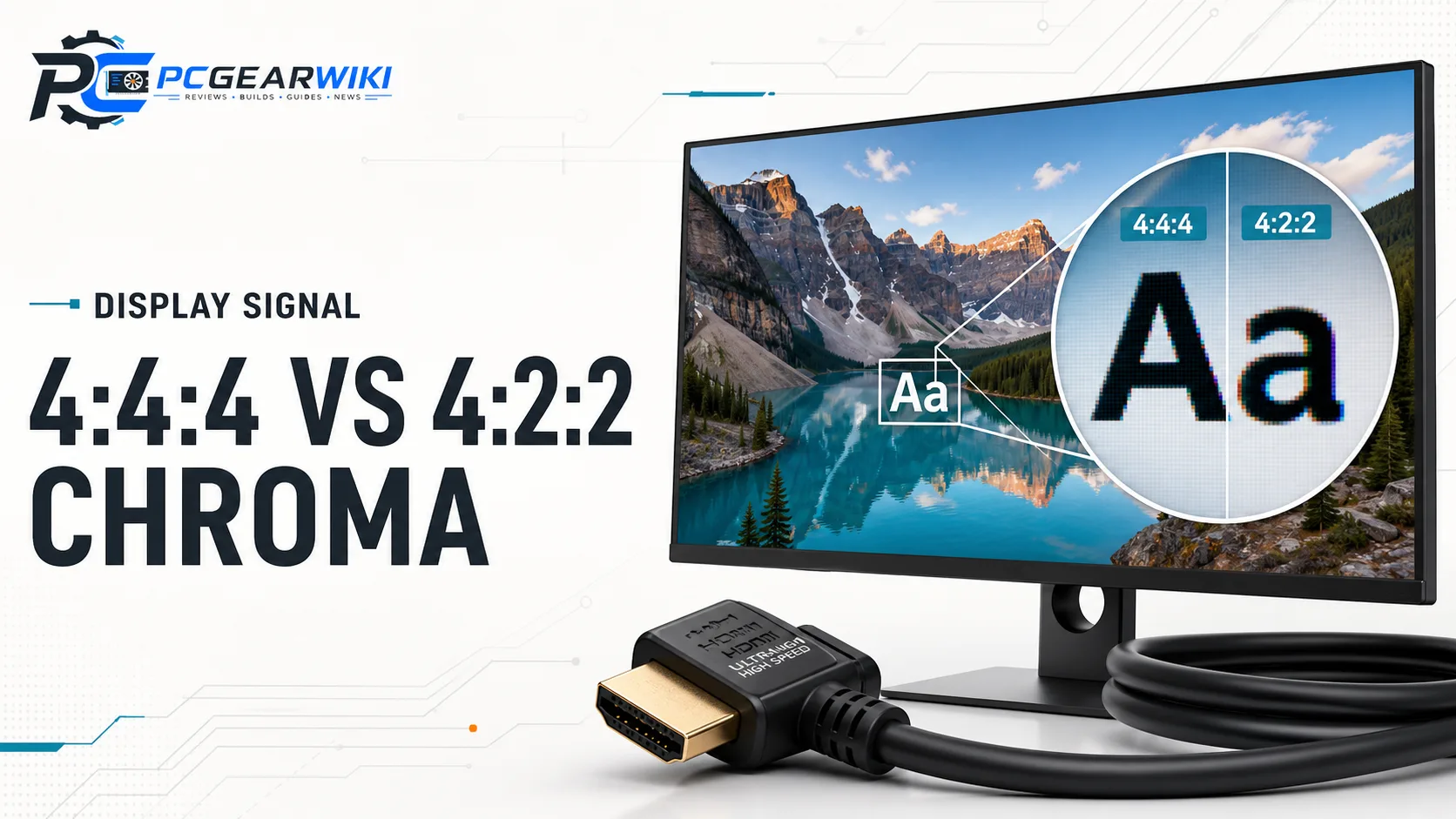
This guide explains what 4:4:4 vs 4:2:2 chroma subsampling means, how each format works, and which one you should prioritize for gaming, productivity, HDR, and video work. We focus on technical standards, connection limits, and practical decision rules rather than product marketing claims. The supplied catalog items do not include display panels that implement these chroma modes, so this article concentrates on clear technology guidance you can apply when evaluating any monitor in the Best Gaming Monitors category.
By the end you will know how chroma sampling interacts with resolution, refresh rate, HDR, and cable standards, plus when 4:2:2 is an acceptable compromise and when 4:4:4 is non-negotiable. We also cover common misconceptions that appear when shoppers compare HDMI 2.0, HDMI 2.1, DisplayPort 1.4, and DisplayPort 2.x bandwidth ceilings.
4:4:4 vs 4:2:2 Chroma Subsampling Explained
Chroma subsampling reduces the amount of color (chroma) information relative to brightness (luma) so that video signals fit within limited interface bandwidth. Human vision is more sensitive to luminance detail than to fine color detail, which is why 4:2:2 and even 4:2:0 remain common in video delivery. On a desktop monitor used for text, UI, spreadsheets, and desktop work, however, full chroma sampling is far more important than it is for movie playback.
What Chroma Subsampling Numbers Mean
The three-number notation describes how many chroma samples are taken for every four luma samples across a block of pixels. 4:4:4 means every pixel carries full luma and full chroma information. 4:2:2 means chroma is sampled at half the horizontal rate while vertical sampling remains full. 4:2:0 (often used for streaming and Blu-ray) reduces chroma both horizontally and vertically.
In practical terms, 4:4:4 preserves the sharpest color edges around text, thin UI lines, and colored icons. 4:2:2 still looks excellent for most full-motion gaming and video, but fine colored text can show slight fringing or softness if you sit close to a high-PPI panel. When a monitor or GPU claims “4K 144 Hz with 4:2:2,” it is usually trading chroma bandwidth so the remaining signal can fit inside the cable’s maximum data rate.
Bandwidth, Resolution, and Refresh Rate Limits
Interface bandwidth is the real reason chroma subsampling appears on gaming monitors. Driving 4K at 144 Hz or 240 Hz with 10-bit or 12-bit color, HDR metadata, and full 4:4:4 quickly exceeds older HDMI 2.0 or DisplayPort 1.2 limits. Even HDMI 2.1 and DisplayPort 1.4 can require Display Stream Compression (DSC) or chroma reduction at the highest combinations of resolution, refresh rate, and bit depth.
If you want 4K 160 Hz or higher with HDR and full RGB 4:4:4, confirm that both the GPU output and the monitor input support the required HDMI 2.1 or DisplayPort version and that DSC is enabled when needed. For 1440p high-refresh gaming, bandwidth pressure is lower, so 4:4:4 is usually available without compromise. Always match the cable rating to the advertised mode; a passive HDMI 2.0 cable will not magically deliver full HDMI 2.1 chroma options.
When shopping for a high-refresh display, cross-check the exact timing tables in the manufacturer’s specifications rather than relying on the marketing headline alone. Many 4K 144 Hz monitors list both 4:4:4 at lower refresh and 4:2:2 at the peak advertised rate. Understanding that split prevents disappointment after purchase. Related panel technology choices are covered in our IPS vs OLED monitor buying guide.
Color Accuracy and Text Clarity Differences
For pure gaming motion, most players will not notice 4:2:2 versus 4:4:4 during fast gameplay. The difference becomes obvious when you open a browser, a code editor, a spreadsheet, or a design tool. Colored text, anti-aliased fonts, and thin UI lines rely on full chroma samples to stay crisp. On 4:2:2, red or blue text against a contrasting background can look slightly blurry or exhibit color fringing.
Creators who grade footage, design UI mockups, or work with color-critical stills should treat 4:4:4 as the default requirement for the desktop signal path. Even if final delivery is 4:2:0, the editing and UI layer benefits from full chroma. Photographers and illustrators who keep reference images open beside a game also prefer 4:4:4 so the desktop side of the screen stays accurate.
Gamers who primarily play full-screen exclusive titles and rarely alt-tab can accept 4:2:2 more easily, especially if it unlocks a higher refresh rate that improves aim and motion clarity. Competitive players on 1080p or 1440p often have enough bandwidth for 4:4:4 at 240 Hz or higher, so the compromise is less common on those resolutions.
HDR, Bit Depth, and Tone Mapping Considerations
HDR modes frequently use 10-bit color. Ten-bit 4:4:4 consumes significantly more bandwidth than 8-bit 4:4:4. That is why some monitors switch to 4:2:2 (or enable DSC) once HDR is activated at the highest refresh rates. The luminance channel still carries the full detail needed for specular highlights, but chroma resolution drops.
For cinematic single-player games, 10-bit 4:2:2 HDR is usually an acceptable and common compromise. For desktop HDR productivity or mixed-use setups where you keep windows open, prioritize a monitor that maintains 4:4:4 in the HDR mode you actually use. You can read more about whether HDR is worthwhile on modern panels in our guide on whether HDR is worth it for gaming monitors.
Also verify that the GPU control panel is set to the correct pixel format (RGB Full or YCbCr) and that the monitor’s info page reports the expected chroma mode. A misconfigured “Limited” range or unexpected YCbCr 4:2:2 conversion can produce washed-out or crushed blacks that users sometimes blame on the panel itself.
Gaming Performance Versus Productivity Workloads
Competitive gamers usually care more about maximum refresh rate, low input lag, and consistent frame pacing than about perfect chroma. If choosing 4:2:2 is the only way to reach 4K 160 Hz or 1440p 360 Hz without stuttering from bandwidth limits, many esports-focused users will take that trade. Motion clarity from higher refresh often outweighs subtle chroma loss during fast gameplay.
Hybrid users who game, stream, and work on the same display should reverse that priority. Desktop readability, Discord overlays, browser tabs, and OBS interfaces all benefit from 4:4:4. In that case, either accept a slightly lower peak refresh rate or choose a monitor whose interface and cable combination can sustain full chroma at your target resolution. Size and density also affect how visible chroma artifacts become; see our 27 inch vs 32 inch monitor buying guide for viewing-distance context.
Console gamers connecting via HDMI face similar rules. Many consoles output 4K 120 Hz with 4:2:2 or 4:2:0 depending on HDR and VRR settings. Confirm both the TV or monitor HDMI port and the console video settings before assuming you have full 4:4:4.
Cable Standards, DSC, and Real-World Compatibility
Display Stream Compression (DSC) is a visually lossless link compression method that allows full 4:4:4 at timings that would otherwise require chroma subsampling. When both source and display support DSC, you can often keep RGB 4:4:4 even at demanding 4K high-refresh HDR modes. Not every GPU, laptop, or dock enables DSC by default, so check the connection path end to end.
HDMI 2.1 FRL modes and DisplayPort UHBR rates determine the raw pipe size. A high-quality certified cable is mandatory; bargain cables that barely meet older specs will fall back to lower modes and force 4:2:2 or reduced refresh. For multi-monitor setups, remember that each additional display multiplies bandwidth demand on the GPU’s total DisplayPort or USB4/Thunderbolt budget.
Laptop users should also check whether the USB-C or Thunderbolt port is wired for full DisplayPort Alt Mode bandwidth. Some thin-and-light machines only expose enough lanes for 4K 60 Hz 4:4:4 or 4K 120 Hz 4:2:2. That limitation is a platform constraint, not a monitor defect.
When to Choose 4:4:4 and When 4:2:2 Is Fine
Choose 4:4:4 when desktop text clarity, color-critical work, UI design, coding, spreadsheets, or mixed windowed gaming matter. Choose 4:2:2 when you need the absolute highest refresh rate at 4K (or higher) and you primarily play full-screen games with HDR. Many users settle on a dual-mode approach: 4:4:4 for daily desktop use and a game-specific profile that allows 4:2:2 or DSC for peak competitive timings.
Never assume the OSD “Game” preset keeps full chroma. Some presets quietly change color format, overdrive, or black equalizer. After any firmware update or GPU driver change, re-verify the current signal info page on the monitor. That five-second check prevents months of slightly soft text that you might otherwise blame on the panel coating or resolution.
| Attribute | 4:4:4 | 4:2:2 |
|---|---|---|
| Chroma sampling | Full horizontal and vertical | Half horizontal, full vertical |
| Text and UI sharpness | Excellent | Good; possible fringing on fine colored text |
| Bandwidth demand | Highest | Lower |
| Typical high-refresh use | Easier at 1440p; harder at 4K without DSC | Common at peak 4K HDR timings |
| Best primary use | Productivity, creation, mixed desktop | Full-screen gaming when bandwidth limited |
| HDR 10-bit practicality | Requires more headroom or DSC | Easier to sustain at high refresh |
Why You Should Trust PCGearWiki
PCGearWiki evaluates display technologies by reading manufacturer timing tables, interface standards documentation, and real-world bandwidth constraints rather than repeating marketing slogans. We separate verified specifications from theoretical maximums and from anecdotal forum claims so you can make a decision that matches your actual cable, GPU, and workload.
Our process emphasizes compatibility checks, feature evaluation, and value assessment across the broader PC ecosystem. When product data does not match the search topic—as with the catalog entries supplied for this page—we state that limitation openly instead of forcing unrelated hardware into awards. Affiliate relationships never change the technical ranking of signal formats or the advice we give about chroma modes.
For more on how we approach hardware research and transparent recommendations, see our methodology overview at PCGearWiki review methodology. We also maintain focused comparisons such as OLED pixel refresh vs panel refresh so you can stack multiple display decisions together.
Final Thoughts
4:4:4 vs 4:2:2 chroma subsampling is not a simple “higher number is always better” decision. Full 4:4:4 is the correct default for desktop productivity, creative work, and any setup where text clarity and color edges matter. 4:2:2 remains a practical and widely used compromise that unlocks higher refresh rates and HDR combinations when interface bandwidth is the limiting factor.
Because the product data supplied for this article does not include eligible gaming monitors or display devices that implement these chroma modes, we do not assign Best Overall, Best Value, or Best Premium product awards here. Instead, use the decision rules above when you evaluate any current monitor: confirm the exact resolution, refresh rate, bit depth, HDR status, and reported chroma format on both the GPU and the display OSD.
If you are building or upgrading a high-refresh setup in 2026, pair this chroma knowledge with a solid understanding of panel type and refresh targets. Our best 144Hz gaming monitor buying guide and the broader Best Gaming Monitors category page will help you apply these signal rules to real shopping shortlists.
Frequently Asked Questions
What is the main difference between 4:4:4 and 4:2:2 chroma subsampling?
4:4:4 samples full color information for every pixel, while 4:2:2 halves the horizontal chroma samples. The result is that 4:4:4 keeps the sharpest text and UI edges, whereas 4:2:2 saves bandwidth and is usually still excellent for full-screen video and gaming motion.
Is 4:2:2 bad for gaming monitors?
No. For pure full-screen gaming, especially at high refresh rates with HDR, 4:2:2 is a common and acceptable trade-off. Problems appear mainly when you spend long hours on desktop text, spreadsheets, or design tools where colored font edges matter.
Do I need 4:4:4 for 1440p high-refresh gaming?
Most 1440p high-refresh combinations leave enough bandwidth for 4:4:4 on modern HDMI and DisplayPort connections. You should still verify the monitor’s timing table, but 1440p is far less likely than 4K to force chroma reduction. Pair this check with refresh-rate guidance from our 144Hz gaming monitor resource.
Does HDR force 4:2:2 on many monitors?
Often yes at the highest refresh rates, because 10-bit HDR multiplies bandwidth needs. Some monitors keep 4:4:4 HDR by enabling DSC; others drop to 4:2:2. Always read the specification footnotes for the exact mode you plan to use daily.
How can I check which chroma format my monitor is using right now?
Open the monitor’s on-screen information or status page while the signal is active; many models list resolution, refresh rate, bit depth, and chroma format. You can also confirm the output format in your GPU control panel and re-test after any driver or cable change to ensure nothing silently switched to 4:2:2.
Add PCGearWiki as a preferred source on Google
Sources and Verification
Research basis: Product identity, dimensions, interfaces, supported features, and warranty terms are checked against available manufacturer documentation and current retailer listings. Price, stock, and aggregate customer ratings can change after publication.
Testing disclosure: Unless this article explicitly states that PCGearWiki performed hands-on testing and describes the test setup, recommendations are research-based editorial evaluations rather than PCGearWiki laboratory measurements. Customer feedback is used to identify recurring ownership patterns, not as proof of technical performance.
Last source review: September 22, 2026. See our Review Methodology, Editorial Policy, and Corrections Policy.


Write Your Review
No reviews yet. Be the first to share your experience!