

Last updated: November 12, 2026
Buy a capture card only if you need a computer in your stream. For a simple Twitch broadcast the console may already be enough. If you need overlays, independent sound sources or local PC recording, choose a card that supports the signal you play on as well as the video you want to record.
PlayStation consoles for GTA 6
As an Amazon Associate I earn from qualifying purchases.
-
PS5 Original
825 GB SSD, built-in disc drive
Keep your original PS5 if it works. For a replacement, check the seller, condition and return terms.
Check price on Amazon -
PS5 Slim
1 TB SSD, disc drive included
Choose this smaller model if you want to keep using compatible game discs and do not need Pro enhancements.
Check price on Amazon -
PS5 Pro
2 TB SSD, disc drive sold separately
Consider the Pro if you want more built-in storage and visual enhancements in supported games.
Check price on Amazon
As an Amazon Associate I earn from qualifying purchases.
Products discussed in this guide
These listings are comparison references, not a guarantee of price or stock. We may earn a commission from qualifying purchases.


Elgato 4K S: choose it for a USB setup
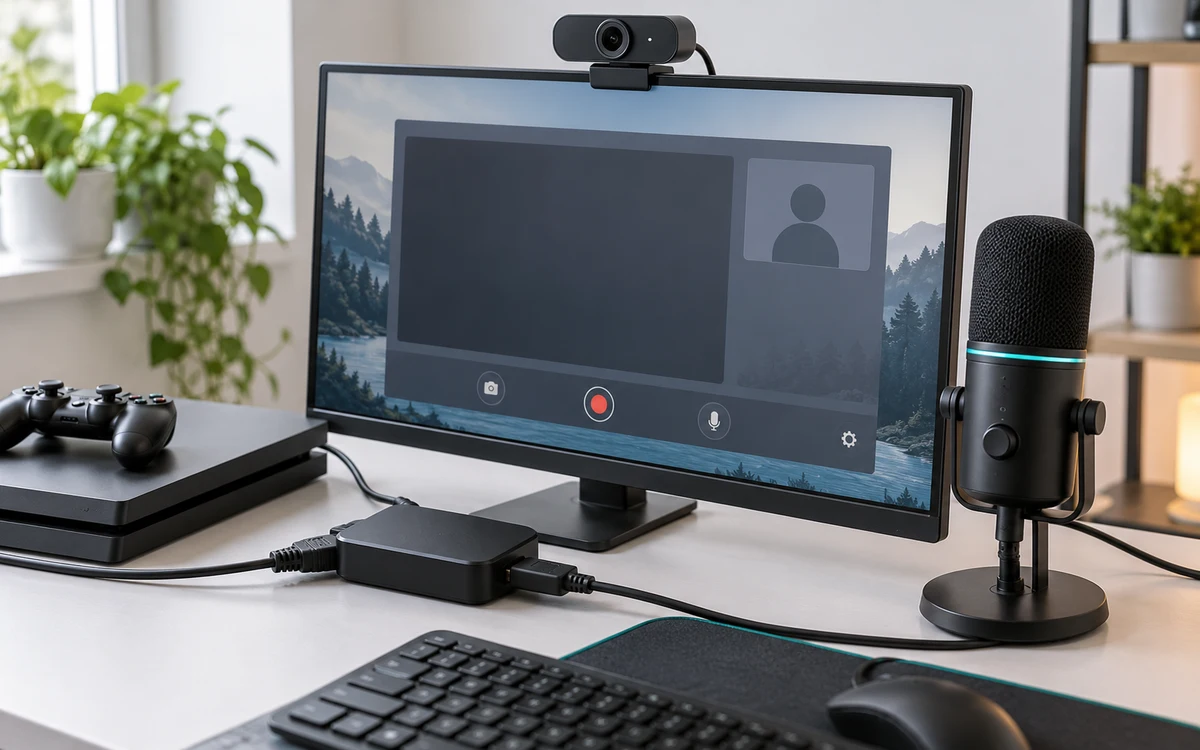
The Elgato Game Capture 4K S is the external option. Elgato lists capture up to 4K60 in supported configurations. Check the mode table for the exact signal you want to pass to your display and capture at the same time. Use an appropriate USB connection directly on your computer for initial testing, rather than assuming a hub or charge-only cable will work.
Elgato 4K Pro: choose it only for a suitable desktop
The Elgato Game Capture 4K Pro is an internal card, not an external USB device. Elgato documents the HDMI connection; confirm motherboard slot requirements, space under the GPU and operating system support before ordering. This is a better candidate when the desktop has a suitable slot and your display setup benefits from the wider passthrough capability. It does not make a 1080p stream higher resolution on its own.
Write down three distinct specifications
- Console output: note your resolution, refresh rate, HDR and VRR settings.
- Passthrough: confirm the card can pass the combination to your monitor or TV over the exact ports in use.
- Capture: confirm what the card and computer can record at that input mode. This can be lower than the passthrough resolution or refresh rate.
Test a familiar game with the planned settings before launch. If the display works directly but not through the card, step down to a stable mode, then add one capability at a time. Check that your USB or PCIe connection and encoder are not the bottleneck before upgrading the display.
Use the OBS wiring and test guide for installation. These are specification-based picks; they do not represent measured GTA VI performance.
Before ordering, decide where the computer and playing screen will sit. Measure both HDMI runs and the USB run if using the external card. A layout that needs awkward cable extensions can cost more and be harder to diagnose than the card alone suggests.
Worked example: a 4K display and a 1080p stream
Suppose you want to play on a 4K TV but send a 1080p stream. The playing display, console and card still have to agree on the console signal. The encoder can produce a 1080p stream independently of what the TV receives. Buying a 1080p capture device without checking its passthrough could restrict your playing display; buying a more expensive capture device just because the display is 4K could also be unnecessary. Write down both targets before comparing the mode tables.
When a capture card can pass a mode but cannot record it in the format you want, decide which side you are willing to change. If your priority is a comfortable playing display, keep passthrough as the deciding factor. If your priority is a recording you plan to edit, check capture resolution, HDR handling and software support first.
Bench-check the setup before the first public stream
- Connect the console directly to the TV and note the working output.
- Install the card, confirm the same output and record a short clip with motion and sound.
- Test again with the microphone and any webcam active. Watch for dropped frames or USB problems that only appear when everything is connected.
- If the screen drops out, restore a stable mode, then check cables, ports and each feature separately. Keep the known-good combination as your fallback.
Add PCGearWiki as a preferred source on Google
Sources and Verification
Research basis: Product identity, dimensions, interfaces, supported features, and warranty terms are checked against available manufacturer documentation and current retailer listings. Price, stock, and aggregate customer ratings can change after publication.
Testing disclosure: Unless this article explicitly states that PCGearWiki performed hands-on testing and describes the test setup, recommendations are research-based editorial evaluations rather than PCGearWiki laboratory measurements. Customer feedback is used to identify recurring ownership patterns, not as proof of technical performance.
Last source review: November 12, 2026. See our Review Methodology, Editorial Policy, and Corrections Policy.


Write Your Review
No reviews yet. Be the first to share your experience!