

Last updated: November 12, 2026
Xbox and PS5 do not have the same Discord video workflow. Discord documents gameplay streaming from Xbox. Sony documents Discord voice chat on PS5; that is not an instruction to broadcast PS5 video to Discord. For PS5 video, a PC capture feed is a separate option.
PlayStation consoles for GTA 6
As an Amazon Associate I earn from qualifying purchases.
-
PS5 Original
825 GB SSD, built-in disc drive
Keep your original PS5 if it works. For a replacement, check the seller, condition and return terms.
Check price on Amazon -
PS5 Slim
1 TB SSD, disc drive included
Choose this smaller model if you want to keep using compatible game discs and do not need Pro enhancements.
Check price on Amazon -
PS5 Pro
2 TB SSD, disc drive sold separately
Consider the Pro if you want more built-in storage and visual enhancements in supported games.
Check price on Amazon
Xbox: share to the right voice channel
- Link the Xbox and Discord accounts and verify you are using the profile that belongs to your server.
- Open Discord from the Xbox guide and join an eligible voice channel. Check who can join it before sharing anything.
- Use the stream option shown in the channel controls. Ask one trusted viewer to confirm they see the game and hear the expected sound.
- Stop the video share before opening account settings, direct messages or other private screens. Leaving a game is not a reliable way to tell who still sees a feed.
PS5: share the capture window, not your whole desktop
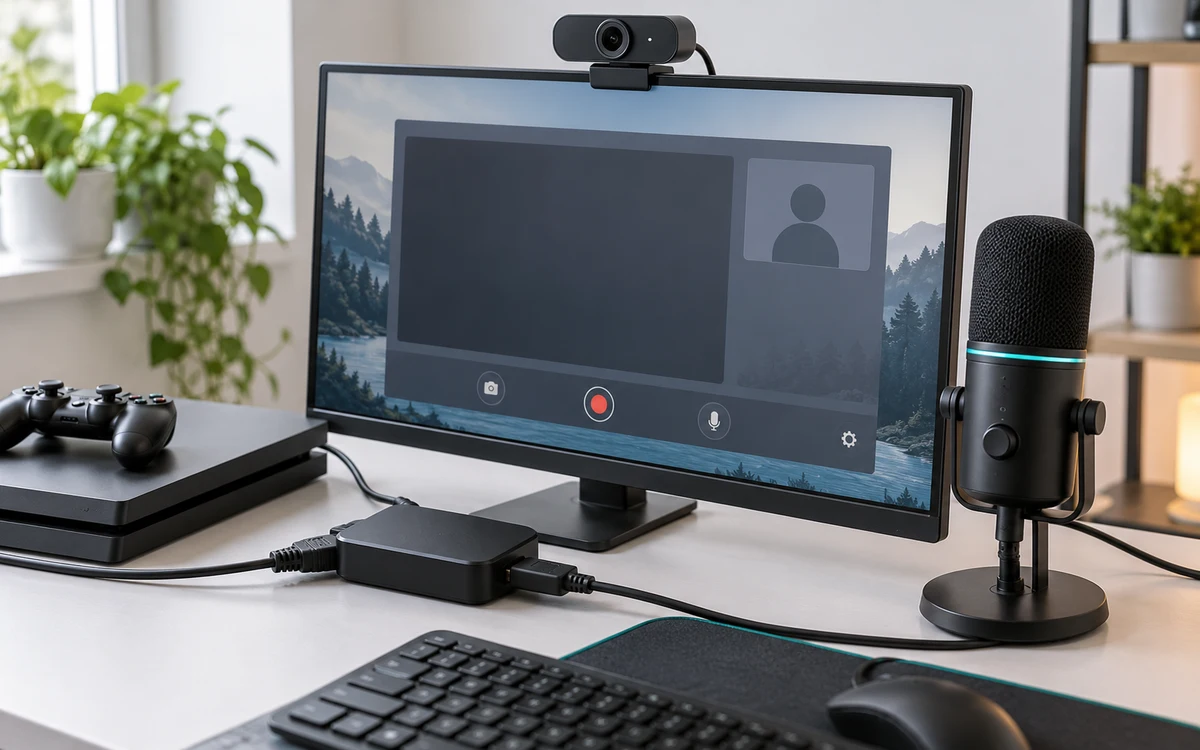
Connect PS5 to a capture card and preview the game in your capture application. On the computer, join the desired Discord call and select the capture application’s window using Discord’s screen share instructions. Use an application and operating system combination that supports the audio you need. A viewer should confirm sound; seeing a preview locally does not prove Discord is transmitting audio.
If friends hear you twice, check whether you joined the same conversation from both console and computer. Choose one microphone route and mute the other. When the capture source is black, use the HDMI capture troubleshooting guide before changing your Discord settings.
Make the first share easy to stop
Start in a small voice channel with someone who can tell you if the picture freezes, the audio echoes or notifications appear. Share only the game window when practical. If your aim is a public broadcast rather than a conversation with friends, choose a dedicated streaming service and test its privacy controls separately.
Voice and video permissions are independent. Being able to hear your friends does not mean you are allowed to share video in their channel.
If the image looks fine to one viewer but freezes for another, compare their connection or playback settings before changing a working capture chain. If everyone sees the same freeze, retest with the console connected directly to the playing display.
Run a one-viewer test before inviting a server
Ask a friend to join the intended voice channel and verify that the game, not a dashboard, is visible. Then have them mute your video share or leave and rejoin so you know the difference between a stream being active and one person merely watching it. Verify audio with their computer or phone, not with your headset alone. If you only want people in that call to see it, check the channel’s permissions before starting.
Separate three common problems
- Xbox has voice but no stream control: Verify the linked accounts, current console software and whether the channel permits streaming. Do not relink accounts repeatedly before checking channel access.
- PC share shows PS5 picture but no game sound: Check whether the capture application plays the game audio locally, then check whether Discord supports sharing audio for that application on your computer.
- The viewer hears two copies of a voice: Mute sources one at a time and check whether the same call audio is coming from a capture feed as well as Discord. Keep only the intended path.
At the end, stop the screen share explicitly and have the viewer confirm that the tile is gone. A video feed and a voice conversation can have separate controls. If you want to keep talking, make sure you are stopping the video, not relying on muting the microphone to hide the screen.


Write Your Review
No reviews yet. Be the first to share your experience!