

Last updated: October 7, 2026
Quick answer: Start with OBS or another recording application when the game runs on the same PC. Use a capture card when you need to bring an external HDMI source into that PC, such as a console, camera, or second computer. A capture card and OBS are not mutually exclusive: the card supplies a video source, while software usually handles scenes, recording, and streaming.
The important distinction is where the video comes from, not whether the setup is called hardware or software. Buying a card will not automatically fix an overloaded encoder, improve microphone quality, or produce a better recording. Work backward from the source, display requirements, and final output before buying anything.
Choose by your recording setup
| Your setup | Start with | Reason |
|---|---|---|
| Game and OBS on one PC | Software capture | No external HDMI input is needed. |
| Console gameplay with PC scenes and commentary | Capture card plus software | The card brings console video into the production PC. |
| Gaming PC and separate streaming PC | Capture card on the streaming PC | The second computer receives the first computer’s video output. |
| Camera with a usable USB webcam mode | Try its supported USB mode first | You may not need another HDMI device. |
| Camera with clean HDMI output | Compatible HDMI capture device | Check the camera’s output mode and power arrangements. |
Capture and encoding are different jobs
In OBS, a capture card is normally added as a Video Capture Device source. It is one input alongside a webcam, game capture, or window capture. Resolution and frame rate must match a supported device mode; selecting a larger number in OBS cannot create a mode the hardware does not support. See the official OBS video capture source documentation.
After receiving inputs, the application assembles a scene and encodes the output for a file or stream. Some specialist devices have onboard recording or encoding, but that is a feature to verify, not an assumption to make about every USB capture card. Check whether the product needs a host application and which codecs, formats, and operating systems it supports.
OBS recommends modern GPU hardware encoders for their performance benefits compared with placing encoding work on the CPU. NVENC, AMD hardware encoding, and Intel Quick Sync are encoder options, not substitutes for a physical HDMI input. A PC can use software capture and a hardware encoder at the same time. Source: OBS hardware encoding guide.
Why a capture card rarely solves single-PC overload
Adding a card to the computer that already runs the game does not move scene rendering or output encoding to another computer. First identify the problem in OBS Stats: rendering lag, encoding lag, or network dropped frames. OBS explains that a heavily loaded GPU can leave insufficient resources for composition, even with a dedicated encoder. Its remedies include reducing game demand and adjusting the recording workload. Source: OBS performance troubleshooting.
Our practical check is to save a short baseline recording, change one setting, and repeat the same game scene. Compare visible quality, recording smoothness, and the relevant Stats counter. Keep the resolution, scene sources, and test duration consistent. This procedure produces evidence for your own setup; it is not a PCGearWiki benchmark or a promised frame-rate improvement.
A dual-PC workflow can move production work to the second computer, but it adds its own audio routing, display configuration, and troubleshooting. Choose it because you need that separation, not because a product listing promises zero impact.
Passthrough is not the same as capture
Write down two separate requirements: what you want to play on the monitor, and what you want to record. For example, a creator may want high-refresh gameplay while publishing a lower-frame-rate video. A card’s HDMI passthrough mode and its USB capture mode can have different limits. Previewing gameplay inside an application is also a different path from viewing the HDMI output on the display.
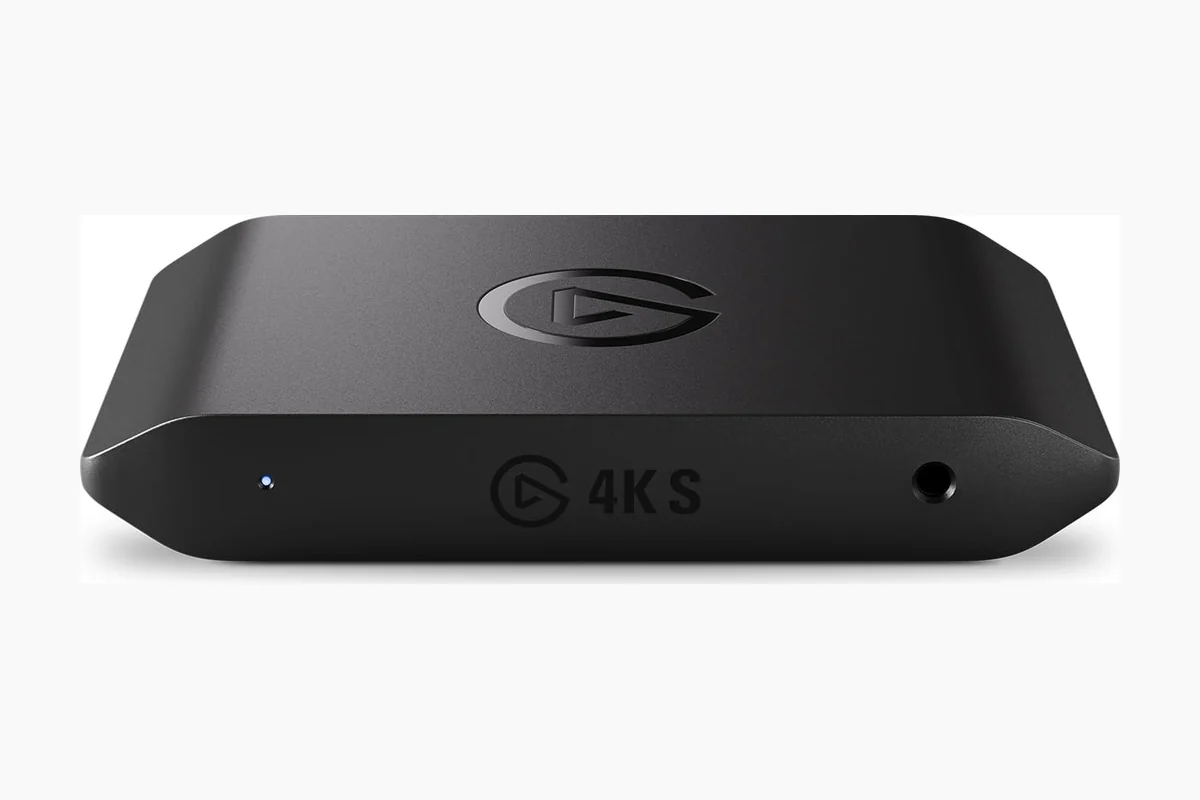
As a separate documented example, Elgato lists HDMI 2.1 input/output and a USB 3.2 Gen 2 10Gbps connection for the 4K X. Its supported modes depend on the signal and capture configuration. Do not transfer those specifications to the 4K S pictured above or assume every USB-C port supplies 10Gbps. Check the official 4K X specifications and the mode table before ordering.
For a more focused explanation, read our capture-card passthrough and preview guide. We do not assign universal millisecond values to every capture card: the device, format, application, and viewing path all matter.
Check compatibility before spending money
- Source: Identify the exact console, camera, or PC output and whether the desired signal is supported.
- Host connection: Check USB speed or PCIe slot requirements, not just connector shape.
- Display path: Confirm resolution, refresh rate, HDR, and VRR support separately for passthrough and capture.
- Software: Confirm host OS, application support, and available video/audio formats.
- Audio: Decide how game audio, microphone, chat, and monitoring will reach the final recording.
- Storage: Reserve enough space for the planned recording quality and duration.
Protected HDMI content may not be capturable. Check the device maker’s instructions for lawful gameplay capture; do not assume a black screen is a faulty card or try to bypass protected movie playback. For camera work, also check clean HDMI availability, overheating behavior, and whether USB webcam mode already meets your needs.
A useful test before committing to a workflow
Make a private sample that includes menu text, fast movement, spoken commentary, and a visible sound event. Review the actual file, not only the application’s preview. Confirm text readability, image scaling, audio synchronization, and whether the monitor remains in the expected display mode. Record the settings you used so the result is reproducible.
If software capture already meets the delivery target, spend the remaining budget on a genuine limitation rather than duplicating capture hardware. If an external source is the missing input, compare our capture-card buying guide. For a complete second-PC setup, use our streaming and recording PC guide.
Frequently asked questions
Do I need a capture card to record PC games?
Usually not when the game and recorder run on one PC. Start with the application’s supported game or window capture method and verify the output before adding hardware.
Does a capture card replace OBS?
Usually no. Many cards provide an input that OBS or another application uses. Standalone recording and onboard encoding are separate features that must be confirmed for the exact device.
Is hardware capture always higher quality?
No. Compare supported formats, scaling, encoder settings, and the resulting file. A high passthrough specification alone does not establish recording quality.
Editorial scope: researched workflow guidance, not hands-on testing or measured latency results. Primary documentation checked October 8, 2026. See our review methodology.
Add PCGearWiki as a preferred source on Google
Sources and Verification
Research basis: Product identity, dimensions, interfaces, supported features, and warranty terms are checked against available manufacturer documentation and current retailer listings. Price, stock, and aggregate customer ratings can change after publication.
Testing disclosure: Unless this article explicitly states that PCGearWiki performed hands-on testing and describes the test setup, recommendations are research-based editorial evaluations rather than PCGearWiki laboratory measurements. Customer feedback is used to identify recurring ownership patterns, not as proof of technical performance.
Last source review: October 7, 2026. See our Review Methodology, Editorial Policy, and Corrections Policy.


Write Your Review
No reviews yet. Be the first to share your experience!