

Last updated: November 12, 2026
Choose the highest PS5 broadcast setting that stays stable during a busy scene, not the highest one the menu offers. A consistent picture and clear speech are more useful to viewers than a sharp stream that stops repeatedly. You can test those priorities in another game before streaming GTA VI.
PlayStation consoles for GTA 6
As an Amazon Associate I earn from qualifying purchases.
-
PS5 Original
825 GB SSD, built-in disc drive
Keep your original PS5 if it works. For a replacement, check the seller, condition and return terms.
Check price on Amazon -
PS5 Slim
1 TB SSD, disc drive included
Choose this smaller model if you want to keep using compatible game discs and do not need Pro enhancements.
Check price on Amazon -
PS5 Pro
2 TB SSD, disc drive sold separately
Consider the Pro if you want more built-in storage and visual enhancements in supported games.
Check price on Amazon
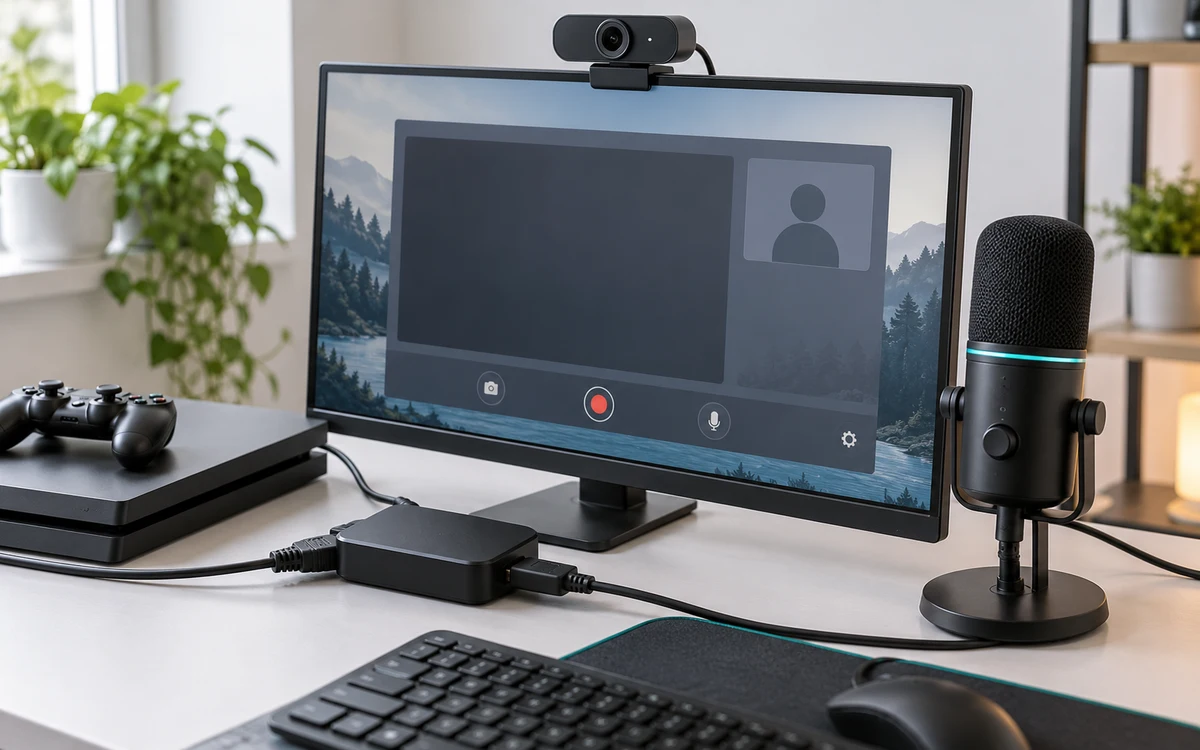
Choose the output for the viewer, not your TV
Review the quality controls for the streaming service in Sony’s broadcast instructions. Pick a conservative quality option first and record the exact setting. Play a sequence with camera pans and motion, then view the stream from another device. If the stream is stable and details are too soft, increase quality one step and repeat. If it stalls at the higher setting, restore the last good one.
Your TV’s HDR, resolution or refresh-rate indicator is not a reading of the broadcast quality. A game can look crisp in front of you while the platform compresses it for viewers. Check both a phone and a larger screen when text and map details matter.
Use an upload test that reflects real use
Try a wired connection if practical. Repeat the same short broadcast when the household network is busy and when it is quiet. A network that looks fast in a brief speed test can still have drops during streaming. If stability changes at busy times, lower the quality one step and retest rather than paying for an accessory before you know the cause.
Set the mic and privacy once, then confirm
- Speak at your normal volume with the game quiet and then loud. Ask a listener which words are lost.
- Check whether your camera or microphone is enabled before every public stream. Keep party audio off until the guests consent and the audio route has been tested.
- Open your channel from a muted second device and verify the live picture. When finished, check that the service has stopped receiving the broadcast.
For linking the service or starting the broadcast, see our PS5 Twitch walkthrough. If you need separate tracks or a scene you can switch to during setup, use a PC encoder rather than looking for a native setting that does not exist.
Pick a quality setting with a repeatable trial
Write down two options from the console’s broadcast menu and run the same test at each setting. Use one scene with fast movement to expose compression and one with spoken dialogue to expose audio imbalance. Check the feed on the kind of screen your audience uses. Keep the option that holds up under movement, remains readable and does not repeatedly drop frames during a realistic household load.
Match the symptom to the next change
| Symptom | Next check |
|---|---|
| The TV is smooth but the stream stutters | Test the upload and lower the broadcast quality before changing the game’s graphics mode. |
| The game looks clear, but subtitles are unreadable on phones | Check the actual playback size and the game’s available text settings. Remove unnecessary overlays if you use a PC capture layout. |
| The mic is audible but dialogue gets buried in louder scenes | Compare the viewer audio during gameplay and lower the game-to-voice balance if your workflow offers that control. |
Keep a note of the last setup that worked, including microphone and camera state. That gives you a safe fallback if a platform update changes the available controls. Before a long broadcast, check the first few minutes again rather than assuming a brief earlier test covers a different room, network load or service.
Add PCGearWiki as a preferred source on Google
Sources and Verification
Research basis: Product identity, dimensions, interfaces, supported features, and warranty terms are checked against available manufacturer documentation and current retailer listings. Price, stock, and aggregate customer ratings can change after publication.
Testing disclosure: Unless this article explicitly states that PCGearWiki performed hands-on testing and describes the test setup, recommendations are research-based editorial evaluations rather than PCGearWiki laboratory measurements. Customer feedback is used to identify recurring ownership patterns, not as proof of technical performance.
Last source review: November 12, 2026. See our Review Methodology, Editorial Policy, and Corrections Policy.


Write Your Review
No reviews yet. Be the first to share your experience!