

Last updated: November 12, 2026
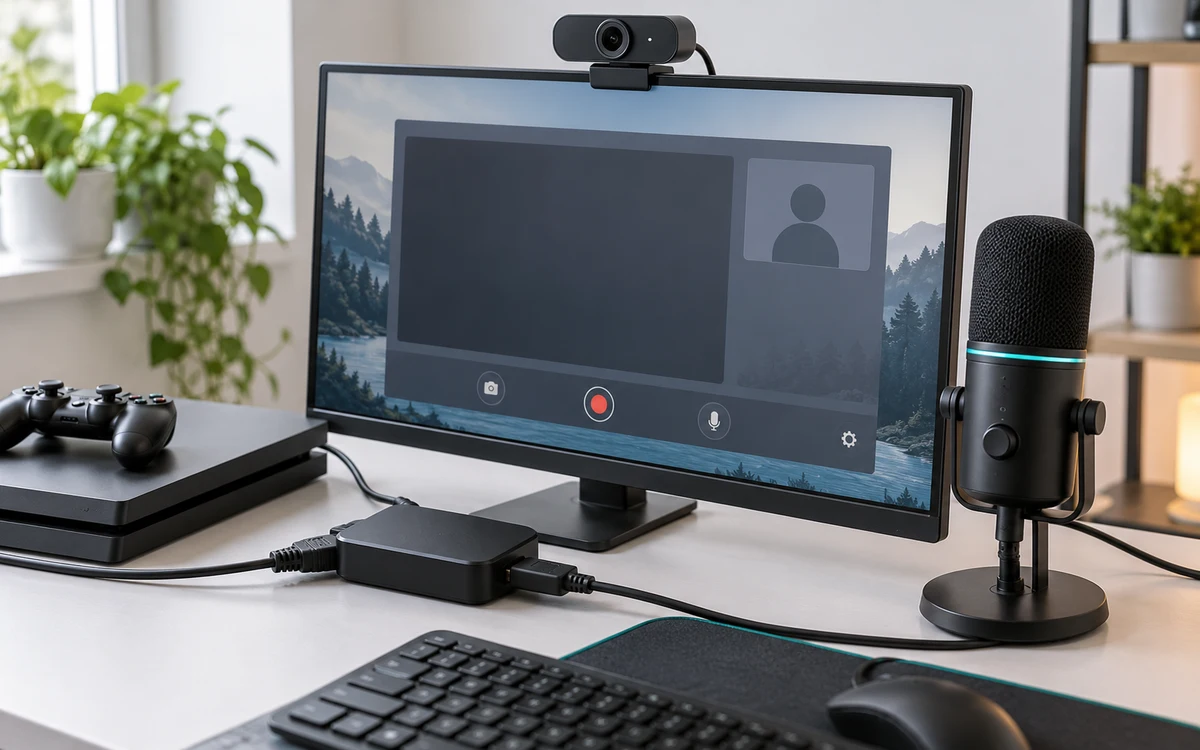
Set up three paths: console video to the card, passthrough to the display, and the capture feed to the computer. Play from the display connected to passthrough, not from the OBS preview, which can add delay. Start with a familiar game and a local recording. There is no reason to troubleshoot both your HDMI signal and your streaming service at once.
PlayStation consoles for GTA 6
As an Amazon Associate I earn from qualifying purchases.
-
PS5 Original
825 GB SSD, built-in disc drive
Keep your original PS5 if it works. For a replacement, check the seller, condition and return terms.
Check price on Amazon -
PS5 Slim
1 TB SSD, disc drive included
Choose this smaller model if you want to keep using compatible game discs and do not need Pro enhancements.
Check price on Amazon -
PS5 Pro
2 TB SSD, disc drive sold separately
Consider the Pro if you want more built-in storage and visual enhancements in supported games.
Check price on Amazon
Get a picture before adding a scene layout
- Test the console directly with the display. Connect the console’s HDMI output to the card’s input, then connect the card’s HDMI output to the playing display. Connect the capture device to a supported port on your computer.
- Open OBS and add the card using the capture source supported on your operating system. Use the OBS video capture guide for source options. Close another capture application if it is already using the same device.
- Start with a resolution and frame rate supported by all devices. Once stable, add higher resolution, HDR or VRR one at a time.
- If PS5 gameplay shows a black picture, check the card vendor’s setup instructions for HDCP and gameplay capture. Do not try to capture protected playback.
Trace problems by which screen works
No picture on either screen usually means the console signal, the cable or the connection order needs attention. A working passthrough with a black preview points toward the capture connection, software or selected mode. If both display a stable picture but the final stream stutters, check the encoder and upload path instead.
Keep game and voice sources identifiable
Name the capture audio and microphone in OBS so you can see which meter responds. Speak while the game is quiet, then let the game play without speaking. If the same sound activates two inputs, check for a duplicate desktop audio or monitoring path. Record a sample, listen on headphones and verify the recording has the tracks you intended to keep.
After the recording looks right, add your service in OBS and rehearse at a quality your connection can maintain. For missing friend voices, see our party audio guide. Buy a new card only after identifying a missing capability in the hardware you already have.
Isolate signal, rendering and upload in that order
| Test | What to change next |
|---|---|
| Direct console to TV | If this fails, check the console, TV input and known-good cable. OBS cannot fix a missing HDMI signal. |
| Card passthrough to TV | If direct works but passthrough fails, check the card’s mode table and the second HDMI cable before replacing the card. |
| Local recording in OBS | If passthrough works but the recording stutters, check the capture connection and OBS rendering or encoding statistics before testing your upload. |
| Viewer output | If the local file is clean but everyone sees stalls, compare upload stability and output settings. If only one viewer has trouble, check playback on another connection. |
Save a baseline before trying HDR or higher refresh
Write down the console output, the capture source format and the OBS canvas and output settings. Save a short local recording using those settings. Then change one option and record the same scene again. If colors wash out when you introduce HDR, check the conversion path to an SDR stream instead of changing the TV picture to compensate. If only the playing display fails after a refresh change, restore the last working passthrough mode.
Keep the simple configuration available for launch day. A stable feed is easier to recover than a complex scene you have never run for more than a few seconds.


Write Your Review
No reviews yet. Be the first to share your experience!