

Last updated: October 2, 2026
Quick answer: Mouse stuttering when using a USB hub occurs when USB endpoint polling faces bandwidth contention, voltage drops, or 2.4 GHz radio frequency interference across shared upstream wiring. To eliminate pointer jitter, connect mice directly to rear motherboard I/O ports or use externally powered, MTT-capable USB hubs placed away from high-throughput storage drives.
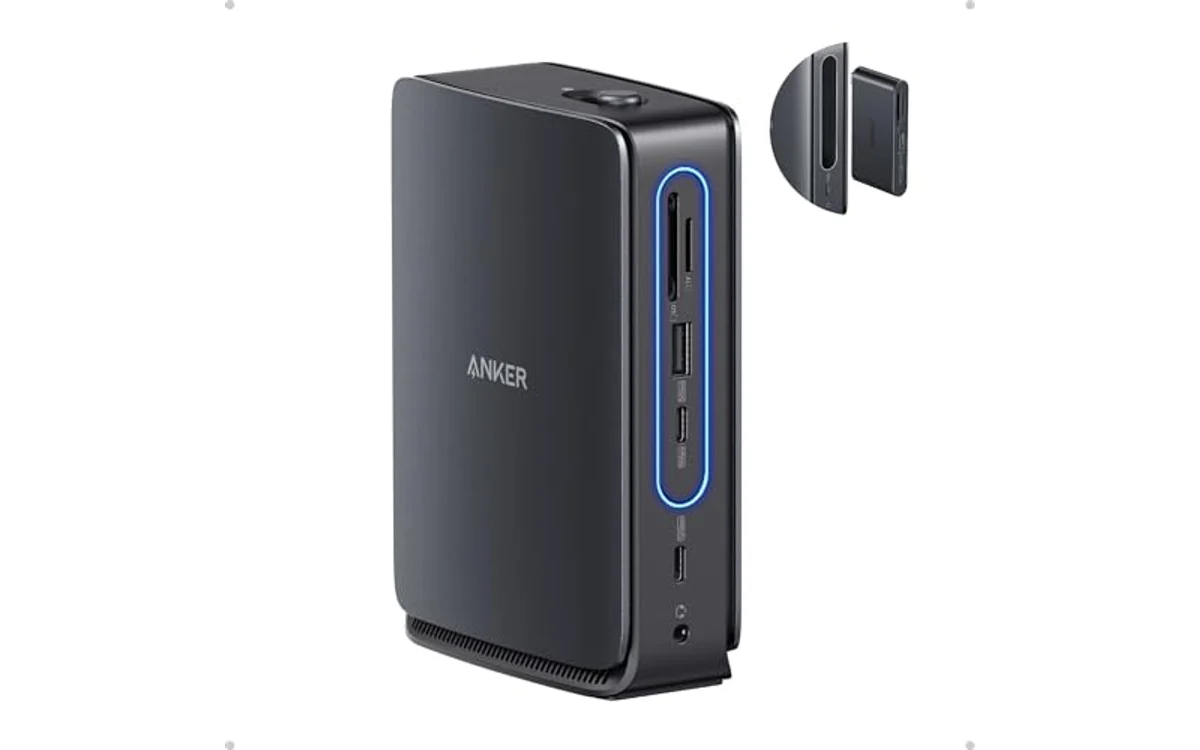
Short answer: Mouse stuttering when using a USB hub describes erratic cursor freezing, packet drops, or input latency spikes caused by shared hub controller queues, insufficient port current, or broadband electrical noise. PC builders and gamers care because erratic packet delivery degrades sensor tracking, ruins competitive gaming responsiveness, and causes severe input lag regardless of high-end mouse polling hardware specifications.
Mouse responsiveness depends on clean power delivery and uninterrupted input packet polling. While multi-port hubs provide convenient desk expansion for mice, keyboards, and flash storage, connecting high-polling input peripherals through shared downstream ports introduces latency bottlenecks. Diagnosing these signal integrity issues ensures reliable system inputs across all everyday productivity and high-performance gaming workloads.
What Is Mouse Stuttering When Using A USB Hub?
Mouse stuttering when using a USB hub is an input transmission error where the operating system temporarily fails to process motion data packets at regular polling intervals. Instead of rendering fluid, continuous cursor travel across the display, the pointer hitches, freezes briefly, skips pixels, or teleports across the desktop interface.
This behavior is fundamentally distinct from low display frame rates, software thermal throttling, or optical sensor tracking failure. When a sensor encounters physical dust or an uneven desk pad, tracking loss occurs locally under the chassis. In contrast, hub-induced stuttering stems entirely from the host controller interface, upstream root hub arbitration, electrical current throttling, or electromagnetic shielding deficiencies within the intermediary hub hardware.
Input devices transmit relative positional changes using USB Human Interface Device (HID) class specifications. Standard mice rely on interrupt transfer endpoints to send data. When this physical transmission pathway becomes congested by other active hardware components or corrupted by electrical noise, the operating system drops report frames, yielding perceptible cursor micro-stutters.
Why Mouse Stuttering When Using A USB Hub Matters
Pointer stability directly governs system navigation, application usability, and fast-paced gaming performance. In fast-paced first-person shooters, tracking micro-hitches cause target acquisition misses, crosshair warping, and inconsistent click latency. Even the most capable optical tracking sensors fail when data fails to reach the root host controller on time.
In productivity workloads such as video editing, CAD design, or digital illustration, cursor hitching ruins precision dragging, anchor point selection, and timeline scrubbing. Attempting to click millimeter-wide UI anchors becomes frustrating when packet queues intermittently hold and release movement coordinates in irregular bursts.
Beyond immediate input lag, hub stuttering serves as an early indicator of critical peripheral subsystem faults. Running multiple high-draw accessories through an unpowered hub can exceed standard 5-volt bus current allowances. This leads to cyclic hardware renegotiations, frequent device disconnect loops, peripheral thermal stress, and operating system device driver crashes.
How Mouse Stuttering When Using A USB Hub Works
To identify the root cause of input drops, PC builders must understand how USB topology processes input transactions. The communication stack involves host controllers, packet transaction queues, power negotiation rails, and radio frequency environments.
USB Endpoint Polling and Controller Bandwidth Contention
USB devices communicate using host-driven polling. A gaming mouse configured for a 1,000 Hz polling rate requires the host controller to query its interrupt endpoint once every millisecond. When using high-speed variants, users can analyze actual packet frequency using tools found in our guide on how to check mouse polling rate to confirm delivery stability.
Unlike native motherboard ports with dedicated physical trace lanes to the chipset root hub, an external hub routes multiple downstream ports into one shared upstream cable. If an unmanaged transaction translator or single transaction translator (STT) hub must arbitrate between high-throughput isochronous data—such as webcams, audio interfaces, or external solid-state drives—and mouse HID interrupt transfers, packet delivery queues become congested. The operating system misses scheduled polling windows, causing visible cursor pauses.
Voltage Drops and Current Starvation
Passive, bus-powered hubs draw all electrical current directly from a single host USB port. A standard motherboard USB 2.0 port delivers 500 mA, while USB 3.0 provides up to 900 mA at 5 volts nominal. When RGB gaming mice, backlit mechanical keyboards, and external drives populate the same hub simultaneously, the cumulative power draw frequently exceeds port supply thresholds.
When current demands outstrip supply, the hub bus voltage drops below the 4.75-volt minimum tolerance. The internal mouse microcontroller and optical sensor enter brownout mitigation states. The mouse briefly shuts down, renegotiates its connection, or drops sensor frame scans, producing intermittent cursor freezing.
2.4 GHz Radio Frequency Interference (RFI)
Connecting a 2.4 GHz wireless mouse receiver dongle to a USB 3.0 hub often triggers severe input stuttering. The USB 3.0 specification uses a 5 Gbps signaling rate, which radiates broadband electrical noise across the 2.4 GHz to 2.5 GHz spectrum directly adjacent to unshielded or poorly shielded connectors.
Because wireless mice transmit on this identical spectrum, this noise floor completely drowns out the wireless dongle’s radio receiver. The mouse drops frames and requires packet retransmissions, as documented in our diagnostic breakdown of how to fix wireless gaming mouse stuttering. This interference occurs whether operating in proprietary RF modes or comparing 2.4GHz vs Bluetooth gaming mouse links.
Key Specifications and Terms
Selecting appropriate USB accessories requires understanding standard interface metrics, power delivery ratings, and hub architecture specifications. The table below outlines core technical terms relevant to hub input stability.
| Specification / Term | Technical Definition | Input Latency & Stutter Impact | Target Hardware Standard |
|---|---|---|---|
| Multiple Transaction Translator (MTT) | Hub architecture providing dedicated translation engines per downstream port for mixed-speed USB devices. | Prevents high-bandwidth devices from blocking USB 2.0 / 1.1 mouse interrupt packets on shared downstream lanes. | Multi-TT USB 2.0 / USB 3.x Hubs |
| Single Transaction Translator (STT) | Hub architecture using a single buffer queue for all connected Low-Speed and Full-Speed endpoints. | High risk of packet dropping and buffer saturation if another device transfers continuous bulk data. | Avoid for high-polling gaming peripherals |
| Bus-Powered Hub | Hub relying entirely on host port electrical current (500 mA for USB 2.0; 900 mA for USB 3.0). | Induces sensor brownouts, RGB flickering, and disconnect loops when total downstream power load exceeds supply. | Self-Powered (Externally Powered) Hub |
| Self-Powered Hub | Hub utilizing an external AC wall adapter to provide dedicated DC current across all downstream ports. | Maintains stable 5.0V bus lines, eliminating power-starvation stutter across illuminated high-draw sensors. | Dedicated 5V/2A+ External Power Supply |
| USB Interrupt Endpoint | USB data transfer mode reserving scheduled bandwidth for periodic polling events at set intervals. | Determines mouse report stability; missed polling intervals manifest directly as visual micro-stuttering. | Host USB Root Controller Direct Polling |
What to Look For When Buying
Choosing the correct expansion hub prevents packet collisions, eliminates power starvation, and protects low-latency input devices from performance degradation. Evaluate these core hardware attributes before purchasing a desk dock or hub:
- Dedicated External Power Delivery: Always select a self-powered hub equipped with an independent AC wall adapter. Providing a minimum of 2.0A to 3.0A of external direct current ensures connected mice, keyboards, and flash drives maintain stable 5-volt rails without drawing host port limit cutoffs.
- Multiple Transaction Translator (MTT) Support: Verify the hub chipset explicitly integrates MTT rather than STT. MTT ensures that older Full-Speed USB HID devices maintain isolated transfer queues when paired alongside modern SuperSpeed storage peripherals.
- Physical Port Spacing and Shielding: Look for hubs built with aluminum housing and grounded metal-shielded connector bays. Adequate physical spacing between ports prevents high-frequency USB 3.0 data bus noise from radiating directly into neighboring 2.4 GHz wireless transceivers.
- USB Specification Separation: Choose hubs featuring isolated USB 2.0 accessory ports alongside USB 3.x data ports. Plugging mice into native USB 2.0 sockets minimizes high-frequency clock harmonic radiation and avoids 2.4 GHz wireless signal blockage.
- Short, Shielded Host Cables: Long upstream cables increase trace resistance and signal attenuation. Pick hubs that use heavily shielded upstream cables measuring 1 meter or less to maintain high packet integrity between the hub and PC motherboard.
Common Mistakes to Avoid
Resolving input latency issues requires avoiding several common hardware assembly and peripheral configuration traps:
- Placing 2.4 GHz Dongles Next to External Storage: Installing a wireless mouse transceiver in an adjacent port directly next to an active USB 3.0 flash drive or external SSD generates extreme radio interference, resulting in severe packet loss and tracking stutters.
- Chaining Multiple Bus-Powered Hubs: Daisy-chaining unpowered hubs splits voltage lines multiple times, sharply increasing latency and dropping voltages far below acceptable peripheral operational limits.
- Running Ultra-High Polling Rates Through Hubs: Operating mice at 4,000 Hz or 8,000 Hz polling rates over a hub floods the shared transaction translator. Users running high-refresh devices covered in our breakdown of the best 8K polling rate gaming mouse should always connect directly to native rear motherboard I/O ports.
- Blaming Mouse DPI for Hub Packet Drops: When the cursor skips across the screen, users often adjust sensitivity settings in Windows. As detailed in our walkthrough on how to change mouse DPI in windows 11, DPI changes the sensor count multiplier, not packet delivery transmission timing over USB cables.
- Relying on Unpowered Display Monitor Hubs: Monitor-integrated USB passthrough hubs connected via long unshielded upstream cables regularly exhibit high packet latency when sharing data traces with display backhaul channels.
Quick Comparison
Peripheral performance shifts noticeably across different connection architectures. The comparison below illustrates typical stability differences across primary connection methods.
| Connection Topology | What It Means | Input Latency & Stutter Risk | Who Should Use It |
|---|---|---|---|
| Direct Rear Motherboard Port | Plugging peripheral directly into native I/O trace lanes wired to the primary motherboard chipset or CPU. | Zero hub queue latency; absolute minimal stutter risk; clean, uninterrupted bus power delivery. | Competitive gamers, high-polling rate mice, precision CAD operators |
| Powered MTT USB Hub | Routing through an externally powered multi-port hub featuring dedicated per-port transaction engines. | Very low stutter risk; consistent 5V power; minor microsecond-level packet buffering overhead. | Streamers and workstation setups managing numerous desktop peripherals |
| Unpowered Bus-Powered Hub | Passive multi-port splitter drawing all electrical current and bandwidth from one host port. | High stutter risk; prone to packet queuing delays, brownouts, and voltage drops under load. | Low-draw office accessories; flash drives and non-critical input devices |
| Monitor USB Passthrough | Internal hub built into display, routing downstream peripherals through a long single USB upstream cable. | Moderate stutter risk; vulnerable to cable length attenuation and internal display power supply noise. | Casual desktop navigation, low-polling general productivity setups |
Related Guides
For more technical breakdowns and troubleshooting strategies on input peripherals, review our comprehensive guides:
- How to fix wireless gaming mouse stuttering
- How to check mouse polling rate
- 2.4GHz vs bluetooth gaming mouse comparison guide
- How to change mouse DPI in windows 11
- Best 8K polling rate gaming mouse under $100
Why You Should Trust PCGearWiki
PCGearWiki provides clear, authoritative hardware analysis grounded in real-world computer engineering fundamentals. Our editorial guides focus on verifiable technical specifications, electrical engineering standards, and documented peripheral communication protocols rather than marketing hype or unverified claims. We break down complex interface challenges—from USB packet transaction routing to radio frequency interference—to help enthusiasts and everyday PC users build stable, dependable computing environments.
We consult manufacturer technical sheets, interface compliance documentation from the USB Implementers Forum (USB-IF), and established electrical standards to ensure every troubleshooting recommendation is safe, accurate, and practical. Learn more about our testing criteria, editorial transparency, and research standards by reviewing our How We Evaluate Products methodology.
Final Thoughts
Mouse stuttering when using a USB hub is an avoidable hardware interface breakdown caused by packet congestion, voltage instability, or radio frequency interference. While hubs provide desktop expansion, high-performance input devices require clean electrical rails and scheduled polling access. For optimal responsiveness, connect your mouse to a dedicated rear motherboard port, or select an externally powered hub equipped with Multiple Transaction Translators and proper shielding.
Frequently Asked Questions
Why does my wireless mouse stutter only when plugged into a USB 3.0 hub?
USB 3.0 ports radiate broadband electrical noise across the 2.4 GHz spectrum during active high-speed signaling. When a 2.4 GHz wireless mouse receiver sits directly inside a USB 3.0 hub port, this interference drowns out the wireless signal. Use an extension cable to position the receiver 6 to 12 inches away from USB 3.0 ports.
Can a powered USB hub fix mouse stuttering?
Yes, an externally powered USB hub eliminates stuttering caused by voltage drops and electrical current starvation. Because the hub supplies independent DC power via an external wall adapter, illuminated gaming sensors and high-polling microcontrollers maintain steady 5.0-volt operational rails regardless of how many other peripherals draw bus current.
Does mouse polling rate cause USB hub stuttering?
Yes. Mice polling at 1,000 Hz, 4,000 Hz, or 8,000 Hz send hundreds to thousands of interrupt packets every millisecond. On a hub using a Single Transaction Translator, these frequent interrupt requests choke shared internal data queues. High-polling mice should always be connected directly to motherboard I/O ports.
Will connecting a keyboard and mouse to the same hub cause input lag?
A standard keyboard and mouse sharing an MTT-equipped hub operate smoothly because their combined bandwidth consumption remains negligible. However, if that same hub also transfers high-speed data from external hard drives or webcams, packet arbitration can delay mouse input updates, producing cursor stutter.
Sources and Verification
Research basis: Product identity, dimensions, interfaces, supported features, and warranty terms are checked against available manufacturer documentation and current retailer listings. Price, stock, and aggregate customer ratings can change after publication.
Testing disclosure: Unless this article explicitly states that PCGearWiki performed hands-on testing and describes the test setup, recommendations are research-based editorial evaluations rather than PCGearWiki laboratory measurements. Customer feedback is used to identify recurring ownership patterns, not as proof of technical performance.
Last source review: October 2, 2026. See our Review Methodology, Editorial Policy, and Corrections Policy.


Write Your Review
No reviews yet. Be the first to share your experience!