

Last updated: September 22, 2026
Quick answer: Monitor ghosting is a visible trail behind moving objects because pixels change too slowly. Inverse ghosting, also called overshoot or coronas, happens when an aggressive response-time setting drives pixels past their intended color, creating bright or dark halos. Ghosting means the display is too slow; inverse ghosting usually means its overdrive is too strong.
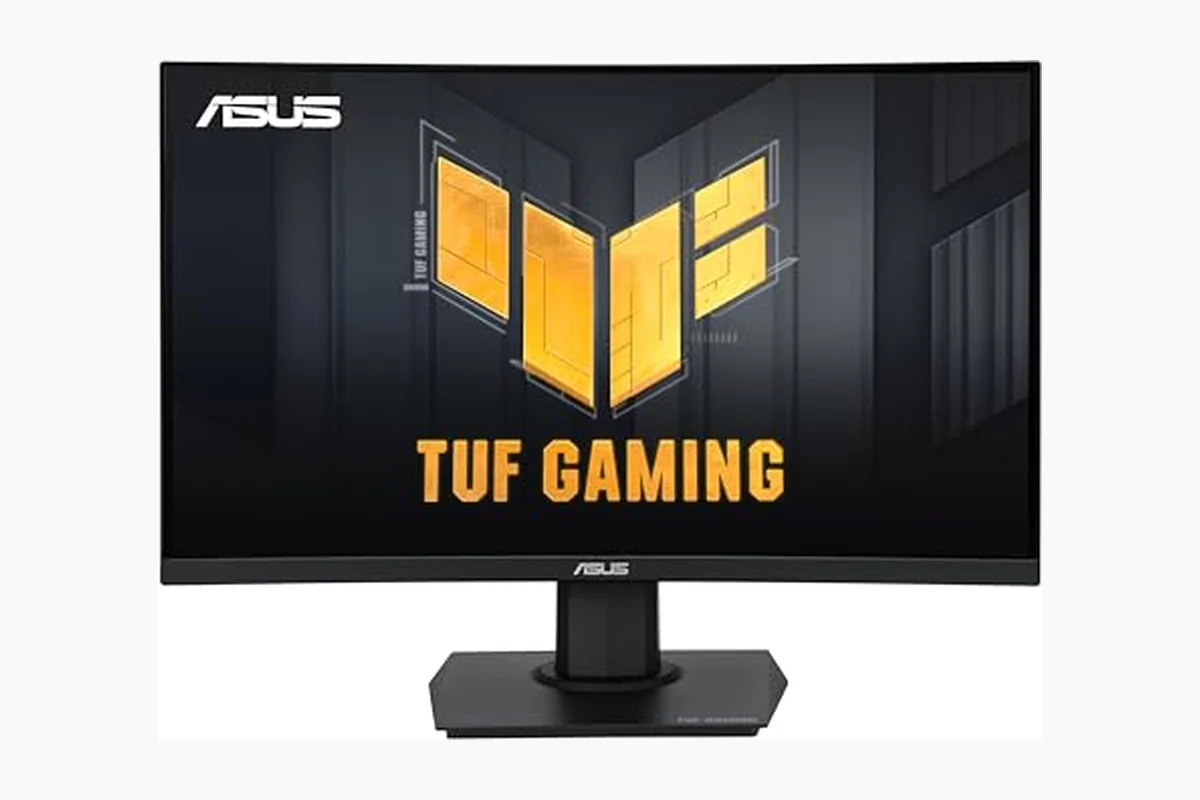
This monitor ghosting vs inverse ghosting explainer is part of the Monitor Reviews category and is intended to help PC users understand motion artifacts before changing settings or choosing an upgrade in August 2026. The distinction matters because a monitor’s advertised refresh rate does not, by itself, guarantee clean motion.
What Is Monitor Ghosting Vs Inverse Ghosting?
Monitor ghosting and inverse ghosting are two different motion-clarity problems caused by the relationship between refresh rate, pixel response time, and the monitor’s overdrive setting. A display refreshes the image repeatedly, while its pixels must change from one color or brightness level to another. If that transition is poorly controlled, moving objects can leave trails or edge artifacts.
Monitor ghosting
Standard ghosting occurs when a pixel transition takes long enough that the previous image remains partially visible during the next refresh. In a game, a moving character, vehicle, or crosshair may appear to have a soft shadow behind it. Dark transitions can be especially problematic on some liquid-crystal display panels because the pixel may respond differently depending on the starting and ending shades.
Inverse ghosting
Inverse ghosting occurs when the monitor uses excessive overdrive. Overdrive applies additional voltage to accelerate a pixel transition, but too much acceleration can make the pixel temporarily exceed its target value before settling. The result is often a bright outline, dark halo, or sharply colored artifact on the opposite side of a moving object.
These artifacts are not the same as screen tearing. Tearing happens when the display shows parts of multiple frames at once because frame delivery and refresh timing are not synchronized. Ghosting and inverse ghosting are pixel-transition behaviors, although all three can affect perceived motion quality.
Why Monitor Ghosting Vs Inverse Ghosting Matters
The difference matters because the best setting is a balance, not the fastest setting shown in the monitor menu. A low overdrive mode may reduce inverse ghosting but leave ordinary smearing visible. The highest mode may make the pixel transition look faster in a specification or response-time test while introducing distracting overshoot in actual scenes.
Gaming is where the difference is easiest to notice. Fast camera movement, strafing, scrolling, and high-contrast edges expose motion artifacts. Competitive players may prefer a clean, moderate setting that preserves the shape of moving targets. A slower-paced game may make mild ghosting less noticeable, while inverse ghosting can remain visible as a distinct bright or dark outline.
Productivity use can also reveal the problem. Scrolling dark text on a light page may produce a soft trail, and moving windows or spreadsheets can show colored edges. Ghosting is usually less important for static office work, photo editing, or document reading, but it can still affect comfort when the screen is frequently scrolled.
Refresh rate changes the timing available for each frame. At 60 hertz, one refresh interval lasts about 16.7 milliseconds. At 144 hertz, it lasts about 6.9 milliseconds, and at 240 hertz it lasts about 4.2 milliseconds. These intervals are not complete measurements of pixel response, but they explain why a high-refresh-rate monitor needs sufficiently consistent transitions to display motion cleanly.
Compatibility also matters. A monitor may perform differently at different refresh rates, with variable refresh rate enabled, or when its frame rate drops below its maximum. Overdrive is often tuned for a particular refresh range, so a mode that looks clean at the panel’s maximum refresh rate may cause more overshoot at a lower refresh rate.
How Monitor Ghosting Vs Inverse Ghosting Works
1. The graphics card sends a new frame
The graphics processing unit (GPU) renders a frame and sends it to the monitor through an interface such as DisplayPort or High-Definition Multimedia Interface (HDMI). The monitor receives the frame according to the active refresh and synchronization settings. Interface bandwidth determines whether the selected resolution, color format, and refresh rate can be transmitted, but bandwidth does not directly eliminate pixel ghosting.
2. The monitor begins a pixel transition
Each pixel must change its red, green, and blue components to represent the new frame. The time required depends on the panel technology, the particular color transition, temperature, refresh mode, and the monitor’s processing. A single advertised response-time figure cannot describe every transition equally well.
3. Overdrive adjusts the transition
Overdrive, sometimes labeled response time in an on-screen display, attempts to shorten the transition by briefly applying a stronger drive signal. When the setting is well balanced, it can reduce visible trailing. When it is too weak, ordinary ghosting remains. When it is too strong, the pixel overshoots the target and creates inverse ghosting.
4. The viewer sees the combined result
Perceived motion clarity depends on more than response time. Refresh rate, frame rate, sample-and-hold behavior, backlight operation, synchronization, viewing conditions, and the scene itself all contribute. A monitor can have a high refresh-rate specification and still show poor motion if its transitions are uneven or its strongest overdrive mode is badly tuned.
Panel type provides useful context but is not a complete verdict. Twisted nematic (TN), in-plane switching (IPS), and vertical alignment (VA) panels can all show motion artifacts, although their transition behavior differs. OLED panels use self-emissive pixels and generally have different response characteristics, but their motion presentation can still be affected by refresh behavior, processing, and display settings.
For a deeper look at measurement methods and their limits, see how to test monitor response time. Response time is relevant to ghosting, but it should not be confused with input lag. Input lag describes how long the monitor takes to display an already processed input, while response time describes how quickly pixels change state.
What to Look For When Buying
When comparing monitors, treat ghosting performance as a behavior to verify rather than a single number to accept. The following checks provide a more reliable buying process:
- Check response-time behavior across transitions: Look for evidence that covers multiple color transitions instead of relying only on a best-case gray-to-gray figure.
- Read overdrive information: A monitor with several response-time modes gives you more control, but the fastest mode is not automatically the cleanest.
- Check performance at your intended refresh rate: A display used at 144 hertz should be assessed at 144 hertz, not only at a lower or maximum setting.
- Consider variable refresh rate: FreeSync or G-SYNC-compatible operation can change the refresh range and may alter which overdrive setting looks best as frame rates move.
- Look for independent motion testing: Test patterns and moving images can reveal ordinary trailing, overshoot, and color-specific weaknesses that specifications omit.
- Match the panel to the workload: Competitive gaming places greater emphasis on consistent motion clarity, while office and general-purpose use may place more value on text quality, contrast, ergonomics, and image consistency.
- Confirm the connection can support the target mode: DisplayPort or HDMI version, resolution, color depth, and refresh rate can impose limits. For example, see this guide to whether DisplayPort supports 240Hz.
After installation, begin with the monitor’s middle overdrive setting. Compare a moving test pattern, fast game camera movement, or scrolling text at your normal refresh rate. If the image has a broad, soft trail, increase overdrive one step. If edges develop bright or dark halos, reduce it. The correct mode is the one with the best overall balance, not necessarily the one with the most aggressive name.
Common Mistakes to Avoid
- Assuming a higher refresh rate eliminates ghosting: More frequent refreshes reduce the time available for each frame, but they do not guarantee that every pixel transition is fast or consistent enough.
- Choosing the fastest overdrive mode: The strongest setting may reduce ordinary trailing while producing obvious inverse ghosting. Faster is not always clearer.
- Confusing ghosting with input lag: Ghosting is a motion artifact caused by pixel behavior. Input lag is a delay between a signal or action and the displayed result. Adjusting overdrive does not directly fix input lag.
- Using one setting for every refresh rate: Overdrive behavior can change when the refresh rate changes, particularly with variable refresh rate enabled.
- Blaming the cable for every motion problem: A cable or interface can cause signal loss, flicker, or limitations on resolution and refresh rate. It does not normally create the pixel trails associated with ghosting.
- Relying only on the manufacturer’s response-time claim: Published response times may represent selected conditions or specific transitions. They should be treated as specifications, not a complete description of real-world motion quality.
Quick Comparison
| Term | What It Means | Why It Matters | Who Should Care |
|---|---|---|---|
| Monitor ghosting | Pixels change too slowly, leaving a soft trail behind moving content. | Reduces motion clarity and can make fast scenes look smeared. | Anyone who frequently games, scrolls, or watches fast motion. |
| Inverse ghosting | Pixels overshoot their target because overdrive is too aggressive. | Creates bright, dark, or colored halos around moving objects. | Users who select the fastest response-time mode or use variable refresh rate. |
| Overdrive | A monitor feature that accelerates pixel transitions. | Can reduce ghosting when balanced, but can cause overshoot when excessive. | Anyone adjusting a gaming monitor’s response-time setting. |
| Refresh rate | How often the monitor can refresh the image, measured in hertz. | Sets the frame-time target but does not guarantee clean pixel transitions. | Buyers comparing high-refresh displays and GPU performance. |
| Input lag | The display delay before a signal appears on screen. | Affects responsiveness but is separate from ghosting. | Competitive players and users troubleshooting control delay. |
Related Guides
For the next steps, read gaming monitor overdrive settings explained to learn how response-time controls work, or use the Response Time Vs Input Lag Buying Guide for to separate pixel speed from display responsiveness. The broader Best Gaming Monitor: 9 Top Picks and Buying Guide also provides context for evaluating refresh rate, panel type, and other monitor specifications together.
Why You Should Trust PCGearWiki
PCGearWiki approaches monitor specifications as technical information that needs context. An advertised response time, refresh rate, or synchronization feature is considered alongside compatibility limits, panel behavior, measurement conditions, and the workload that matters to the reader.
The goal is transparent education rather than automatic product praise. Recommendations should follow verifiable specifications and practical trade-offs, while measured performance should only be described when appropriate testing evidence is available. That approach helps readers make decisions based on how a monitor will actually be used.
Final Thoughts
Monitor ghosting means pixels are not changing quickly or consistently enough, while inverse ghosting means overdrive has pushed the transition too far. Both can appear on high-refresh monitors, and neither is solved simply by selecting the highest response-time mode. For a practical decision, compare motion at your intended refresh rate, test several overdrive levels, and choose the cleanest balance without visible halos.
Frequently Asked Questions
Is inverse ghosting worse than normal ghosting?
Neither is universally worse. Normal ghosting produces soft trailing, while inverse ghosting produces sharper bright, dark, or colored outlines. The more distracting problem depends on the scene, the monitor, and the viewer. Reducing overdrive can limit inverse ghosting, but it may allow more ordinary ghosting to return.
Can a higher refresh rate fix monitor ghosting?
No. A higher refresh rate provides shorter frame intervals and can improve motion smoothness when the GPU supplies suitable frame rates, but it does not guarantee faster pixel transitions. The panel’s response behavior and overdrive tuning still determine whether trails or overshoot appear.
Does turning overdrive off remove inverse ghosting?
Turning overdrive off can remove or reduce overshoot, but it may increase standard ghosting because pixels no longer receive acceleration. A low or medium setting is often a better compromise than either the maximum or completely disabled mode.
Can a bad DisplayPort or HDMI cable cause ghosting?
A cable that cannot reliably carry the selected signal can cause flicker, dropouts, image corruption, or an inability to select the desired refresh rate. The soft trails and halos associated with monitor ghosting and inverse ghosting usually come from pixel response and overdrive behavior rather than the cable.
How can I tell whether my monitor has ghosting or inverse ghosting?
Display a moving test pattern or move the camera through a high-contrast game scene at your normal refresh rate. A soft, smeared trail suggests ordinary ghosting. A bright, dark, or strongly colored edge that appears around the moving object suggests inverse ghosting. Change overdrive one level at a time to compare the result.
Technical Sources
Use these primary technical references alongside the practical guidance above. Product-specific limits can vary by model and firmware.
Sources and Verification
Research basis: Product identity, dimensions, interfaces, supported features, and warranty terms are checked against available manufacturer documentation and current retailer listings. Price, stock, and aggregate customer ratings can change after publication.
Testing disclosure: Unless this article explicitly states that PCGearWiki performed hands-on testing and describes the test setup, recommendations are research-based editorial evaluations rather than PCGearWiki laboratory measurements. Customer feedback is used to identify recurring ownership patterns, not as proof of technical performance.
Last source review: September 22, 2026. See our Review Methodology, Editorial Policy, and Corrections Policy.


Write Your Review
No reviews yet. Be the first to share your experience!