

Last updated: October 12, 2026
Quick answer: A USB C dock not detecting a monitor stems from host ports lacking DisplayPort Alternate Mode, failed Extended Display Identification Data (EDID) handshakes, insufficient USB Power Delivery, or bandwidth exhaustion across shared high-speed differential pairs. Resolving the problem requires matching host controller capabilities with dock protocols, verifying pin assignments, and updating controller firmware. The issue directly impacts multi-display productivity, external GPU pipelines, and peripheral bus integrity in modern PC hardware environments.
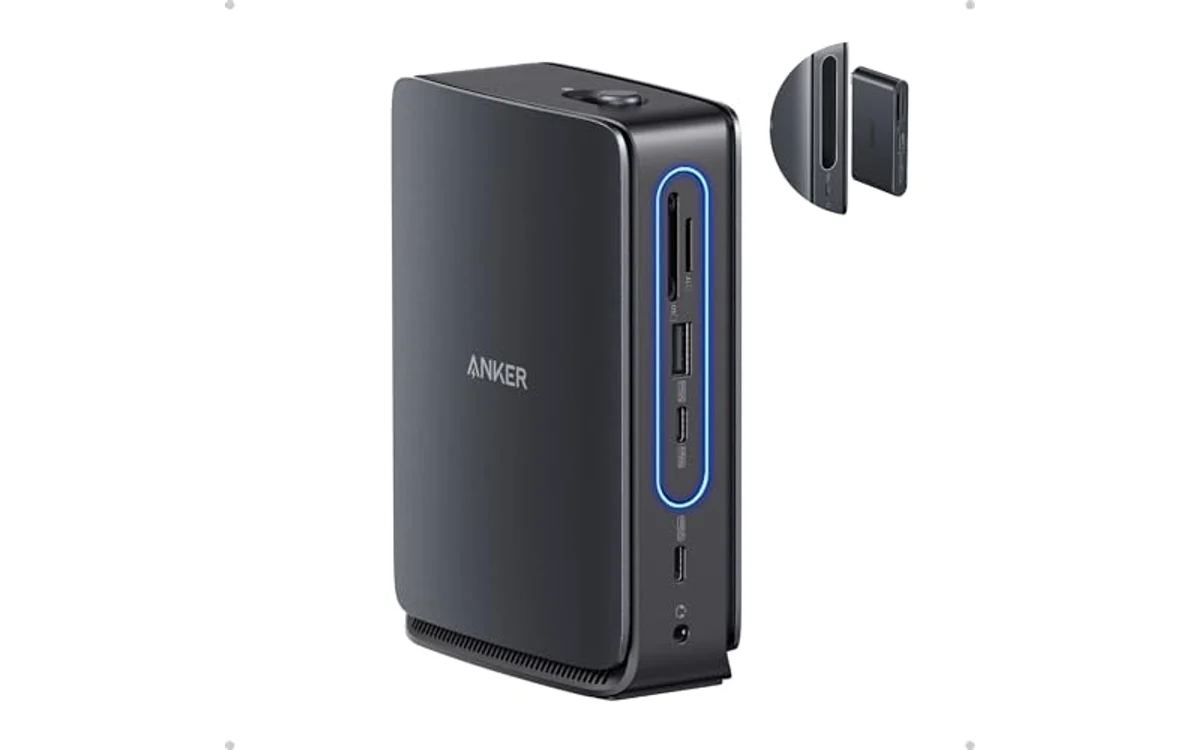
Short answer: A USB C dock not detecting a monitor describes a hardware communication failure in which the host system recognizes dock peripherals but drops video signals over Universal Serial Bus Type-C. Root causes involve protocol mismatch, missing Alt Mode pins, driver incompatibilities, or DisplayPort Multi-Stream Transport (MST) limitations across operating systems.
In October 2026, understanding hardware handshakes inside Docking Stations & USB Hubs remains critical. Modern laptops compress high-bandwidth video, PCIe data, and power delivery into a single connector. When host hardware cannot resolve video negotiation, external displays remain dark while power and USB storage continue working normally.
What Is USB C Dock Not Detecting Monitor?
A USB C dock not detecting a monitor represents a video transmission breakdown across the physical Type-C interface. The Type-C connector carries multiple independent communication buses: high-speed data pairs, USB 2.0 lines, Configuration Channel (CC) pins, and Power Delivery (PD) lines. A dock functions as a hub, multiplexer, or protocol bridge. Monitor detection requires the operating system graphics driver to query the external display receiver via Display Data Channel (DDC), parse the EDID block, and establish an active pixel clock.
Failure occurs when the host port provides only standard USB data without video multiplexing, when the dock’s internal DisplayPort demultiplexer drops sync signals, or when video signal routing fails signal integrity checks. Differentiate this condition from complete dock failure: mouse, keyboard, and Ethernet ports often operate uninterrupted because the USB 3.2 Gen 1/2 controller enumerates successfully while the native video signaling pipeline fails completely.
Why USB C Dock Not Detecting Monitor Matters
Video routing failures through docks break core desktop setups. Understanding hardware causes prevents unnecessary hardware replacements and identifies systemic bottlenecks.
Productivity and Workflow: Modern multi-monitor workstations rely on single-cable docking. Connection drops halt multi-window tasks, corrupt persistent layout positioning across virtual desktops, and trigger resource-heavy display rescans that lock host operating systems.
Gaming and Refresh Rates: Gaming setups running high refresh rates (144Hz, 240Hz) require uncompressed or Display Stream Compression (DSC) video streams over DisplayPort lanes. Handshake issues force fallbacks to 30Hz, disable Variable Refresh Rate (VRR) / G-Sync / FreeSync protocols, or cause persistent black screen states.
Hardware Compatibility: Misunderstanding Type-C capabilities leads users to plug advanced docks into non-video ports. Identifying protocol layers prevents purchasing incompatible hardware combinations, like non-Thunderbolt docks for dual 4K setups or MST hubs paired with operating systems lacking multi-stream support.
Long-Term Value and Component Health: Power delivery renegotiation loops and aggressive polling caused by failed video handshakes stress the dock’s power conversion circuits, raise thermal loads on internal bridging chips, and cause intermittent peripheral disconnections.
How USB C Dock Not Detecting Monitor Works
The Type-C physical connector features 24 pins arranged symmetrically. Transmitting video alongside standard data requires specialized physical layer negotiation, protocol routing, and hardware handshake sequences.
1. Physical Layer and Configuration Channel (CC) Negotiation
Connection begins at the CC pins (CC1 and CC2). The host and dock detect orientation, establish pull-up/pull-down resistor values (Rp/Rd), and enter a Power Delivery (USB-PD) contract. Once power parameters match, the host initiates Structured Vendor Defined Messages (VDMs) over the CC wire. A VDM query asks the dock what Alternate Modes the dock supports. If the host or dock fails the VDM exchange, the host treats the connection as a standard data port, disabling video transmitters entirely.
2. DisplayPort Alternate Mode Pin Reassignment
Standard USB-C ports utilize four high-speed differential signaling pairs (TX1+/-, RX1+/-, TX2+/-, RX2+/-). Under DisplayPort Alternate Mode (DP Alt Mode), the host physical layer switches these pins to DisplayPort main link lanes:
- 4-Lane DP Alt Mode: All four differential pairs carry DisplayPort signals. The mode provides maximum display bandwidth (e.g., DP 1.4 HBR3 yields 25.92 Gbps effective video throughput). USB data transfers drop to legacy USB 2.0 lines (D+/D-).
- 2-Lane DP Alt Mode: Two differential pairs carry video; the remaining two carry USB 3.2 Gen 2 SuperSpeed data (up to 10 Gbps). Video bandwidth is cut exactly in half (12.96 Gbps max under DP 1.4). Insufficient bandwidth causes the host to reject a second monitor or limit resolution to 1080p.
3. Thunderbolt and USB4 Protocol Tunneling
Thunderbolt 3, Thunderbolt 4, and USB4 handle video differently than basic DP Alt Mode. Instead of reassigning physical pins directly to native DP lines, the host controller packetizes PCIe and DisplayPort data into uniform transport packets. The dock contains a protocol demultiplexer (such as the Intel Goshen Ridge controller) that splits packetized streams back into discrete DisplayPort or HDMI signals. If the host port lacks a Thunderbolt/USB4 controller, or if passive cable length exceeds physical transmission limits without proper E-Marker IC validation, tunneling drops, leaving displays dark.
4. DisplayLink vs Native Hardware Alt Mode
Docks split into two engineering architectures: native hardware passthrough (DP Alt Mode / Thunderbolt) and virtual graphics processing (DisplayLink / Silicon Motion). Native docks tap directly into the host integrated or discrete GPU (iGPU/dGPU). DisplayLink docks use the host CPU to compress framebuffers into standard USB data packets, decoding them inside the dock via a dedicated chip. If a user expects a DisplayLink dock to display video without installing kernel-level device drivers, the dock will never detect the connected monitor.
5. EDID, DDC, and HDCP Negotiation Sequence
Once physical lanes map correctly, video detection requires a software handshake sequence. The sequence proceeds through five deterministic steps:
- Hot Plug Detect (HPD): The monitor pulls the HPD line high (3.3V), signaling presence to the dock.
- AUX Channel Handshake: The host GPU sends link training commands across the DisplayPort Auxiliary (AUX) channel.
- EDID Fetch: The host reads 128-byte or 256-byte EDID data from the monitor, containing supported resolutions, refresh rates, and color timings. Corrupted EDID bytes prevent the GPU from initializing the output pipe.
- Link Training: The GPU and monitor receiver negotiate voltage swing and pre-emphasis levels across physical differential pairs. Failed link training aborts video output.
- HDCP Cipher Exchange: High-bandwidth Digital Content Protection negotiates encryption keys. Failure here causes monitors to flicker or remain black when DRM content requests validation.
Quick Comparison: Protocols and Video Specs
| Protocol / Standard | Video Mechanism | Max Uncompressed Display Limit | Primary Failure Reason |
|---|---|---|---|
| USB 3.2 Gen 1 / Gen 2 Type-C | None (Data Only) | Zero displays | Host port physically lacks DisplayPort Alt Mode wiring |
| DP Alt Mode (2 Lanes) | Native DP 1.4 over 2 pairs | Single 4K @ 60Hz (DSC) | Bandwidth exhausted by simultaneous USB 3.0 data |
| DP Alt Mode (4 Lanes) | Native DP 1.4 over 4 pairs | Dual 4K @ 60Hz (MST) | Host OS drops MST support or lacks DP 1.4 host GPU |
| Thunderbolt 3 / 4 | Packetized DP Tunneling | Dual 4K @ 60Hz / Single 8K @ 30Hz | Incompatible passive cable or PCIe tunneling disabled in BIOS |
| USB4 (40 Gbps) | Dynamic Protocol Tunneling | Dual 4K @ 60Hz / Single 8K @ 60Hz (DSC) | Host hub fallback to legacy DP Alt Mode mode failure |
| DisplayLink (USB Data) | Software Compression | Multiple 4K @ 60Hz | Missing host OS driver or software service stopped |
Diagnostic and Troubleshooting Procedure
Apply the exact step-by-step diagnostic workflow to isolate the faulty link component:
Step 1: Verify the Host Port’s Type-C Specifications
Not every Type-C port outputs video. The physical shapes match, but the internal circuit wiring differs significantly. Check the manufacturer documentation for the host system. The port must carry a DisplayPort logo (stylized ‘D’), a Thunderbolt lightning bolt, or a USB4 marking. A plain ‘SS’ (SuperSpeed) logo indicates a data-only connection incapable of driving native displays.
Step 2: Execute a Hardware Power Flush
Docks contain microcontrollers running low-level firmware. Power spikes, sleep state transitions (ACPI S3/modern standby), and hot-plugging can wedge the dock’s internal multiplexer states. Perform a hard reset: disconnect the dock upstream cable from the laptop, disconnect the power supply brick from the dock, remove all downstream monitor cables, wait 60 seconds for the internal capacitors to discharge fully, reconnect the power brick, reconnect the display cables, and plug the dock upstream cable into the laptop host port.
Step 3: Validate Cable Capabilities and Signal Chains
Cable quality dictates high-speed signal integrity. Charging-only USB-C cables contain only USB 2.0 data pairs and power conductors; they lack the physical high-speed differential wires required for DP Alt Mode. The upstream connection requires a certified USB-C 3.2 Gen 2 cable (10 Gbps minimum) or a certified 40 Gbps Thunderbolt cable. Downstream video cables running from the dock to the monitor (HDMI or DisplayPort) must support the target bandwidth: use HDMI 2.0/2.1 cables rated 18 Gbps+ or DisplayPort 1.4 cables rated 32.4 Gbps HBR3. Avoid passive display adapters (such as passive DisplayPort to HDMI dongles); use native cables or active converters.
Step 4: Resolve Operating System and Driver Layer Conflicts
The Windows Display Driver Model (WDDM) can misconfigure display pipes. In Windows, press the shortcut Win+Ctrl+Shift+B to reset the graphics subsystem. Open Device Manager, expand Monitors, uninstall phantom or generic PnP monitor entries, and scan for hardware changes. Update host GPU drivers directly from Intel, AMD, or NVIDIA rather than relying on generic OS update distributions. For setups involving multiple workstations sharing gear, verify switching topologies like those covered in the best kvm switch for dual 4k monitors.
Common Mistakes to Avoid
- Assuming All USB-C Cables Are Identical: Charging cords bundled with smartphones contain only USB 2.0 data wires and power leads. Connecting a dock with a charging cable guarantees monitor detection failure.
- Expecting Multi-Stream Transport on macOS: macOS does not support DisplayPort MST across standard DP Alt Mode docks. Connecting two monitors to a single MST-based USB-C dock under macOS results in mirrored screens or leaves the second display undetected entirely. Thunderbolt docks or DisplayLink software solutions remain required for independent dual screens on Mac hardware.
- Overloading Available Video Bandwidth: Attempting to drive dual 4K 60Hz displays over standard 2-lane DP 1.4 Alt Mode without DSC exceeds the theoretical link bandwidth. The host drops the second monitor to preserve the primary monitor’s clock.
- Plugging Upstream Cable into Downstream Hub Port: Docks distinguish the upstream connection (to the laptop host) from downstream peripheral ports. Plugging the host into a downstream peripheral USB-C port prevents Alternate Mode switching.
- Ignoring Passive Display Adapter Limits: DisplayPort Dual-Mode (DP++) ports output HDMI signals via cheap passive adapters. Many USB-C docks carry standard DisplayPort ports without DP++ circuitry, requiring active protocol conversion chips inside the adapter cable to drive HDMI monitors.
- Overlooking BIOS/UEFI Security States: Systems utilizing Thunderbolt 3 or USB4 often contain Direct Memory Access (DMA) security controls in the BIOS. Settings like “User Authorization” or “DisplayPort and USB Only” block dock communication until approved within the operating system’s software management consoles.
What to Look For When Buying Docking Hardware
To eliminate monitor detection issues before purchasing hardware, verify these critical specifications:
- Controller Standard: Choose Thunderbolt 4 or USB4 if running dual 4K displays or high refresh rate monitors. Standard USB-C DP Alt Mode docks throttle downstream USB transfer speeds when allocating full bandwidth to video.
- Host Port Capabilities: Cross-check the host laptop’s technical sheet for the DisplayPort version (DP 1.2, DP 1.4, or DP 2.1) and DSC support. Older DP 1.2 ports lack sufficient throughput for multi-monitor dock output.
- Operating System Topology: For Windows setups, select native DisplayPort MST docks. For macOS setups, purchase Thunderbolt docks carrying discrete display controllers or software-driven DisplayLink solutions.
- Power Delivery Wattage: Ensure the dock provides an independent external power adapter with at least 85W to 100W PD passthrough. Docks powered entirely by the host laptop often experience voltage drops that crash video transceivers when demanding peripherals draw current.
- Active Cable Certification: Procure certified cables bearing official USB-IF or Thunderbolt branding to guarantee reliable high-frequency link training.
Related Guides
For more hardware infrastructure analysis and desk setup configurations, review these resources:
- Docking Stations & USB Hubs Hub
- Best kvm switch for dual 4k monitors
- Best monitor arm under 50 in 2026
Why You Should Trust PCGearWiki
PCGearWiki focuses strictly on verifiable hardware engineering standards, manufacturer interface documentation, and real-world system architecture analysis. Rather than repeating generic marketing terminology, we break down underlying signaling protocols, pinout specifications, and operating system controller behaviors. Our analysis explains precise failure modes to help builders configure stable workstation setups. Learn more about our technical review criteria at How We Evaluate Products.
Final Thoughts
A USB-C dock that is not detecting a monitor usually indicates a protocol mismatch, insufficient cable bandwidth, or failed EDID handshakes rather than damaged hardware. Success requires matching host port capabilities (DisplayPort Alt Mode, Thunderbolt, or USB4) to the dock architecture and monitor resolution requirements. Verify host port video support, clear wedged microcontroller states with a complete power cycle, and confirm cable certifications to restore reliable external display connections.
Frequently Asked Questions
Why does my USB-C dock work for mice and keyboards but not monitors?
Standard USB data and native video travel across separate physical paths inside the Type-C connector. A mouse and keyboard communicate via dedicated USB 2.0 lines or standard USB 3.0 data packets. Video requires DisplayPort Alternate Mode pin reassignment or Thunderbolt tunneling. If the host port lacks video-out wiring, data peripherals function normally while display signals fail to output.
Can any USB-C cable connect my laptop to my dock?
No. USB-C cables differ internally despite identical connectors. Many cables sold for charging provide only USB 2.0 data pairs and power leads, entirely lacking the high-speed differential wiring needed for video. Dock connections require cables explicitly certified for USB 3.2 Gen 2 (10 Gbps), USB4, or Thunderbolt (40 Gbps) with E-Marker chips.
Why does my second monitor stay black when using a dual-monitor USB-C dock?
A second monitor failure typically points to Multi-Stream Transport (MST) limits or bandwidth exhaustion. Under Windows, older DP 1.2 host ports cannot push dual high-resolution displays without compression. Under macOS, the operating system lacks native MST support over DP Alt Mode, causing the second display to remain black or mirror the primary display. Resolve the problem by lowering resolution, enabling DSC, or switching to Thunderbolt hardware.
How do I know if my laptop USB-C port supports video output?
Inspect the physical port markings and the manufacturer technical specifications. Ports supporting video carry a DisplayPort logo (letter ‘D’ inside a monitor frame), a Thunderbolt lightning icon, or an explicit USB4 designation. If a port displays only a USB ‘SS’ logo or a standard battery icon without video markers, the port carries data and power only, lacking the hardware wiring for monitor output.


Write Your Review
No reviews yet. Be the first to share your experience!