

Last updated: October 2, 2026
Direct Verdict: Selecting Docking Station for Windows
Best docking station for Windows laptop depends directly on host port controller. Windows supports Multi-Stream Transport (MST) natively. Single USB-C port handles two distinct extended displays if host port routes DisplayPort Alternate Mode (DP Alt Mode). Dock choice demands verified host power input, display bandwidth limits, peripheral bus speeds.
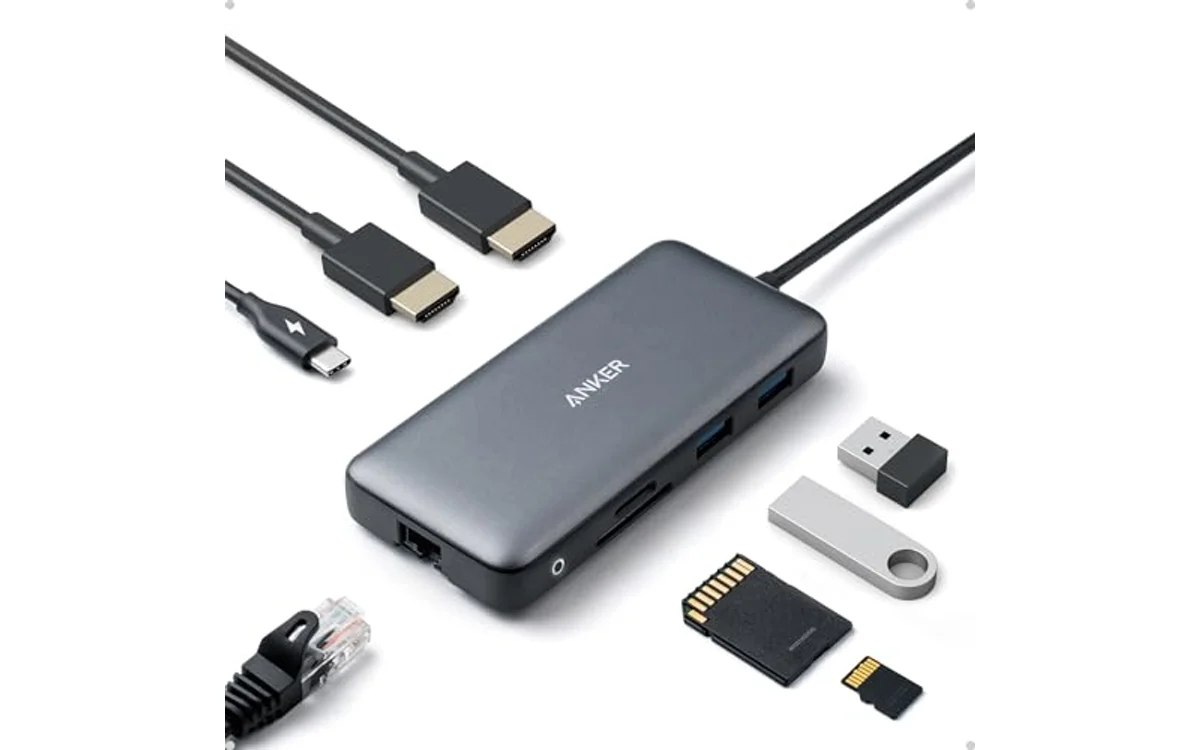
Hardware recommendation below represents specification-based analysis from manufacturer technical data, not internal laboratory test results. Verify live pricing and current stock on product card before purchase.
Docking Station Specification Comparison
| Model | Host Interface | Max Displays | Video Outputs | Power Delivery | Data Ports |
|---|---|---|---|---|---|
| Anker Laptop Docking Station Dual Monitor | USB-C (DP Alt Mode, USB4, TB3/TB4) | 2 Extended (Windows MST) | 2x HDMI (Single 4K@60Hz, Dual 4K@30Hz) | 85W Pass-through (Requires 100W PD charger) | 2x USB-A, SD/microSD, Gigabit Ethernet |
Windows Host Port Diagnostics
Windows laptops use multiple physical USB-C port variants. Physical shape matches, internal protocols differ. Correct dock selection requires matching host controller capabilities to peripheral demand.
| Host Port Type | Symbol on Chassis | External Display Capability | Max Bandwidth | Dock Compatibility |
|---|---|---|---|---|
| USB-C Data Only | USB logo only | None | 5 Gbps to 10 Gbps | Incompatible with native display docks |
| USB-C DisplayPort | DP icon or ‘D’ inside port | Single or Dual via MST | 10 Gbps to 20 Gbps | Compatible with USB-C DP Alt Mode docks |
| USB-C Power Delivery + DP | Lightning bolt / plug + DP | Single or Dual via MST | 10 Gbps to 20 Gbps | Fully compatible (video + charging) |
| Thunderbolt 3 / Thunderbolt 4 | Lightning icon with arrow | Dual 4K@60Hz native | 40 Gbps | Fully backward compatible with USB-C and TB docks |
| USB4 | 40Gbps icon | Dual 4K@60Hz native | 20 Gbps to 40 Gbps | Fully compatible with USB-C and TB docks |
Top Windows Docking Station Selection
[acms_product asin=”B0874M3KW4″]Anker Laptop Docking Station Dual Monitor (8-in-1)
Anker Laptop Docking Station Dual Monitor delivers compact desktop expansion for Windows machines running USB-C with DP Alt Mode, USB4, or Thunderbolt connections. Device leverages Windows native MST. Drives two external displays as independent extended desktops over single host connection.
Video subsystem provides two HDMI ports. Single display configuration reaches 4K resolution at 60Hz refresh rate. Dual display configuration drops refresh rate to 4K at 30Hz across both screens due to DisplayPort 1.4 HBR3 bandwidth limits across shared USB-C bus. Users seeking high-refresh dual 4K production setups should evaluate dedicated solutions covered in best kvm switch for dual 4k monitors or full Thunderbolt 4 docks.
Power distribution architecture relies on USB-C Power Delivery pass-through. Dock draws 15W internal operational overhead for Ethernet PHY, USB hub controller, card reader logic. 100W external wall charger routes 85W net charging power directly to laptop battery. Laptops requiring standard 65W input operate with full power margin. Machines shipping with OEM 130W or proprietary barrel chargers experience slow charging warnings under heavy CPU/GPU loads.
Peripheral selection covers essential desk utilities: two USB-A data ports for mouse and keyboard, Gigabit Ethernet RJ45 for stable low-latency wired networking, SD/microSD card slots for media ingestion. Integrated design fits neatly inside organized workspaces beneath displays mounted via monitor arms and laptop stands.
Display Bandwidth Constraints: Windows MST Explained
Windows OS includes built-in driver pipeline for Multi-Stream Transport. Single DisplayPort signal chain splits into separate display streams inside dock hardware multiplexer. Allows distinct screen content on display 1 and display 2. macOS lacks MST support over standard USB-C, forcing mirrored external monitors. Windows platform avoids limitation completely.
Bandwidth allocation follows DisplayPort specification implemented in laptop integrated GPU:
- DisplayPort 1.2 Host: Dual monitors limited to 1080p at 60Hz. Insufficient bandwidth for dual 4K.
- DisplayPort 1.4 (without DSC): Dual monitors reach 1440p at 60Hz or dual 4K at 30Hz.
- DisplayPort 1.4 (with DSC – Display Stream Compression): Dual monitors handle dual 4K at 60Hz where dock hardware and GPU support compression protocols.
Review comprehensive dock categories on docking stations and USB hubs for higher tier multi-monitor configurations.
Pre-Purchase Host Compatibility Checklist
Confirm laptop specifications prior to purchasing docking station:
- Inspect USB-C port marking on laptop chassis for DP icon, lightning bolt, or verify product technical datasheet for DisplayPort Alternate Mode support.
- Check laptop manufacturer stock power supply wattage. If factory charger exceeds 85W, procure dock with dedicated 180W+ AC power brick rather than bus pass-through design.
- Confirm external monitor input interfaces. Dock supplies dual HDMI. If monitors feature DisplayPort inputs exclusively, obtain active HDMI-to-DP adapter cables.
- Verify operating system build. Target dock operates under Windows 10 or Windows 11. Linux environments remain unsupported by specified device firmware.
Frequently Asked Questions
Why does second monitor mirror first monitor on dual display dock?
Mirroring occurs when host machine fails to engage MST protocol. In Windows, press Windows Key + P, select Extend. If duplicate display persists, laptop USB-C port lacks DP Alt Mode wiring, or graphics driver requires manual update from Intel, AMD, or Nvidia control panel.
Can USB-C dock charge gaming laptop properly?
Standard USB-C pass-through docks output maximum 85W to 100W. High-performance gaming laptops require 180W to 330W via dedicated DC barrel connectors. Dock powers peripheral connections and displays, but factory high-wattage power adapter must remain connected to laptop dedicated charge port to prevent battery discharge during gameplay.
Does dock add input latency to connected displays?
DisplayPort Alternate Mode routes native GPU display signals directly through USB-C physical pins. Introduces zero active frame buffering or processing delay. Video latency matches direct HDMI connection to laptop chassis. DisplayLink software-based docks introduce CPU overhead and display latency; hardware DP Alt Mode docks do not.

| Color | Gray |
|---|---|
| Size | 8-in-1 USB C Hub |
| Dimensions | 4.64566 x 2.00787 x 0.688975 Inches |
| Weight | 0.2 Pounds |
| Product Group | Electronics |
| Binding | Personal Computers |
Best suited to shoppers comparing docking stations products who specifically need the Anker Advantage: Join the 50 million+ powered by our leading technology., Massive Expansion: Equipped with a USB C PD-IN charging port, 2 USB-A….
Before buying, compare the exact model’s compatibility, dimensions, core specifications, warranty, recurring owner feedback, and current price against other docking stations options. Retailer availability and pricing can change after publication.
Sources and Verification
Research basis: Product identity, dimensions, interfaces, supported features, and warranty terms are checked against available manufacturer documentation and current retailer listings. Price, stock, and aggregate customer ratings can change after publication.
Testing disclosure: Unless this article explicitly states that PCGearWiki performed hands-on testing and describes the test setup, recommendations are research-based editorial evaluations rather than PCGearWiki laboratory measurements. Customer feedback is used to identify recurring ownership patterns, not as proof of technical performance.
Last source review: October 2, 2026. See our Review Methodology, Editorial Policy, and Corrections Policy.


Write Your Review
No reviews yet. Be the first to share your experience!