

Last updated: November 12, 2026
Hear the stream the way a viewer hears it. You can hear friends in your headset even if their voices never reach your stream. Treat game sound, your mic and guest voices as separate sources. Ask for permission before including a guest, and keep the party out of the broadcast until you have verified the route.
PlayStation consoles for GTA 6
As an Amazon Associate I earn from qualifying purchases.
-
PS5 Original
825 GB SSD, built-in disc drive
Keep your original PS5 if it works. For a replacement, check the seller, condition and return terms.
Check price on Amazon -
PS5 Slim
1 TB SSD, disc drive included
Choose this smaller model if you want to keep using compatible game discs and do not need Pro enhancements.
Check price on Amazon -
PS5 Pro
2 TB SSD, disc drive sold separately
Consider the Pro if you want more built-in storage and visual enhancements in supported games.
Check price on Amazon
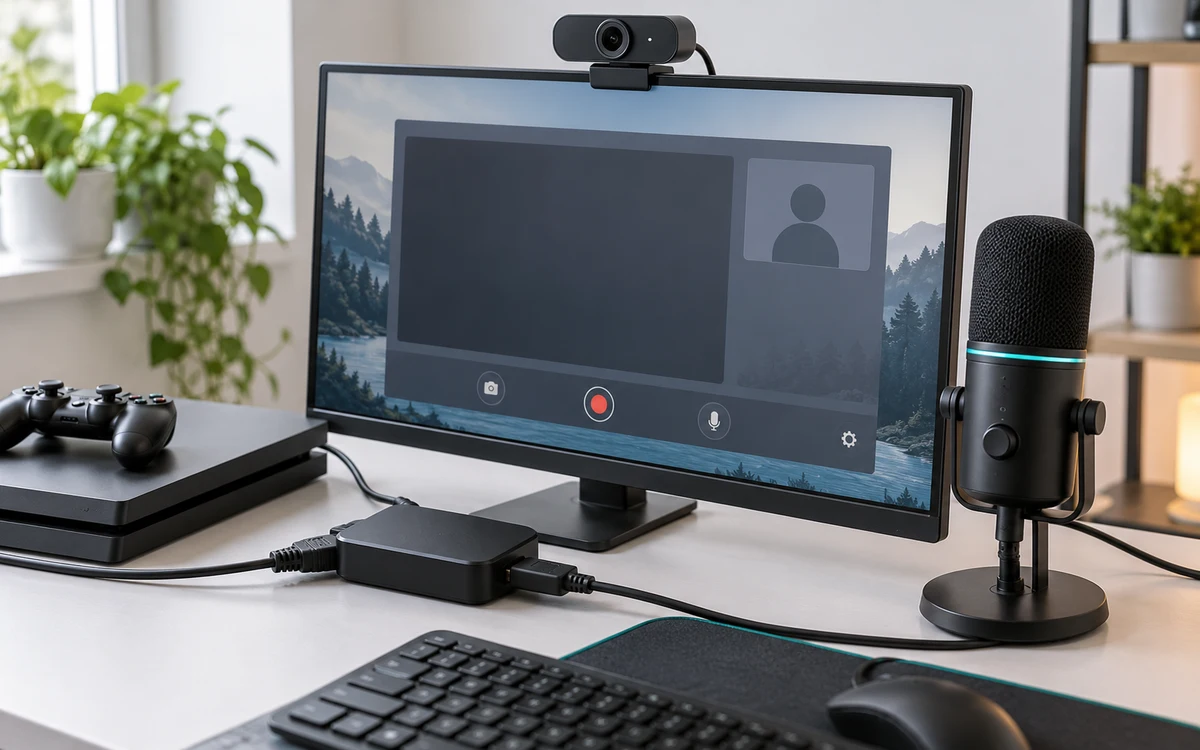
Identify which kind of chat you are using
A console party, in-game voice chat and a Discord call can use different audio paths. If an instruction works for one, it may not apply to another. Sony notes limits in its PS5 Discord voice chat guide. Do not try to defeat a platform’s recording limits. If a guest does not want to be included, use a configuration that excludes their voice.
Run a three-part recording test
- Record only the game for a few seconds. Confirm that the expected HDMI or console source carries it.
- Speak with the game quiet and check whether your mic appears once. If it is missing, check hardware mute and the broadcast or recording source.
- Have one consenting friend speak with your mic muted. For a native broadcast, check party sharing options and guest permissions. For PC capture, check where the console sends the party sound; headset playback is not necessarily HDMI playback.
- Play the test back without changing the sources. Label the results so you know what disappeared and what doubled.
Prevent doubled or unbalanced sound
If a friend is audible twice, mute one route at a time and watch the OBS audio mixer. Common paths to check are capture audio and a desktop app playing the same voice. If the two are mixed in the capture feed, you may not be able to balance them independently downstream. Decide which device should handle chat before changing volumes.
Do one final test with the game loud and a guest speaking normally. A meter can show that sound exists without showing whether the words are easy to hear. For connecting the video feed itself, use our OBS capture walkthrough.
Keep a scene or mute control ready for unexpected private conversation. Test the mute by listening to a new recording, not just by assuming a hidden source is also silent. Confirm that any later recording or archive respects the same permissions.
Build a source map for the people in your broadcast
Write down what the viewer should hear before changing any settings. One simple plan is game audio from the capture device, your commentary from one PC microphone and a consenting guest from one supported chat source. If your console combines two signals before sending them to the computer, label that input as combined rather than treating it as two independent tracks. A later editor cannot reliably undo a mix just because it appears in OBS under a different name.
Example: a guest is heard on the stream but not in the recording
First verify where you heard the guest: your own headset, a viewer’s copy of the stream or the saved file. Those are different outputs. In a PC encoder, check the recording and stream track assignments. A source can be active in the scene but absent from the track you selected for recording. Record a short new clip after changing the assignment and play that file back outside the streaming software.
If the opposite happens and private conversation appears in a recording, stop sharing the file. Check each input with a controlled test, including desktop audio and any monitor outputs. If a guest withdraws consent before publishing a replay, remove that voice or keep the replay private. Muting a guest in your own headset after recording does not change the file.
Keep an audio-only test scene for future sessions. It should let you check the game, your mic and the intended guest route without broadcasting private screens.


Write Your Review
No reviews yet. Be the first to share your experience!