
Last updated: November 12, 2026
For Kick, prepare a PC encoder and a capture feed from your console. This guide uses OBS so you can verify a local picture and audio before involving your channel. Getting that local test right first separates an HDMI or microphone problem from a streaming destination problem.
PlayStation consoles for GTA 6
As an Amazon Associate I earn from qualifying purchases.
-
PS5 Original
825 GB SSD, built-in disc drive
Keep your original PS5 if it works. For a replacement, check the seller, condition and return terms.
Check price on Amazon -
PS5 Slim
1 TB SSD, disc drive included
Choose this smaller model if you want to keep using compatible game discs and do not need Pro enhancements.
Check price on Amazon -
PS5 Pro
2 TB SSD, disc drive sold separately
Consider the Pro if you want more built-in storage and visual enhancements in supported games.
Check price on Amazon
Build and test the scene before linking Kick
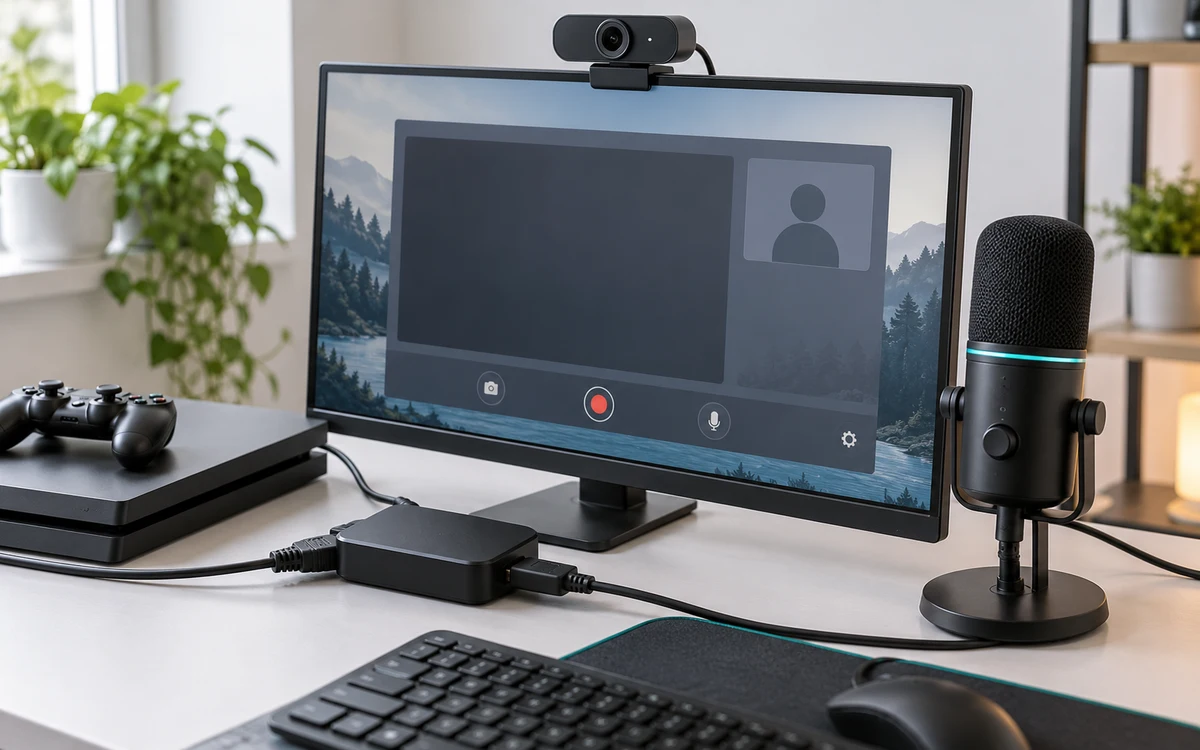
Route console HDMI to the capture card and its passthrough to the screen you play on. Connect the capture output to the computer and add it as a video capture source. Add your microphone separately if you want it in the broadcast. Use the OBS console capture guide for a simple way to identify where the signal is lost.
Record a short sample with movement and voice. Watch the saved file. If game sound is missing from that file, a change to the stream destination will not fix it. If your voice is heard twice, mute one microphone or remove duplicate monitoring before going live.
Configure the Kick destination
- Open your creator dashboard and find the streaming connection information. Use Kick’s current setup guide for its supported settings and connection steps.
- Enter the connection information only in the encoder’s streaming configuration. Treat the key like a password; never show it in the live scene or paste it into chat.
- Set the stream title and appropriate category in your dashboard. Review the video and audio options against Kick’s currently supported limits.
- Check the channel and its preview with a muted second device. Verify the feed ended after you stop streaming in OBS.
Separate upload problems from encoding problems
If the local recording is smooth but the channel stalls, check the connection and whether the selected settings leave upload headroom. If your local recording also stutters, reduce the scene’s processing load or output resolution and test again. A faster home internet plan will not fix a capture card that repeatedly loses its HDMI signal.
Keep a simple standby scene ready in case you need to show a settings screen or recover from a disconnected controller. If a key is ever visible on screen, stop the stream and reset it in the dashboard. Do not keep using an exposed key just because the broadcast still starts.
Use a two-minute checklist to isolate a Kick connection failure
- Start a local recording with the same gameplay scene. If there is no picture or sound, fix the source first; the destination cannot repair it.
- If the local recording works but the channel does not receive a feed, confirm that you are using the intended account and the current server details from its dashboard. Keep the credentials private while checking them.
- If the channel receives a feed but stalls, compare the encoder’s network and rendering indicators. A connection drop and an overloaded computer can look the same on the viewer’s screen but need different fixes.
- Restore the last working output settings and retest before you announce the public stream. Change one variable at a time and note which one helped.
Prepare for scene changes without sharing the wrong window
Create a standby scene with no desktop source and a mic state you have verified. Switch to it before opening creator settings or checking account details. Then test that the game scene returns with both the capture and commentary sources active. A local recording of the switch is enough to tell whether a hidden source still sends sound.
Before the public stream, open the watch page on a muted phone or ask a helper to confirm the broadcast is on the expected channel. At the end, stop the encoder, check the channel from outside the dashboard and review whether any replay is available. That avoids assuming the preview and the live channel always change state together.


Write Your Review
No reviews yet. Be the first to share your experience!