

Last updated: November 12, 2026
PS5 has a built-in broadcast path for YouTube; a capture card and encoder provide a separate path from either console. Choose native PS5 broadcasting for the simplest setup. Use a PC encoder if you need overlays, independent audio control or an HDMI source from Xbox. Enable live streaming on your YouTube channel ahead of the first public session so that account setup does not become a launch-night problem.
PlayStation consoles for GTA 6
As an Amazon Associate I earn from qualifying purchases.
-
PS5 Original
825 GB SSD, built-in disc drive
Keep your original PS5 if it works. For a replacement, check the seller, condition and return terms.
Check price on Amazon -
PS5 Slim
1 TB SSD, disc drive included
Choose this smaller model if you want to keep using compatible game discs and do not need Pro enhancements.
Check price on Amazon -
PS5 Pro
2 TB SSD, disc drive sold separately
Consider the Pro if you want more built-in storage and visual enhancements in supported games.
Check price on Amazon
PS5: link the channel and check privacy
Follow Sony’s broadcast guide to link your YouTube account. Open a game, press Create, choose Broadcast and select YouTube. Confirm the channel and the audience options before starting. If the console’s available controls do not suit your rehearsal, choose the encoder workflow rather than assuming you are private.
Either console: use YouTube Live Control Room
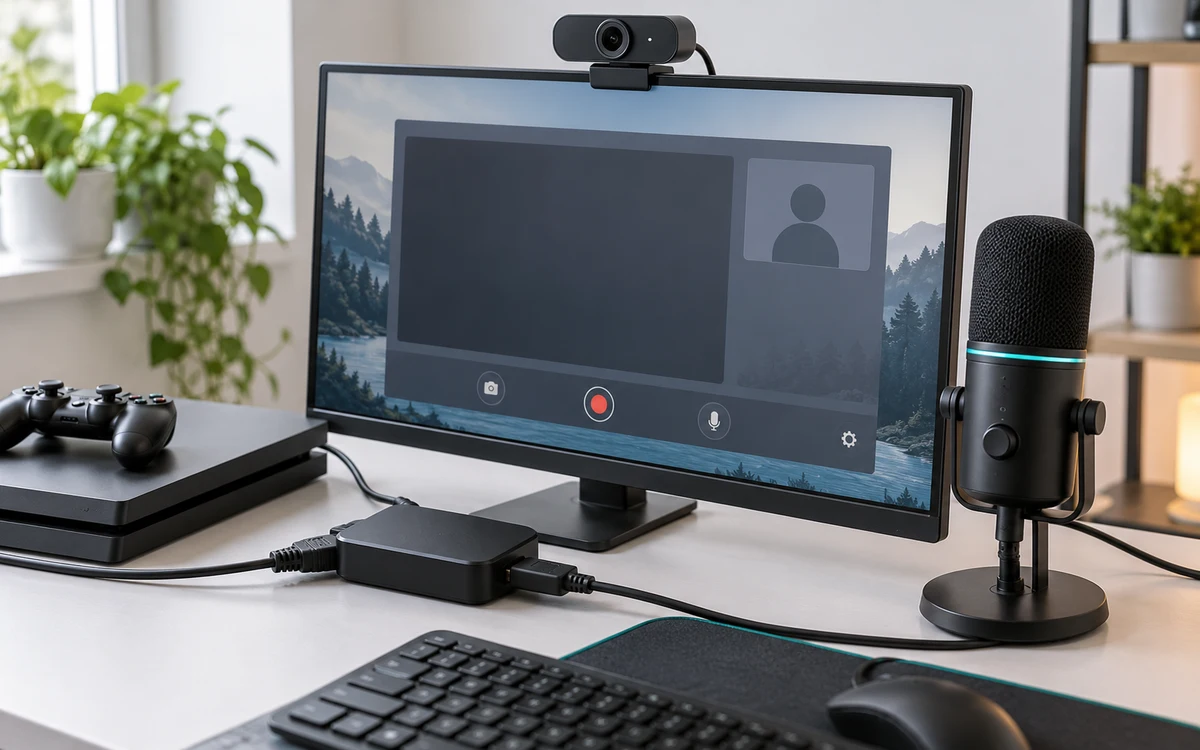
- Connect console HDMI to a compatible capture card, send the card’s passthrough to your playing display and attach the capture output to your computer.
- Add the capture device and microphone to your encoder. Record locally and check that the picture and audio are present before involving YouTube.
- In YouTube Studio, create an encoder stream and choose the intended visibility. Follow YouTube’s encoder instructions for the connection. Keep any stream key out of recordings and screen shares.
- Check the preview and stream health, then confirm how the stream starts and ends in your chosen event settings. Verify that the channel is no longer live after finishing.
Use a rehearsal to check what viewers see
If you choose Unlisted, remember that people with the URL can watch. Check a fast-moving clip in a small player and watch a quiet scene with spoken commentary. If the encoder preview looks good but the viewer sees stalls, check the service’s health panel and your upload connection. If both are dark or blurry, troubleshoot your source and output size before blaming YouTube.
Do not assume game or radio music is cleared for every use, or that every scene can be captured. Review what you will broadcast and how the archive will be published. For a hardware diagram and a local recording test, see the OBS and capture card guide.
Rehearse an unlisted event from the viewer side
Create a test event with a name you will not confuse with the launch stream. Open its watch page from a separate device without signing in to the creator account, if the chosen visibility allows it. Check both the opening frame and a later fast-moving scene. This distinguishes a preview inside Studio from the feed a viewer can actually access. Do not distribute the test link if you do not want people to watch it.
Record a local copy during the test if the encoder permits it. When the local file is clean but the service reports drops, compare a lower output setting and watch the connection health. When both have the same stutter or missing sound, diagnose the capture source and encoder before changing the YouTube event. Save the last known working profile separately from experiments with higher quality.
Choose what you want to keep after going live
- For a launch stream: Prepare the event’s title and visibility ahead of time, then confirm whether it starts automatically or requires a separate action in the control room.
- For a later edited video: Keep a verified local recording if you need to edit separately. Do not rely solely on the published archive without checking it.
- For private rehearsals: Use the most restrictive setting that still lets your intended testers access the stream. Unlisted is not the same as private.
End the encoder and check the event’s final state. Confirm who can watch any replay before leaving the dashboard.


Write Your Review
No reviews yet. Be the first to share your experience!