

Last updated: October 2, 2026
Quick answer: Hard drive manufacturers define capacity in decimal base-10 units (1 GB = 1,000,000,000 bytes), but operating systems like Windows calculate space in binary base-2 units (1 GiB = 1,073,741,824 bytes). This measurement difference, combined with file system metadata, hidden recovery partitions, and unallocated drive space, causes a reported capacity roughly 7% to 10% lower than the retail specification. Hardware is working properly; measurement units differ.
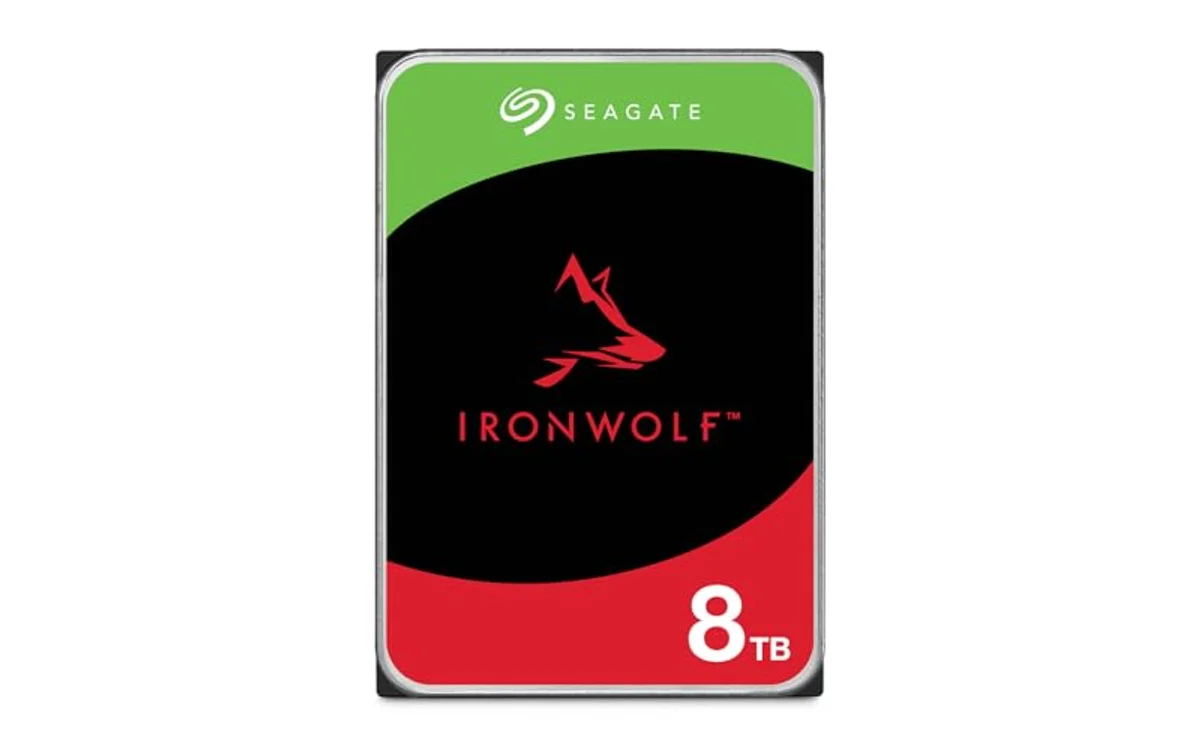
Short answer: The phrase why does my hard drive show less capacity describes the apparent discrepancy between advertised storage capacity and usable storage recognized by an operating system (OS). PC builders encountering this across consumer Hard Drives need to know storage calculations, hidden partition structures, and formatting overhead before planning storage pools or partition layouts in October 2026.
What Is Why Does My Hard Drive Show Less Capacity?
The issue of why does my hard drive show less capacity refers to consumer confusion when a freshly installed storage drive displays lower available gigabytes or terabytes than stated on packaging. For example, buying a 1 TB hard drive and plugging it into a Windows machine yields roughly 931 GB of usable volume space. This is not factory fraud or hardware failure.
At core, two competing measurement conventions exist: the International System of Units (SI) metric standard versus the International Electrotechnical Commission (IEC) binary standard. Storage vendors measure drives using SI decimal notation, whereas personal computer operating systems process binary address spaces. Beyond notation discrepancies, system components reserve portions of raw storage volume for partition schemes, Master Boot Records (MBR), GUID Partition Tables (GPT), and reserved recovery environments.
Why Why Does My Hard Drive Show Less Capacity Matters
Understanding storage discrepancy matters for practical hardware planning, volume configuration, and data management. Miscalculating usable space impacts workloads and purchasing decisions in multiple ways:
Storage Array Planning: When assembling multi-drive Network Attached Storage (NAS) configurations, parity calculations depend on binary limits. When building high-density systems inside the best PC case for multiple hard drives, knowing that an 8 TB mechanical drive delivers only 7.27 TiB usable prevents under-provisioning RAID 5 or RAID 6 arrays.
System Drive Allocation: Modern PC games and productivity applications require massive local headroom. A user buying a high-capacity drive expecting a flat 4,000 GB will lose approximately 274 GB to binary calculation. For users considering solid-state storage, such as picking the best 4TB NVMe SSD under $300, knowing real capacity targets prevents running out of installation space for OS pagefiles, hibernate files, and shadow copies.
Performance and File System Integrity: Hard drives and flash drives require free operational space to maintain throughput. When storage fills over 85% capacity, mechanical drives suffer severe track fragmentation, while solid-state options degrade write speeds. Misjudging usable drive capacity leads users to fill drives too close to physical thresholds.
How Why Does My Hard Drive Show Less Capacity Works
Multiple independent factors reduce physical drive sector counts down to reported usable volume metrics in an OS.
1. Decimal (SI) vs. Binary (IEC) Standards
Storage drive manufacturers follow SI metric standards. Under SI rules, the kilo prefix denotes 10^3 (1,000), mega denotes 10^6 (1,000,000), giga denotes 10^9 (1,000,000,000), and tera denotes 10^12 (1,000,000,000,000). A drive sold as 1 TB contains exactly 1,000,000,000,000 bytes across its magnetic platters or flash blocks.
Operating systems like Microsoft Windows operate strictly on the binary numerical system (base-2). Binary units use prefixes defined by the IEC: kibibyte (KiB = 2^10 = 1,024 bytes), mebibyte (MiB = 2^20 = 1,048,576 bytes), gibibyte (GiB = 2^30 = 1,073,741,824 bytes), and tebibyte (TiB = 2^40 = 1,099,511,627,776 bytes). Windows calculates capacity using binary units (1,024-byte increments) but mislabels the display using decimal labels (GB and TB instead of GiB and TiB). Dividing 1,000,000,000,000 decimal bytes by 1,073,741,824 binary bytes equals approximately 931.32 GiB. The missing storage never disappeared; Windows merely counts in larger chunks.
2. File System Overhead and Allocation Unit Size
A raw storage disk cannot store files without formatting. Formatting establishes a file system (such as NTFS, FAT32, exFAT, or ext4). The file system reserves disk tracks for partition boot records, allocation tables, Master File Tables (MFT), and journaling logs. NTFS typically claims between 0.5% and 2% of partition volume strictly to manage file paths, user permissions, and metadata attributes.
3. Hidden and Recovery Partitions
Pre-built desktop computers and laptops frequently include hidden partitions on the primary drive. These partitions include the EFI System Partition (ESP) required for UEFI boot initialization, Microsoft Reserved Partitions (MSR), and original equipment manufacturer (OEM) recovery environments containing system restoration images. These structures take between 500 MB and 20 GB of raw capacity away from the user-accessible C: partition, showing as allocated space inside Windows Disk Management.
4. Unallocated Space and Partition Boundaries
A brand-new replacement drive out of the box contains zero formatted partitions. Until configured through disk partitioning tools, available sectors sit as unallocated space, causing the operating system file explorer to display zero capacity or fail to recognize the drive entirely.
What to Look For When Buying
When selecting and sizing hardware from general Storage & NAS catalogs, follow these practical rules:
- Account for 7% to 10% Binary Conversion Loss: Multiply the retail capacity by 0.931 for gigabyte-class drives or 0.909 for multi-terabyte drives to calculate real OS capacity before buying.
- Identify System Reserved Requirements: When configuring secondary drives or internal solid-state drives, account for 100 MB to 16 GB of space lost to boot, partition tables, and OEM recovery tools.
- Factor File System Cluster Size: Standard NTFS cluster size defaults to 4 KB (4,096 bytes). Writing thousands of tiny files consumes disproportionate sector space due to slack allocation space.
- Plan Overhead for Storage Longevity: Solid-state storage and modern hard drives require unwritten capacity for garbage collection, bad sector remapping, and wear leveling. Review how we analyze drive specs via How We Evaluate Products.
- Check Partition Scheme Compatibility: Legacy MBR schemes limit total addressable capacity to 2.2 TB. Modern drives above 2 TB must initialize with GPT to access total platters.
Common Mistakes to Avoid
Misinterpreting disk parameters often leads to improper returns or damaged configurations. Avoid these errors:
Mistake 1: Returning Functional Hardware for Missing Space. Many users believe missing megabytes indicate factory defects or counterfeit merchandise. Unless raw sector counts inside SMART analysis fail to match hardware specifications, lower capacity in Windows indicates standard binary counting.
Mistake 2: Using MBR on Drives Larger Than 2 TB. Formatting an 8 TB mechanical drive or large data drive under the legacy MBR partition scheme causes the OS to lock out everything past 2.2 TB. The remaining capacity shows as permanently unusable unallocated space until converted to GPT.
Mistake 3: Overlooking Over-Provisioning on SSDs. Comparing mechanical hard drives to solid-state storage introduces another variable: SSD controllers reserve 7% or more raw NAND flash for background controller management. For write workloads, read our analysis on the best NVMe SSDs for sustained writes to see how storage reservation handles intensive operations.
Mistake 4: Confusing Size on Disk with File Size. A 500-byte text file on a file system using 4 KB clusters consumes a full 4,096 bytes of raw disk space. Checking folder properties reveals physical capacity shortages caused by cluster slack space, not hardware mislabeling.
Quick Comparison
Use this reference table to translate advertised retail drive specifications into actual binary storage recognized by Windows operating systems.
| Advertised Decimal Capacity | Total Bytes (Decimal) | Windows Reported Capacity (GiB / TiB) | Missing Delta Percentage |
|---|---|---|---|
| 500 GB | 500,000,000,000 | ~465.66 GB (GiB) | ~6.87% |
| 1 TB (1,000 GB) | 1,000,000,000,000 | ~931.32 GB (GiB) | ~6.87% |
| 2 TB (2,000 GB) | 2,000,000,000,000 | ~1,862.64 GB (GiB) | ~6.87% |
| 4 TB (4,000 GB) | 4,000,000,000,000 | ~3,725.29 GB (3.63 TiB) | ~9.09% (in TiB scale) |
| 8 TB (8,000 GB) | 8,000,000,000,000 | ~7,450.58 GB (7.27 TiB) | ~9.09% (in TiB scale) |
| 16 TB (16,000 GB) | 16,000,000,000,000 | ~14,901.16 GB (14.55 TiB) | ~9.09% (in TiB scale) |
Related Guides
Continue researching storage architecture, chassis integration, and performance benchmarks across our detailed technical resources:
- Best PC case for multiple hard drives: Mount, cool, and wire large mechanical arrays effectively.
- Best 4TB NVMe SSD under $300: Explore fast primary and secondary NVMe storage drives.
- Best NVMe SSDs for sustained writes: Compare controller endurance and sustained speed under load.
- Hard Drives Hub: Browse mechanical hard drive specifications and guides.
Why You Should Trust PCGearWiki
PCGearWiki provides direct, mathematically verified technical explanations for consumer and enterprise hardware. Storage capacity math is governed by binary architecture, IEEE, and IEC standards, not marketing claims. We avoid subjective manufacturer talking points, verify exact byte totals from physical sector documentation, and provide actionable engineering context to help builders avoid misconfigurations.
Final Thoughts
When asking why does my hard drive show less capacity, the answer centers on unit math: manufacturers sell drives in decimal units, while operating systems calculate capacity in binary units. Combine this mathematical delta with file system structures and recovery partitions, and reported capacity inevitably appears 7% to 10% lower. The storage hardware is complete; plan your purchases using binary multipliers to ensure you always have sufficient usable space.
Frequently Asked Questions
Why does Windows use GB when it actually measures GiB?
Microsoft Windows established its file allocation calculations during early computing eras when decimal and binary prefixes were used interchangeably. Although the IEC standardized binary prefixes like kibibyte (KiB) and gibibyte (GiB) in 1998, Windows retains standard decimal labels (KB, MB, GB, TB) in File Explorer while performing division using binary 1,024-byte dividers, creating widespread end-user confusion.
Why does macOS show more capacity than Windows on the exact same drive?
Starting with Mac OS X Snow Leopard (v10.6), Apple updated macOS to calculate file and storage volumes using base-10 decimal systems (1,000 bytes = 1 KB). Consequently, connecting a 1 TB external drive to a modern Mac displays a flat 1 TB of total storage space, whereas connecting the identical hardware to a Windows machine displays 931 GB.
Can I recover missing hard drive space using disk utilities?
You cannot recover space lost to decimal-binary mathematical conversion because those bytes are already present and accurately accounted for. However, you can reclaim capacity reserved by unused OEM recovery partitions, outdated system restore points, or unallocated volume space by opening Windows Disk Management, deleting obsolete volumes, and expanding primary user partitions.
Does formatting a hard drive delete usable capacity permanently?
Formatting does not physically destroy sectors, but it applies a file system catalog (such as NTFS or ext4) across the storage surface. The newly created structure creates allocation tables, sector indices, and journaling structures that reserve hundreds of megabytes of raw capacity to safely track and address where future user files reside.


Write Your Review
No reviews yet. Be the first to share your experience!