

Last updated: September 22, 2026
Quick answer: A PCIe 4.0 SSD can usually work in a compatible PCIe 3.0 M.2 slot because PCI Express is backward compatible. The SSD and motherboard negotiate a PCIe 3.0 connection, so the older slot limits maximum interface bandwidth. The drive remains usable, but it cannot deliver the full performance associated with PCIe 4.0.
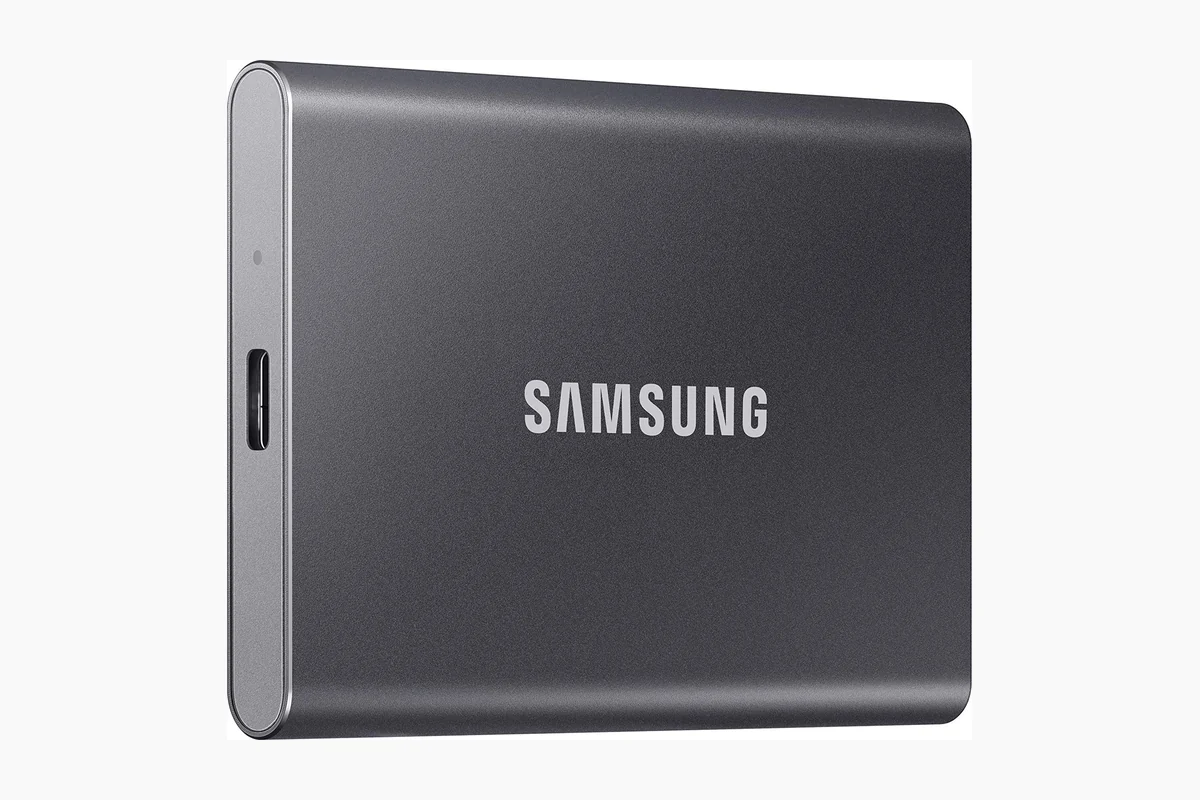
The question of pcie 4.0 ssd in pcie 3.0 slot matters when upgrading an older PC, replacing a slower drive, or comparing storage in the Best SSDs category. As of August 2026, a PCIe 4.0 model may still make sense for its capacity, endurance, controller, price, or future reuse, even when an existing motherboard cannot use its full interface speed.
What Is Pcie 4.0 Ssd In Pcie 3.0 Slot?
A PCIe 4.0 SSD in a PCIe 3.0 slot means that a solid-state drive designed to support the fourth generation of Peripheral Component Interconnect Express is installed in a motherboard connection that supports the third generation. The two devices can normally communicate, but the connection operates according to the older PCIe 3.0 standard.
In most modern desktop discussions, the drive is an M.2 NVMe SSD. These terms describe different parts of the hardware. M.2 identifies the physical form factor, NVMe means Non-Volatile Memory Express and identifies the storage protocol, while PCIe identifies the high-speed interface used to transfer data. An M.2 connector alone does not prove that a motherboard supports NVMe storage.
The important rule is that PCIe devices generally operate at the highest generation and lane width supported by both ends of the connection. A PCIe 4.0 SSD connected to a PCIe 3.0 slot therefore falls back to PCIe 3.0. The drive does not damage the motherboard, and the slot does not upgrade itself to PCIe 4.0.
Why Pcie 4.0 Ssd In Pcie 3.0 Slot Matters
The main consequence is a performance ceiling. A typical NVMe M.2 SSD uses up to four PCIe lanes, written as x4. If a PCIe 4.0 x4 SSD is installed in a PCIe 3.0 x4 slot, it normally keeps the four-lane connection but uses the older generation. Its controller and NAND may support more throughput than the platform can provide, but the motherboard connection becomes the limiting factor.
Gaming performance
For gaming, installing a PCIe 4.0 SSD in a PCIe 3.0 slot can still be a sensible storage upgrade, particularly if the previous drive was older, nearly full, or slower. It can provide additional capacity and may improve storage-related tasks such as game installation, updates, file transfers, and loading from a faster replacement drive.
However, the PCIe 4.0 label does not normally increase in-game frames per second. Frame rate is primarily determined by the CPU, GPU, game engine, resolution, and graphics settings. Storage can affect loading and some asset-streaming behavior, but it does not directly make the GPU render more frames. See whether SSD speed affects gaming FPS for a related explanation.
Productivity and large file transfers
The interface limitation becomes more relevant when a workload moves large amounts of data or keeps the SSD busy for extended periods. Video projects, virtual machines, software builds, disk imaging, data analysis, and large archive operations may expose the difference between a PCIe 3.0 connection and a PCIe 4.0 connection.
Even in these workloads, sequential read and write specifications are not the whole story. The controller, NAND type, cache behavior, available free space, firmware, thermals, and the workload itself all influence practical performance. A high-rated PCIe 4.0 SSD can operate correctly in an older system, but paying extra for its interface speed is harder to justify if the drive will never move to a PCIe 4.0 platform.
Compatibility and upgrade value
Backward compatibility makes PCIe 4.0 SSDs flexible, but it does not remove the need to check the motherboard manual. Some M.2 sockets support PCIe NVMe drives, some support M.2 SATA drives, and some support both. The connector may look similar even when the electrical support is different.
A PCIe 4.0 SSD may offer better long-term value when it has the capacity, endurance rating, warranty, or internal design you need and its price is close to suitable PCIe 3.0 alternatives. It can also be moved into a newer PC later. A PCIe 3.0 SSD may be the better choice when it provides similar capacity and reliability at a meaningfully lower cost and will stay in the older system.
How Pcie 4.0 Ssd In Pcie 3.0 Slot Works
1. The motherboard and SSD negotiate a link
During startup, the platform’s PCI Express controller and the SSD identify the connection modes they both support. If the SSD supports PCIe 4.0 but the motherboard supports only PCIe 3.0, the devices select PCIe 3.0. This process is automatic in normal circumstances and is the reason a newer PCIe device can often function on an older PCIe platform.
2. Lane width controls the data path
PCIe connections are built from lanes. Each lane carries data in both directions, and a link can combine multiple lanes to increase available bandwidth. NVMe M.2 SSDs commonly use an x4 link. A PCIe 4.0 x4 SSD in a PCIe 3.0 x4 socket therefore runs at PCIe 3.0 x4.
If the slot is electrically limited to fewer lanes, the connection can be narrower than expected. A connector’s physical size is not enough to determine its electrical configuration. For example, an expansion slot may be physically long while receiving fewer active lanes from the motherboard. The board manual or firmware information is the reliable source for this detail.
3. The SSD’s internal hardware remains active
The older slot limits the external interface, but it does not change the SSD’s internal components. The controller still manages data movement, NAND flash still stores data, and firmware still handles caching, error correction, garbage collection, and wear management. A drive with onboard DRAM can behave differently from a DRAMless design in sustained or mixed workloads even when both operate through the same PCIe generation.
For a closer look at that distinction, read the guide to DRAM versus DRAMless SSDs for gaming. The interface generation is only one attribute in a complete SSD comparison.
4. Software can show the active connection
After installation, a hardware-information utility, SSD management application, or motherboard diagnostic tool may show the negotiated PCIe generation and lane width. Look for an active link reported as PCIe 3.0 and, where supported, x4. The exact label depends on the software and platform.
A storage benchmark can provide a measurement of one system and workload, but it should not be confused with the SSD manufacturer’s maximum specification. Actual results vary with the processor, operating system, queue depth, file size, free capacity, thermal state, and background activity.
What to Look For When Buying
Use this checklist before buying a PCIe 4.0 SSD for a system built around PCIe 3.0:
- Confirm the protocol: Check that the motherboard’s M.2 socket supports NVMe over PCIe. An M.2 SATA-only socket may not accept an NVMe drive.
- Check the physical size: Many desktop SSDs use the M.2 2280 format, which is 22 mm wide and 80 mm long. Confirm that the motherboard has the correct mounting position.
- Verify lane allocation: Determine whether the socket uses four PCIe lanes and whether it shares lanes with SATA ports or another expansion slot.
- Compare capacity and endurance: Capacity, the manufacturer’s Terabytes Written (TBW) rating, warranty terms, and intended workload can matter more than the PCIe generation.
- Consider the controller and NAND: These components influence sustained writes, mixed workloads, caching, and responsiveness beyond the interface label.
- Account for cooling: Repeated large transfers can make SSD temperature relevant. A heatsink can help manage heat, but it cannot turn a PCIe 3.0 connection into PCIe 4.0. See the guide to SSD thermal throttling temperatures for more context.
- Check boot support: If the SSD will be the operating-system drive, confirm that the motherboard firmware supports booting from the selected M.2 socket. This is especially important when using a PCIe-to-M.2 adapter.
- Compare total value: Choose PCIe 4.0 when its price and specifications are attractive or you expect to reuse it in a newer PC. Choose PCIe 3.0 when the older interface fully meets your needs and costs less.
When comparing models, treat manufacturer sequential read and write figures as specifications measured under defined conditions, not as guaranteed everyday results. PCGearWiki’s product evaluation methodology explains why compatibility, workload, endurance, and practical value should be considered alongside headline speed.
Common Mistakes to Avoid
- Assuming a PCIe 4.0 SSD will run at PCIe 4.0 speed: The connection is limited by the slower endpoint, so a PCIe 3.0 motherboard normally restricts the drive to PCIe 3.0 operation.
- Confusing M.2 with NVMe: M.2 identifies shape and mounting, not the storage protocol. Always confirm what the socket supports.
- Expecting higher gaming FPS: SSD interface speed affects storage operations, not the GPU’s basic frame-rendering capability.
- Ignoring lane sharing: Populating one M.2 socket can disable selected SATA ports or change the lane configuration of another slot on some motherboards.
- Judging an SSD only by sequential speed: Large-file performance does not fully describe operating-system responsiveness, random access, sustained writes, endurance, or reliability.
- Believing an adapter adds PCIe 4.0: A PCIe-to-M.2 adapter changes the connector format. It does not increase the PCIe generation or lane capability supplied by the motherboard and CPU.
Quick Comparison
| Configuration | Connection Behavior | Why It Matters | Who Should Care |
|---|---|---|---|
| PCIe 4.0 SSD in PCIe 4.0 x4 slot | Uses the newer generation when the platform and drive both support it | Allows the SSD to use its intended interface capability | Users with newer systems or demanding storage workloads |
| PCIe 4.0 SSD in PCIe 3.0 x4 slot | Normally negotiates down to PCIe 3.0 x4 | Works, but the older slot limits maximum bandwidth | Owners upgrading capacity or planning future platform reuse |
| PCIe 3.0 SSD in PCIe 3.0 x4 slot | Runs natively at PCIe 3.0 | Can offer appropriate performance without paying for unused interface capability | Cost-conscious users keeping an older PC |
| NVMe SSD through a PCIe adapter | Uses the generation and lanes provided by the expansion slot | Can add NVMe storage where no native M.2 socket exists | Desktop owners who have compatible expansion slots |
Related Guides
These PCGearWiki guides cover related SSD decisions:
- DRAM versus DRAMless SSDs for gaming
- SSD thermal throttling temperature explained
- Does SSD speed affect gaming FPS?
- Best NVMe SSD under 100
Why You Should Trust PCGearWiki
PCGearWiki explains PC hardware by separating specifications from measured results and marketing claims. For SSDs, that means considering the interface generation, lane width, NVMe support, M.2 form factor, controller, NAND, cache design, endurance, thermal behavior, and workload instead of treating one sequential speed number as a complete buying recommendation.
The goal is to connect technical specifications with practical decisions. A newer interface can be useful, but only when the rest of the system can support it and the workload can benefit from it. Recommendations therefore focus on compatibility, bottlenecks, upgrade paths, and whether the additional cost provides value for the intended PC.
Final Thoughts
A PCIe 4.0 SSD will usually work in a compatible PCIe 3.0 slot, but it will operate at the older connection’s negotiated generation and lane width. The upgrade can still provide useful capacity, modern SSD hardware, strong endurance, or future reuse. It will not unlock PCIe 4.0 bandwidth or normally increase gaming FPS on a PCIe 3.0 system.
Before buying, confirm that the motherboard socket supports NVMe, check the M.2 length and lane configuration, review lane sharing and boot support, and compare capacity, endurance, thermals, and price. The specific bottom line is simple: choose a PCIe 4.0 SSD for its overall value or future flexibility, not for PCIe 4.0 speed that the older slot cannot provide.
Frequently Asked Questions
Will a PCIe 4.0 SSD work in a PCIe 3.0 M.2 slot?
Usually, yes, if the M.2 socket supports NVMe over PCIe and the drive physically fits. The SSD and motherboard negotiate a compatible mode, so the PCIe 4.0 drive normally runs at PCIe 3.0 speed. Check the motherboard manual because sockets can differ in protocol support, lane wiring, mounting length, and boot compatibility.
How much slower is a PCIe 4.0 SSD in a PCIe 3.0 slot?
Its maximum interface throughput is lower because PCIe 3.0 provides less bandwidth than PCIe 4.0. The exact practical result depends on the SSD, lane width, workload, free space, firmware, and thermals. Large sequential transfers are more likely to expose the limitation than normal application launches or web browsing.
Can a PCIe 4.0 SSD improve gaming FPS in a PCIe 3.0 system?
No. An SSD can improve storage-related tasks such as loading, installation, patching, and file transfers, but frame rate is primarily controlled by the CPU, GPU, game engine, resolution, and graphics settings. A PCIe 4.0 SSD can be a useful storage upgrade, but its interface rating is not an FPS feature.
Should you buy a PCIe 4.0 SSD for an older PCIe 3.0 motherboard?
Buy one when its capacity, endurance, controller, price, or future upgrade value is attractive. Choose PCIe 3.0 when a suitable model costs less and the drive will remain in the older system. Compare the complete specification and total cost rather than assuming that the newer interface is automatically the better value.
Does a PCIe adapter make a PCIe 3.0 connection run at PCIe 4.0?
No. A PCIe-to-M.2 adapter changes the physical connection so an NVMe SSD can use an expansion slot. It cannot increase the PCIe generation or electrical lane capability provided by the motherboard and CPU. A PCIe 4.0 SSD installed through a PCIe 3.0 expansion slot remains limited by PCIe 3.0.
Technical Sources
Use these primary technical references alongside the practical guidance above. Product-specific limits can vary by model and firmware.
Sources and Verification
Research basis: Product identity, dimensions, interfaces, supported features, and warranty terms are checked against available manufacturer documentation and current retailer listings. Price, stock, and aggregate customer ratings can change after publication.
Testing disclosure: Unless this article explicitly states that PCGearWiki performed hands-on testing and describes the test setup, recommendations are research-based editorial evaluations rather than PCGearWiki laboratory measurements. Customer feedback is used to identify recurring ownership patterns, not as proof of technical performance.
Last source review: September 22, 2026. See our Review Methodology, Editorial Policy, and Corrections Policy.


Write Your Review
No reviews yet. Be the first to share your experience!