

Last updated: October 2, 2026
Cross-platform external SSD use requires drive formatted with exFAT file system or third-party file system drivers installed on target operating systems. Best external SSD for Mac and Windows combines USB 3.2 Gen 2 controller, sustained SLC caching, and included dual-cable connectivity for USB-A and USB-C ports. Drive pick below relies on verified manufacturer specifications, not hands-on laboratory benchmarks.
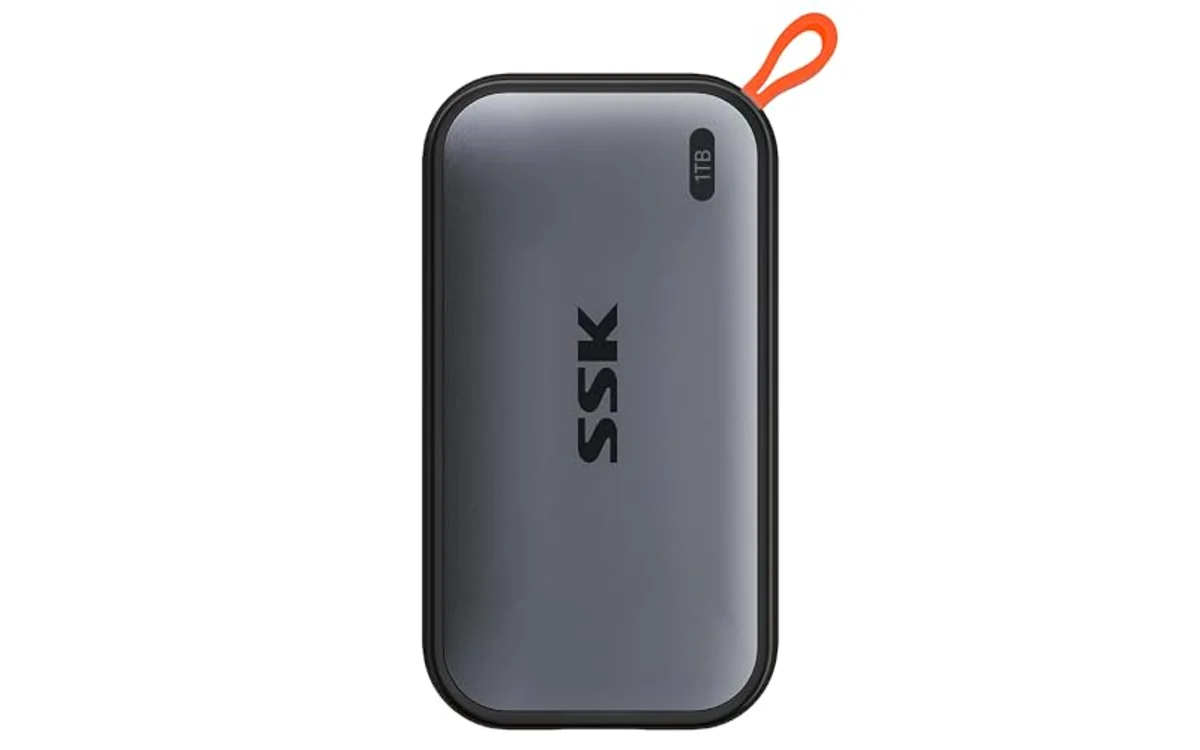
Cross-Platform Compatibility Overview
| Drive Model | Interface Spec | Claimed Peak Read | Included Cables | Native Filesystem |
|---|---|---|---|---|
| SSK Portable SSD 1TB | USB 3.2 Gen 2 (10Gbps) | 1050 MB/s | USB-C to USB-C, USB-C to USB-A | exFAT / NTFS (varies) |
Shared workflows between macOS and Windows encounter file system barriers. macOS writes natively to APFS and HFS+, reads NTFS without native write capability. Windows writes natively to NTFS, lacks native support for APFS or HFS+. Formatting external drive with exFAT bridges both systems without extra software. Explore general category recommendations in our best external SSD or browse broader selections in external SSDs section.
Drive Selection for Multi-OS Workflows
[acms_product asin=”B0BGL4SHY8″]SSK Portable SSD 1TB External Solid State Hard
SSK external SSD targets mixed OS setups via dual included cables. USB-C cable connects modern MacBooks and PCs. USB-A cable connects legacy Windows desktops. Hardware controller utilizes USB 3.2 Gen 2 protocol. Max rated read speed reaches 1050 MB/s; write speed caps at 1000 MB/s under ideal burst conditions. Check live price on product card above.
Drive uses dynamic SLC cache allocation sized up to 25 percent of free space. Transfers below 250GB sustain full 10Gbps bus bandwidth under factory ratings. Moving past SLC cache boundary forces write operations directly into TLC or QLC NAND, reducing throughput. Controller supports TRIM commands and S.M.A.R.T. monitoring passes, though OS-level USB bridge support dictates if TRIM functions across both platforms. Windows often limits TRIM over standard USB Mass Storage protocols unless UASP (USB Attached SCSI Protocol) engages.
Capacity interpretation differs between operating systems. SSK reports 1TB based on decimal calculations (1GB = 1,000,000,000 bytes). Windows calculates binary capacity (1GiB = 1,073,741,824 bytes), displaying approximately 931GB available space. macOS displays decimal units natively, showing full 1TB value. Discrepancy stems from base-2 versus base-10 OS math, not drive defect.
Operating System File Format Selection
Proper file system choice prevents drive mount failures and read-only locks across platforms.
| File System | macOS Support | Windows Support | Max File Size | Best Use Case |
|---|---|---|---|---|
| exFAT | Full Read / Write | Full Read / Write | 16EB | Universal cross-platform data drive |
| FAT32 | Full Read / Write | Full Read / Write | 4GB | Legacy devices, firmware flashing |
| NTFS | Read Only (native) | Full Read / Write | 16TB | Windows exclusive installs |
| APFS | Full Read / Write | No native support | 8EB | macOS exclusive backups (Time Machine) |
Format cross-platform storage with exFAT. When formatting exFAT within Windows Disk Management, default allocation unit size sometimes sets to 128KB or larger. macOS Disk Utility handles exFAT formatting with standard cluster sizing, minimizing small-file storage overhead. Avoid FAT32 due to 4GB individual file size limits, which break video project transfers.
Hardware Reliability and Connection Stability
Cross-platform usage exposes external SSDs to unstable sleep-state behavior. macOS handles external volume unmounting aggressively during system sleep. Premature cable removal or aggressive power management triggers directory corruption on exFAT partitions because exFAT lacks journaling. If drive unmounts unexpectedly during operations, review steps in guide for external SSD disconnects during file transfer.
Bus power drops cause data corruption. Connect external drive directly to host ports instead of unpowered USB hubs. macOS Thunderbolt/USB4 ports negotiate 10Gbps transfer rates via fallback USB 3.2 Gen 2 modes. Windows desktop chassis front panel headers often exhibit signal degradation; rear motherboard I/O ports ensure maximum connection stability.
Step-by-Step Format Guide for Dual-OS Compatibility
- Back up existing data from external SSD. Formatting destroys all contents.
- Connect drive to Windows PC or Mac.
- Open disk partition tool: Disk Management on Windows (Win + X, select Disk Management) or Disk Utility on Mac (Applications > Utilities > Disk Utility).
- Select external drive volume. Verify disk size matches physical SSD to avoid erasing internal OS drive.
- Choose Erase or Format option. Select exFAT as file system format.
- Select Master Boot Record (MBR) or GUID Partition Table (GPT). Choose GPT for modern multi-terabyte support and UEFI compatibility.
- Set allocation unit size to Default (Windows) or complete erase sequence (macOS).
- Eject drive safely using OS menu before unplugging cable.
Cross-Platform Diagnostic Checklist
- Ensure drive format displays as exFAT in disk properties on both systems.
- Confirm host ports run USB 3.1 Gen 2 or USB 3.2 Gen 2 to achieve 10Gbps speeds.
- Inspect USB-C cable for high-speed data pins; charging-only cables limit speeds to USB 2.0 (480Mbps).
- Disable OS sleep timers during sustained multi-gigabyte file transfers.
- Enable safe drive removal caching policies inside Windows Device Manager to prevent metadata loss.
- Verify Time Machine on macOS is not auto-converting external shared drive into APFS backup target.
Frequently Asked Questions
Why does external SSD run slower on Mac than Windows?
macOS USB controller drivers implement UASP differently than Windows. Some bridge chips fail to negotiate full 10Gbps USB 3.2 Gen 2 speeds on Mac Thunderbolt ports, defaulting to 5Gbps USB 3.0 mode. File system overhead from exFAT inside macOS kernel also yields lower random small-block read/write speeds compared to native APFS.
Can I run macOS Time Machine and Windows File History on same drive?
Yes, but requires partitioning. Create two distinct partitions on SSD: one formatted as APFS or HFS+ for macOS Time Machine, second formatted as NTFS or exFAT for Windows backup. Single partition cannot serve both backup services simultaneously due to incompatible filesystem restrictions.
Does TRIM work on external SSD across both Mac and Windows?
TRIM over USB requires host OS and USB-to-NVMe bridge chip to support UASP with SCSI / ATA Translation (SAT). Windows supports TRIM over USB if bridge chip passes commands. macOS limits TRIM command issuance over standard USB connections natively, often reserving USB TRIM strictly for internal or certified Thunderbolt enclosures.
Why does external SSD show 931GB instead of 1TB?
Storage manufacturers measure capacity using decimal system (powers of 10), where 1TB equals 1,000,000,000,000 bytes. Windows measures storage space in binary gibibytes (powers of 2), dividing by 1,073,741,824. 1,000,000,000,000 bytes divided by 1,073,741,824 yields 931.32 GiB. macOS reports capacity in decimal, displaying 1TB.

Pros
- Fast USB 3.2 Gen 2 performance with up to 1050MB/s read speeds
- Includes both USB-C and USB-A cables for broad device compatibility
- SLC caching helps reduce slowdowns during smaller large-file transfers
- TRIM and S.M.A.R.T. support provide useful maintenance and health-monitoring features
Cons
- Windows may display approximately 931GB of usable capacity instead of the full 1TB
- SLC cache benefits are specified for transfers smaller than 250GB, so performance may vary with larger sustained transfers
- Maximum speeds depend on the connected device, cable, and USB port
| Color | Grey |
|---|---|
| Size | 1TB |
| Dimensions | 2.7 x 1.48 x 0.49 inches |
| Weight | 0.0661386786 pounds |
| Product Group | Personal Computer |
| Binding | Personal Computers |
Best suited to shoppers comparing external solid state drives products who specifically need transfer large files quickly with read speeds up to 1050MB/s and write speeds up to 1000MB/s., Maintain steady performance during transfers under 250GB through….
Before buying, compare the exact model’s compatibility, dimensions, core specifications, warranty, recurring owner feedback, and current price against other external solid state drives options. Retailer availability and pricing can change after publication.
Sources and Verification
Research basis: Product identity, dimensions, interfaces, supported features, and warranty terms are checked against available manufacturer documentation and current retailer listings. Price, stock, and aggregate customer ratings can change after publication.
Testing disclosure: Unless this article explicitly states that PCGearWiki performed hands-on testing and describes the test setup, recommendations are research-based editorial evaluations rather than PCGearWiki laboratory measurements. Customer feedback is used to identify recurring ownership patterns, not as proof of technical performance.
Last source review: October 2, 2026. See our Review Methodology, Editorial Policy, and Corrections Policy.


Write Your Review
No reviews yet. Be the first to share your experience!