

Last updated: October 7, 2026
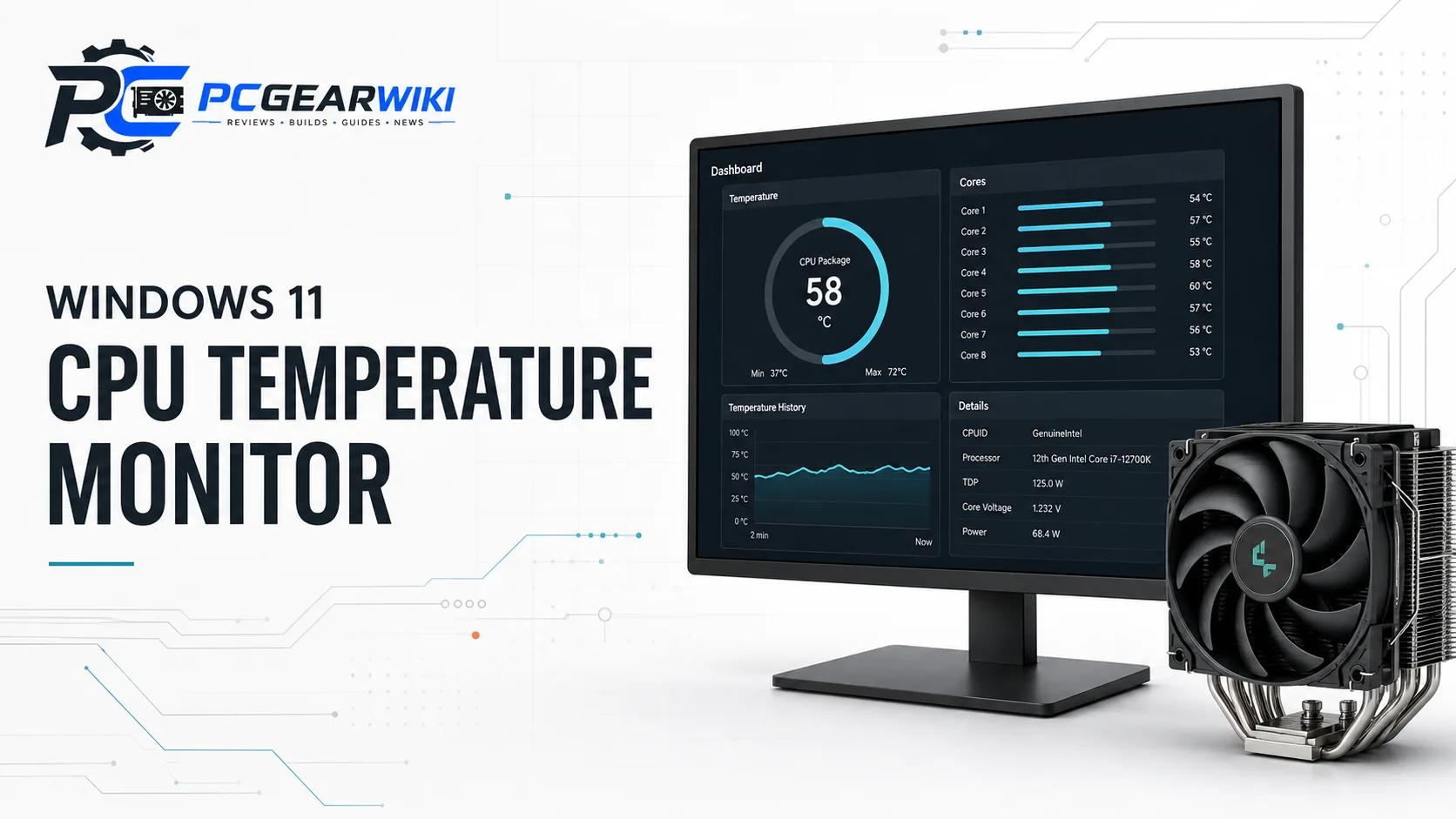
To monitor CPU temperature in Windows 11, use a compatible sensor utility such as HWiNFO or Core Temp, then read the CPU’s temperature alongside its workload, clocks, and thermal-limit indicators. You do not need to buy a screen for your PC case. A secondary display can show the readings, but it does not measure the CPU independently or improve cooling.
This guide separates three tasks that are often confused: finding the sensor, recording a useful test, and interpreting the result. A single maximum-temperature number is not enough to decide whether a cooler is faulty or an upgrade is necessary.
Choose the right monitoring tool
| Option | Useful for | What to check |
|---|---|---|
| HWiNFO | A broader system sensor view and logging | Locate the CPU group and distinguish it from GPU or motherboard sensors. |
| Core Temp | A focused per-core CPU temperature view | Confirm processor support and download from the developer. |
| PC maker’s utility | Laptop or prebuilt-specific monitoring | Use software intended for the exact system model. |
| Firmware hardware monitor | A basic check before Windows starts | This is not a substitute for measuring the workload inside Windows. |
HWiNFO’s official overview documents hardware monitoring, reporting, alerts, and logging. Use those capabilities to build a record rather than treating the dashboard as a cooling score. Sensor availability and labels depend on the hardware; not every PC presents the same rows.
Core Temp’s developer page explains that it reads digital thermal sensor information and can display individual core temperatures on supported processors. It is an alternative for readers who want a narrower CPU-focused view. Neither application needs a case-mounted display to show a reading.
Check CPU temperature step by step
- Identify your processor model and obtain the monitoring application from its official developer. Avoid repackaged installers or utilities that promise to fix every heat problem.
- Open the sensor view. In HWiNFO, choose the sensor-only view when available, or open Sensors from the main application.
- Find the CPU section. Look for the appropriate package, die, or core temperature labels for your processor, rather than a generically named motherboard temperature.
- Let the computer settle with your normal background applications. Note the room conditions, fan mode, and whether a laptop is plugged in.
- Reset minimum/maximum readings or begin a fresh log before starting the workload you want to evaluate.
- Run a representative game, export, or other everyday task. Record temperature together with effective clocks, power, and any thermal-throttling flags available.
- End the log and note the application, settings, and test duration. Repeat under the same conditions after making one cooling change.
These steps are a practical comparison method, not a laboratory benchmark. For example, closing an unnecessary background task and repeating the same game section is more informative than comparing a busy desktop to a different benchmark on another day. Keep the fan profile and workload consistent so the changed condition is clear.
Which temperature reading should you use?
Keep the sensor name with every recorded value. A CPU package reading, a hottest-core reading, a motherboard socket sensor, and a GPU hotspot are not interchangeable measurements. If two tools show different numbers, first compare their labels and polling times. Do not average unrelated sensors or conclude that one application is inaccurate merely because the labels differ.
Use the same sensor for before-and-after comparisons. A log can show whether a high reading was a brief peak, repeated spikes, or a sustained condition. The current, average, and maximum columns answer different questions; the maximum since yesterday is not necessarily the temperature during the game you just opened.
What CPU temperature is too high?
There is no universal pass/fail number for every laptop and desktop CPU. Intel directs users to their exact processor’s specification page for its maximum temperature, and notes that temperature alone may not establish whether a system has a problem. Check the manufacturer’s limit for your model rather than applying another CPU’s value. Source: Intel processor temperature guidance.
A more useful decision combines temperature with behavior. Is the CPU reporting thermal throttling? Are clocks or performance falling during the same workload? Does the problem occur only in an unusually heavy task, or in normal use as well? A short boost-related peak and persistent performance loss require different investigations. Intel’s thermal-throttling guidance explains the protective clock reduction and emphasizes a suitable cooling solution.
| Observation | Next check | Avoid assuming |
|---|---|---|
| A brief high maximum | Review the log and workload at that time. | One peak proves the cooler failed. |
| Sustained thermal-limit flags and reduced performance | Check cooling, airflow, mounting, and the manufacturer’s configuration. | A bigger CPU is the solution. |
| Different readings between applications | Compare sensor labels and sample timing. | All sensor rows should match. |
| A low clock without a thermal flag | Check workload and power limits separately. | Every clock reduction is overheating. |
Use the readings to troubleshoot, not to overspend
Start with observable conditions: blocked ventilation, dust, an unexpected fan profile, or a workload that changed after an update. Confirm that the installed cooler is suitable for the CPU and that its fan or pump is operating as intended. If the machine is under warranty, follow its maker’s service instructions rather than disassembling a laptop based on one sensor reading.
If a cooling change is justified, compare the full constraints: socket support, case clearance, RAM clearance, noise needs, and the workload. Our RAM-clearance cooler guide covers physical fit, while our compact case airflow guide covers space and ventilation trade-offs. Neither a high product rating nor a display accessory proves that your thermal issue is solved.
Do you need a dedicated temperature screen?
Only if you want a persistent dashboard outside the main monitor. The screen still depends on a software or vendor sensor path. Before buying one, check Windows support, the required application or license, connection type, free headers, and mounting space. Start with the free on-screen sensor view to establish that the relevant readings exist on your PC.
A display is an optional convenience, not the first step in diagnosing overheating. Spend on it after the monitoring workflow works reliably, not as a substitute for investigating the cooler or logging an actual workload.
Frequently asked questions
Why can I see GPU temperature but not CPU temperature in Task Manager?
Do not infer CPU temperature from a GPU temperature field or CPU utilization percentage. Use a supported CPU sensor utility or your PC maker’s monitoring tool for the processor reading.
Should I watch CPU temperature constantly?
A focused log during the problem workload is often more useful than continuously watching the highest number. Preserve the sensor name and settings so future checks are comparable.
Can a monitoring app cool my CPU?
Showing or logging a temperature does not remove heat. Cooling hardware, ventilation, fan control, and power configuration determine the thermal behavior.
Editorial scope: monitoring and diagnostic guidance, not measured PCGearWiki temperatures or a universal safe-temperature chart. Sources checked October 8, 2026. See our evaluation process.




Write Your Review
No reviews yet. Be the first to share your experience!