

Last updated: October 2, 2026
Change gaming mouse polling rate through manufacturer software, hardware toggle buttons on mouse underside, or driverless web configurators. Windows contains no native operating system slider for USB report frequency; polling rate configures entirely inside device hardware controller or vendor driver. Adjustment alters how many times per second sensor sends position updates to operating system.
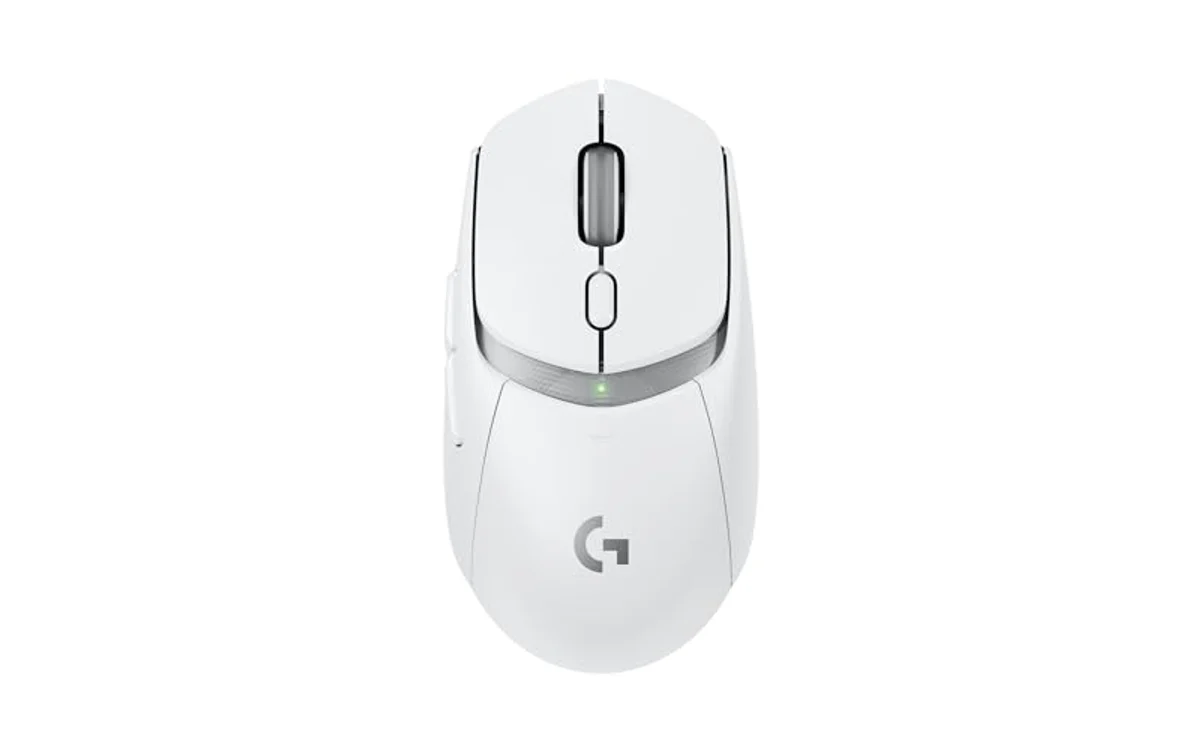
DPI controls cursor distance per physical inch moved. Polling rate controls update frequency measured in Hertz (Hz). Users adjusting cursor speed should read guide on how to change mouse DPI in windows 11. This guide isolates USB report frequency configuration.
Method 1: Vendor Software Utility
Most mainstream mice require manufacturer configuration suites. Suite sends instruction packet to mouse onboard memory, flashing selected polling rate profile directly to microcontroller.
Follow these steps to adjust report rate in companion software:
- Download official companion software from manufacturer support portal (such as Razer Synapse, Logitech G HUB, SteelSeries GG, or Corsair iCUE).
- Launch software with mouse connected via USB cable or dedicated 2.4GHz wireless dongle.
- Select active mouse from device dashboard.
- Locate performance tab or sensor settings menu.
- Find parameter labeled Polling Rate, Report Rate, or Reports Per Second.
- Select target frequency: 125Hz, 250Hz, 500Hz, 1000Hz, 2000Hz, 4000Hz, or 8000Hz.
- Save profile to onboard memory if device supports hardware storage, then close background software if desired.
Method 2: Physical Hardware Switch
Esports mice from brands like Zowie, Vaxee, Pulsar, and Endgame Gear feature driverless designs. Configuration relies on underside buttons or mechanical slide switches.
Perform these steps to adjust hardware switches:
- Flip mouse over to view bottom shell.
- Identify button labeled Polling Rate, Report Rate, or Hz.
- Press button to cycle through indicator LED stages, or slide switch to desired value.
- Match indicator LED color to factory key: Red indicates 125Hz, Green indicates 500Hz, Blue indicates 1000Hz (verify specific manufacturer color codes in device manual).
Some driverless mice lack dedicated bottom buttons. These require button-combination boot states. Unplug USB cable, hold specific primary or side buttons down simultaneously, then insert USB cable into active port. Device flashes LED confirming new report rate.
Method 3: Web-Based HID Configurators
Modern boutique mice use Chromium WebHID protocols. Configuration occurs inside browser window without background system software installations.
To configure via WebHID:
- Open Chromium-based browser (Chrome, Edge, Brave, Opera).
- Navigate to official web driver portal provided by mouse manufacturer.
- Click connect or pair device prompt inside browser window.
- Approve WebHID permission popup identifying USB vendor ID.
- Navigate to device settings tab and toggle Polling Rate dropdown menu.
- Click save or flash settings to write value directly to mouse microcontroller.
Diagnostic & Decision Table: Choosing Target Frequency
Higher polling rate lowers input delay but increases central processing unit interrupt load. Evaluate system capabilities before setting extreme report rates.
| Polling Rate | Report Interval | CPU Overhead | Battery Consumption | Recommended Use Case |
|---|---|---|---|---|
| 125Hz | 8.0 ms | Negligible | Minimal (weeks/months) | Office tasks, basic Bluetooth connections, emergency battery saving. |
| 500Hz | 2.0 ms | Very Low | Low | Legacy dual-core CPUs, older game engines prone to frame stutter. |
| 1000Hz | 1.0 ms | Low to Moderate | Standard baseline | Competitive FPS default standard. Universal game engine compatibility. |
| 2000Hz – 4000Hz | 0.5 ms – 0.25 ms | High | Heavy drain (15-30 hours) | High-end modern CPUs, 240Hz+ monitors, modern games with raw input support. |
| 8000Hz | 0.125 ms | Severe Interrupt Load | Extreme drain (sub-20 hours) | Top-tier modern desktop CPUs (Ryzen 7000/9000, Intel 13th/14th Gen), 360Hz+ monitors. |
For deeper competitive analysis regarding standard frequencies, review 500Hz vs 1000Hz polling rate for FPS. Users experiencing stutter on 2000Hz to 8000Hz hardware should evaluate instructions on how to lower mouse polling rate to 1000Hz to restore frametime stability.
Technical Constraints and Failure Modes
Selecting polling rates beyond hardware capabilities creates operational instability. Identify primary technical limits before altering values.
Connection Interface Bottlenecks: Bluetooth protocol cannot sustain true high-frequency gaming reports. Standard Bluetooth limits mouse throughput between 90Hz and 133Hz. High report rates require 2.4GHz wireless dongles or direct USB connection. Review 2.4GHz vs Bluetooth gaming mouse architecture to understand transport layer constraints.
CPU Bottlenecks and Micro-Stutter: 8000Hz polling generates 8,000 hardware interrupts per second. Single-thread gaming workloads experience frame drops if processor cannot service hardware interrupts between render cycles. If camera movement causes frame rate drops, drop polling rate to 1000Hz immediately. For unresolved hitching, review guide on wireless gaming mouse stuttering fix.
USB Controller Saturation: High-polling mice (4000Hz+) demand high USB bus bandwidth. Do not plug high-polling wireless receivers into external passive USB hubs, monitor passthrough ports, or front-panel case headers. Plug receiver directly into motherboard rear I/O USB 3.0 or higher port running dedicated controller channels.
Post-Adjustment Verification Checklist
Confirm hardware accepted firmware instruction through verification testing:
- Run Benchmark Utility: Open specialized testing tool or web utility; follow procedural steps in how to check mouse polling rate to measure true throughput.
- Perform Rapid Circles: Move mouse rapidly in large circles across mousepad while watching report frequency monitor. Sensor must saturate tracking speed to hit peak configured Hz.
- Verify Stable Median: Ensure test readout locks close to target rate (for example, floating between 960Hz and 1000Hz during rapid sweeps on 1000Hz setting). Erratic drops under 400Hz signal radio interference or USB port throttling.
- Observe In-Game Frametime: Launch game, pan camera rapidly. Ensure frame pacing remains flat line without frame spikes during heavy mouse sweeps.
Frequently Asked Questions
Can I change mouse polling rate without manufacturer software?
Yes, if mouse includes physical hardware toggle switches, button combinations, or WebHID browser support. Generic mice lacking hardware buttons or proprietary firmware support default permanently to Windows USB HID standard (typically 125Hz or 500Hz) and cannot change without unsupported third-party kernel driver hacks.
Does higher polling rate drain wireless battery faster?
Yes. 4000Hz requires transceiver to process four times more radio packets per second than 1000Hz. 8000Hz requires eight times more data exchange. High frequencies reduce wireless battery runtime significantly, often dropping operational battery life from 80 hours down to under 20 hours.
Why does 8000Hz polling rate make my game stutter?
Older game engines calculate physics or camera orientation synchronously per mouse report packet. Excessive input packets saturate main game render loop thread, causing dropped frames. Furthermore, background applications or weaker CPUs choke on high hardware interrupt requests (IRQs). Lowering polling rate to 1000Hz fixes issue.
Sources and Verification
Research basis: Product identity, dimensions, interfaces, supported features, and warranty terms are checked against available manufacturer documentation and current retailer listings. Price, stock, and aggregate customer ratings can change after publication.
Testing disclosure: Unless this article explicitly states that PCGearWiki performed hands-on testing and describes the test setup, recommendations are research-based editorial evaluations rather than PCGearWiki laboratory measurements. Customer feedback is used to identify recurring ownership patterns, not as proof of technical performance.
Last source review: October 2, 2026. See our Review Methodology, Editorial Policy, and Corrections Policy.


Write Your Review
No reviews yet. Be the first to share your experience!