

Last updated: October 13, 2026
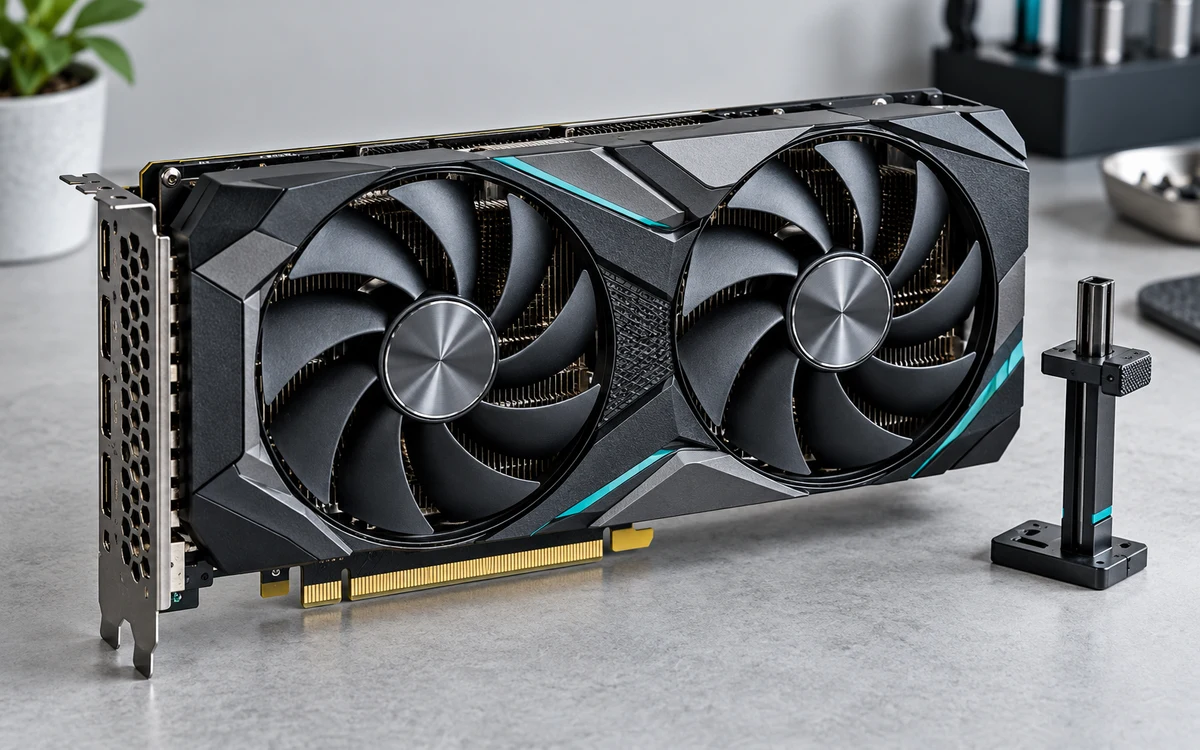
Update GPU drivers by downloading installer package direct from NVIDIA, AMD, or Intel website matching exact hardware model and operating system. Run setup utility, select clean install to purge legacy shader caches, then reboot machine. Keeping display drivers current prevents game crashes, resolves rendering artifacts, and patches critical kernel-level security flaws.
Driver Update Method Comparison
Vendor software suits routine updates. Display Driver Uninstaller (DDU) solves persistent driver corruption. Windows Update serves only as fallback baseline.
| Method | Best Use Case | Pros | Cons |
|---|---|---|---|
| Vendor App (GeForce Experience / Adrenalin / Intel Arc Control) | Regular monthly maintenance | Automatic notification, one-click install, auto game profile tuning | Background telemetry, occasional bloat, login requirement (some vendors) |
| Manual Standalone Installer | Targeted driver revision, avoiding background suites | No extraneous background processes, full version control, works offline | Requires manual tracking of new driver releases |
| DDU Clean Install (Safe Mode) | GPU vendor swap, black screens, persistent driver crashes | Wipes registry remnants, cleans old shader cache, prevents driver conflict | Takes extra steps, requires reboot into Safe Mode |
| Windows Device Manager | Emergency generic display recovery only | Native OS utility, requires no web browsing | Delivers months-old generic branch, omits vendor control panels and Vulkan extensions |
Pre-Installation Checks
Verify current display adapter before downloading files. Press Ctrl + Shift + Esc to open Task Manager. Select Performance tab. Click GPU to inspect exact model name and driver version. Alternatively, press Win + R, enter dxdiag, then inspect Display tab.
Check system architecture. Modern drivers require 64-bit Windows 10 or Windows 11. Notebook GPUs require mobile drivers (marked ‘M’ or ‘Laptop GPU’) to maintain battery switching profiles.
If system crashes stem from thermal limits rather than driver corruption, adjusting hardware parameters via a GPU undervolt guide or inspecting hardware load prevents misdiagnosing thermal throttling as software failure.
Method 1: Clean Installation via Vendor Software
Vendor applications streamline driver delivery while packaging required display runtimes.
- Open vendor control utility: NVIDIA App / GeForce Experience, AMD Software: Adrenalin Edition, or Intel Arc Control.
- Navigate to Drivers tab. Click Check for Updates.
- Download newest Game Ready / Adrenalin package.
- Choose Custom Installation rather than Express.
- Check box labeled Perform a clean installation. This option resets display profiles and discards legacy configuration files.
- Wait for screen to flicker black several times during display driver re-initialization. Complete installer prompts, then restart Windows.
Method 2: Standalone Driver Installation
Avoid background telemetry and companion utilities by deploying standalone installer packages.
- Visit official driver portal for your hardware: NVIDIA Driver Downloads, AMD Drivers and Support, or Intel Download Center.
- Select exact product family, GPU model, operating system, and target branch. Gamers select Game Ready (NVIDIA) or Adrenalin (AMD). Production workstations select Studio (NVIDIA) or Pro (AMD) drivers for extended stability cycles.
- Save installer executable to local drive.
- Close background games, recording software, and hardware monitoring tools. Encoding errors often trigger when active recording hooks block display driver replacement; check OBS encoder fixes if capture software hangs during driver initialization.
- Run installer as Administrator. Select Driver Only if prompted to skip auxiliary software.
- Select Clean Install if available, complete installation sequence, then reboot computer.
Method 3: DDU Deep Clean (Solving Corrupt Drivers)
Perform this sequence when switching hardware between AMD, NVIDIA, or Intel, or when standard updates fail to fix driver crashes.
- Download latest Display Driver Uninstaller (DDU) archive and extract files to desktop.
- Download offline standalone driver package for target GPU. Disconnect Ethernet cable or disable Wi-Fi to stop Windows Update from pulling outdated drivers automatically.
- Hold
Shiftwhile clicking Restart in Windows Start menu. System enters Advanced Startup. - Select Troubleshoot, then Advanced options, then Startup Settings, then click Restart.
- Press
4on keyboard to enter Windows Safe Mode. - Launch DDU executable as Administrator.
- Select device type GPU from dropdown. Select device manufacturer.
- Click Clean and restart. Utility strips driver binaries, removes registry entries, and purges shader cache directories.
- Windows boots into standard desktop using basic display adapter. Run downloaded standalone driver installer. Complete prompts, reboot, then reconnect internet.
Verification Checklist
- Driver Version Match: Open vendor control panel or Task Manager. Confirm version number matches release notes.
- Refresh Rate Reset: Right-click desktop, open Display settings, select Advanced display. Confirm monitor refresh rate did not drop to 60 Hz default.
- Color Depth and Dynamic Range: Inspect display control panel. Confirm output dynamic range set to Full (0-255) and color depth set to native 8-bit or 10-bit panel spec.
- G-Sync / FreeSync State: Open vendor settings. Verify variable refresh rate toggled back on for full-screen and windowed modes.
- VRAM Allocation: Ensure titles allocate memory correctly; heavy features like ray tracing shift memory footprint, detailed in our analysis on ray tracing VRAM consumption.
Troubleshooting Common Update Failures
Installation failures trace back to active hardware hooks, OS privilege blocks, or corrupted system files.
- Installer Failed Error: Disable third-party antivirus shields temporarily. End background monitoring tools like MSI Afterburner, RivaTuner Statistics Server, or NZXT CAM. These tools latch onto display driver DLLs and block overwrite operations.
- Black Screen Post-Install: Force hard reboot by holding power button. If display output remains dark, connect monitor cable to motherboard HDMI/DisplayPort to use integrated graphics, then verify PCIe GPU shows under Device Manager.
- Driver Rollback Procedure: If newly installed driver introduces stutter or instability, open Device Manager, expand Display adapters, right-click graphics card, select Properties, click Driver tab, and select Roll Back Driver.
- Windows Update Overwriting Drivers: Prevent OS from replacing manual drivers. Press
Win + R, entersysdm.cpl, select Hardware tab, click Device Installation Settings, choose No, then save changes.
For users running legacy architectures unable to execute modern display API updates, consult current upgrade paths in the graphics card buying index.
Frequently Asked Questions
How often should graphics card drivers be updated?
Update monthly or when launching newly released games requiring day-one optimizations. If current system runs existing game library smoothly without stability flaws, updating every three to four months suffices. Production machines should remain on stable Studio/Pro enterprise branches.
Does updating GPU drivers improve game performance?
Updates increase performance primarily in newly launched titles through specific engine optimizations, compiler tweaks, and updated shader profiles. For games released years ago, new drivers rarely boost raw framerates unless fixing known driver-level regression or memory leak.
Should GeForce Experience or manual installer be used?
Manual installer packages yield cleaner system state without background services consuming memory. GeForce Experience or NVIDIA App provides automated updates and shadow-recording features. Users sensitive to background system overhead should choose manual standalone installers.
What is difference between Game Ready and Studio drivers?
Game Ready drivers feature day-one optimization patches for newly released titles with rapid release schedules. Studio drivers undergo extensive validation testing across creative applications like Blender, Premiere Pro, and DaVinci Resolve, prioritizing stability over quick game release support.
Add PCGearWiki as a preferred source on Google
Sources and Verification
Research basis: Product identity, dimensions, interfaces, supported features, and warranty terms are checked against available manufacturer documentation and current retailer listings. Price, stock, and aggregate customer ratings can change after publication.
Testing disclosure: Unless this article explicitly states that PCGearWiki performed hands-on testing and describes the test setup, recommendations are research-based editorial evaluations rather than PCGearWiki laboratory measurements. Customer feedback is used to identify recurring ownership patterns, not as proof of technical performance.
Last source review: October 13, 2026. See our Review Methodology, Editorial Policy, and Corrections Policy.


Write Your Review
No reviews yet. Be the first to share your experience!