

Last updated: November 12, 2026
Start with a stable picture and clear dialogue, not a list of supposed GTA 6 graphics presets. You can check your TV connection, HDR calibration, sound routing and controller comfort before launch. Console settings and in-game settings are different; a display output option does not force a game to run at that resolution or frame rate.
PlayStation consoles for GTA 6
As an Amazon Associate I earn from qualifying purchases.
-
PS5 Original
825 GB SSD, built-in disc drive
Keep your original PS5 if it works. For a replacement, check the seller, condition and return terms.
Check price on Amazon -
PS5 Slim
1 TB SSD, disc drive included
Choose this smaller model if you want to keep using compatible game discs and do not need Pro enhancements.
Check price on Amazon -
PS5 Pro
2 TB SSD, disc drive sold separately
Consider the Pro if you want more built-in storage and visual enhancements in supported games.
Check price on Amazon
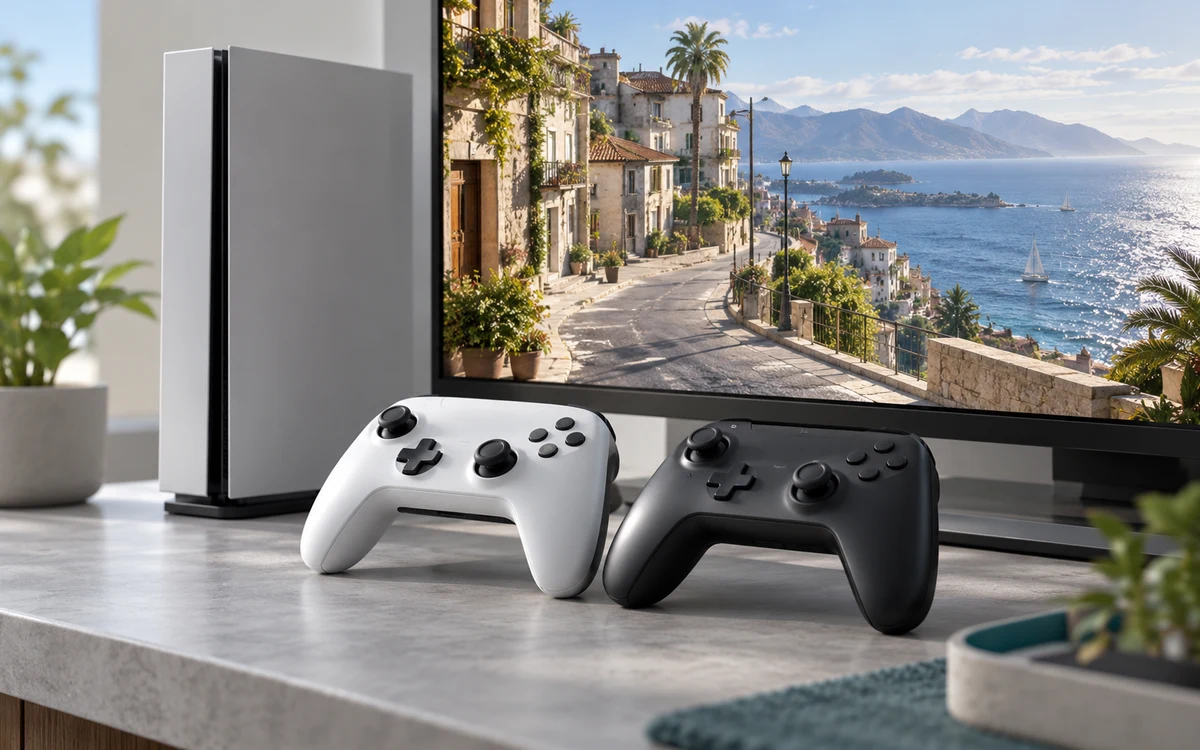
Confirm the HDMI connection first
Connect PS5 directly to a suitable TV input for the first test. Open the console’s video output screen and verify the detected display capabilities. A receiver, switch or capture card can limit the signal even when the TV itself supports the mode. If an option disappears after you add an intermediary device, reconnect directly before changing multiple settings.
Use your TV’s gaming picture mode where appropriate and run the console’s HDR adjustment if the setup supports HDR. Test in the lighting you normally play in. If a familiar HDR game looks washed out or loses shadow detail, check the input and the TV picture mode rather than pushing every brightness slider to maximum.
Make dialogue easy to hear
Confirm whether the console is sending sound to the TV, soundbar or headset. Play a familiar scene with dialogue and loud background audio. Set a comfortable volume, then decide whether to use subtitles when the game offers them. PlayStation’s GTA VI announcement discusses Tempest 3D Audio, haptics and adaptive triggers. Use the audio and controller options you find comfortable rather than enabling every effect at its strongest setting.
Do a short rehearsal
- Open a game you know and play for several minutes on your normal display input. Check that the signal stays stable through menus and gameplay.
- Test your usual headphones or speakers. If you share the room, check that the headset output does not unexpectedly switch back to the TV when unplugged.
- Check controller charge and trigger comfort. Keep your current controller if it works; a themed version does not change the underlying setup.
- Check install room in Settings before launch. See our PS5 space checklist if the drive is nearly full.
When the game is available, change one in-game option at a time. If you plan to broadcast, use the separate PS5 stream settings guide; viewers see the encoded stream, not necessarily the same picture you see on your TV.
Fix one display symptom at a time
| What you notice | First thing to check |
|---|---|
| The picture briefly goes black after switching inputs | Connect the console directly to the TV and check the current output signal. Add a receiver, switch or capture card back one device at a time. |
| Bright areas look clipped or the picture is washed out | Check whether the console and TV are using the intended HDR mode. Re-run calibration in the actual picture mode you use for play. |
| The controls feel slow but audio is fine | Test the display’s low-latency picture option in a familiar game. Do not use an OBS preview as your playing screen if you have direct passthrough. |
Consult Sony’s PS5 video output guide for controls and supported combinations. Record the initial values before changing them. If a change improves nothing or breaks another game, restore it instead of building more changes on top of a bad baseline.
Set up for long sessions, not one screenshot
Read a subtitle from the farthest seat you use. Then try a dark scene and a bright scene without moving the TV’s brightness slider in between. If the room changes from bright daylight to a dark evening, note whether you need a different picture preset or simply better control of reflections. These are comfort adjustments. They do not establish which in-game performance modes GTA VI will offer or change the console’s render target.
Add PCGearWiki as a preferred source on Google
Sources and Verification
Research basis: Product identity, dimensions, interfaces, supported features, and warranty terms are checked against available manufacturer documentation and current retailer listings. Price, stock, and aggregate customer ratings can change after publication.
Testing disclosure: Unless this article explicitly states that PCGearWiki performed hands-on testing and describes the test setup, recommendations are research-based editorial evaluations rather than PCGearWiki laboratory measurements. Customer feedback is used to identify recurring ownership patterns, not as proof of technical performance.
Last source review: November 12, 2026. See our Review Methodology, Editorial Policy, and Corrections Policy.


Write Your Review
No reviews yet. Be the first to share your experience!