

Last updated: November 12, 2026
PlayStation recommends clearing at least 212 GB for GTA 6. Start in Settings > Storage and check the free space on the drive you will actually install to. You may not need to buy another drive if you can move or uninstall games you do not play.
PlayStation consoles for GTA 6
As an Amazon Associate I earn from qualifying purchases.
-
PS5 Original
825 GB SSD, built-in disc drive
Keep your original PS5 if it works. For a replacement, check the seller, condition and return terms.
Check price on Amazon -
PS5 Slim
1 TB SSD, disc drive included
Choose this smaller model if you want to keep using compatible game discs and do not need Pro enhancements.
Check price on Amazon -
PS5 Pro
2 TB SSD, disc drive sold separately
Consider the Pro if you want more built-in storage and visual enhancements in supported games.
Check price on Amazon
Clear room without losing progress
- Open Settings > Storage, choose Console Storage or M.2 SSD Storage, and review Games and Apps. Start with large titles you can redownload or transfer back.
- Remove the game installation, not its saved data. The storage menu separates installed games from saves; leave the saved-data section alone unless you intend to delete progress.
- Review Media Gallery for unneeded videos and screenshots. Copy anything you want to retain before clearing it.
- Open the GTA 6 download queue and confirm your selected storage has room. If the console still reports insufficient space, clear additional space on that same drive rather than on a different device.
Move, archive or upgrade?
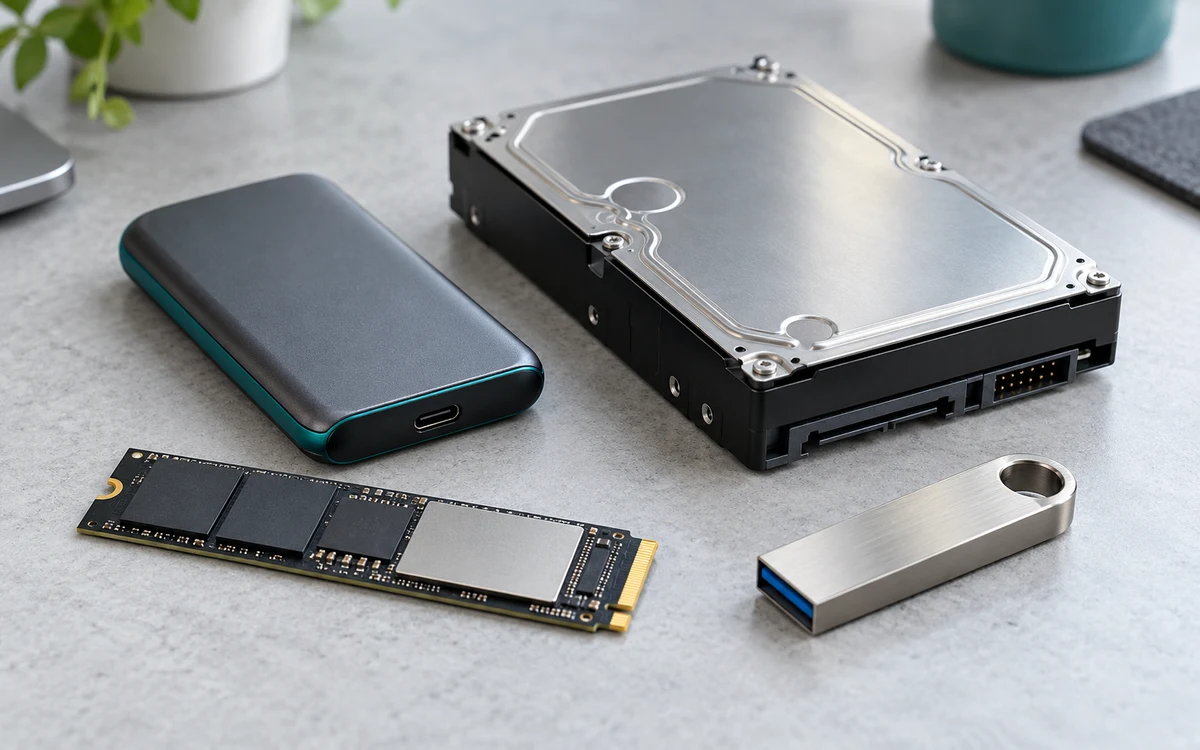
If you have USB extended storage, you can move compatible games to it. PS5 titles can be archived on USB but must be copied back to console storage or a compatible M.2 drive before play. Some PS4 games can run directly from USB, which can free internal space without taking those titles out of rotation.
If you regularly run out of space, a compatible internal M.2 SSD lets you install and play PS5 titles without copying them back each time. Check Sony’s fit and cooling requirements before ordering; a generic external SSD is not the same upgrade.
If you are making room on someone else’s console, confirm which games they want to keep and whether another account shares the installation. If a large download is already underway, check its status before deleting anything or switching its destination.
What to remove first if you only need a little space
| What takes up room | What to do |
|---|---|
| An unused game install | Move or remove the install from Games and Apps. Keep its saved data unless you intentionally want to erase progress. |
| Large clips and screenshots | Review Media Gallery and copy what you want to keep before deleting it. Delete captures, not another player’s saved progress. |
| PS4 games you play regularly | Consider moving them to compatible USB extended storage if you have it. That frees internal room without requiring a reinstall for every session. |
| A PS5 game you want to keep but rarely play | Archive it to USB or move it to a compatible M.2 SSD. If it is on USB, copy it back before you play it. |
Example: the wrong drive looks empty
Suppose console storage has 140 GB free and an installed compatible M.2 SSD has 260 GB free. Freeing more space on USB does not solve the shortfall on console storage. Instead, verify that the M.2 SSD is recognized and choose it for the GTA 6 installation, or clear enough room on console storage if you prefer the built-in drive. The example illustrates the destination check; the console’s own install prompt is the final check.
Before you format or delete anything
Formatting an existing drive for extended storage can erase its contents. Back up needed files first. If you’re clearing a shared console, make sure the account owner recognizes the titles and captures you intend to remove. You do not need to delete saves just to uninstall a game. If you rely on cloud saves, confirm that the relevant saves actually synced rather than assuming the subscription alone is a backup.
Sony’s PS5 storage management guide separates installs, saves and captures. Return to the storage screen after cleanup and check the free space on the destination once more before restarting the queue.
Sources: PlayStation’s GTA 6 storage guidance, Sony’s USB storage instructions and Sony’s M.2 installation requirements. Once there is room, return to the preload steps.
Add PCGearWiki as a preferred source on Google
Sources and Verification
Research basis: Product identity, dimensions, interfaces, supported features, and warranty terms are checked against available manufacturer documentation and current retailer listings. Price, stock, and aggregate customer ratings can change after publication.
Testing disclosure: Unless this article explicitly states that PCGearWiki performed hands-on testing and describes the test setup, recommendations are research-based editorial evaluations rather than PCGearWiki laboratory measurements. Customer feedback is used to identify recurring ownership patterns, not as proof of technical performance.
Last source review: November 12, 2026. See our Review Methodology, Editorial Policy, and Corrections Policy.


Write Your Review
No reviews yet. Be the first to share your experience!